Order analysis
Compare the period's orders by status, payment method, shipping method and customer type, with their sales and average order value.
The Order analysis report takes the period's orders and sorts them into four tables. The first groups them by status, the second by payment method, the third by shipping method and the last by customer type. For each group, every table gives the number of orders, items, customers, sales and average order value.
Use it to answer operational questions. What share of my orders gets cancelled? Which carrier do my customers choose? Do customers who create an account spend more than those who check out as guests?
Before you start
You need a connected store whose historical import is finished. See the E-commerce page.
Open the report
Expand the E-commerce section
In the left sidebar, in the Data group, click E-commerce.
Choose Order analysis
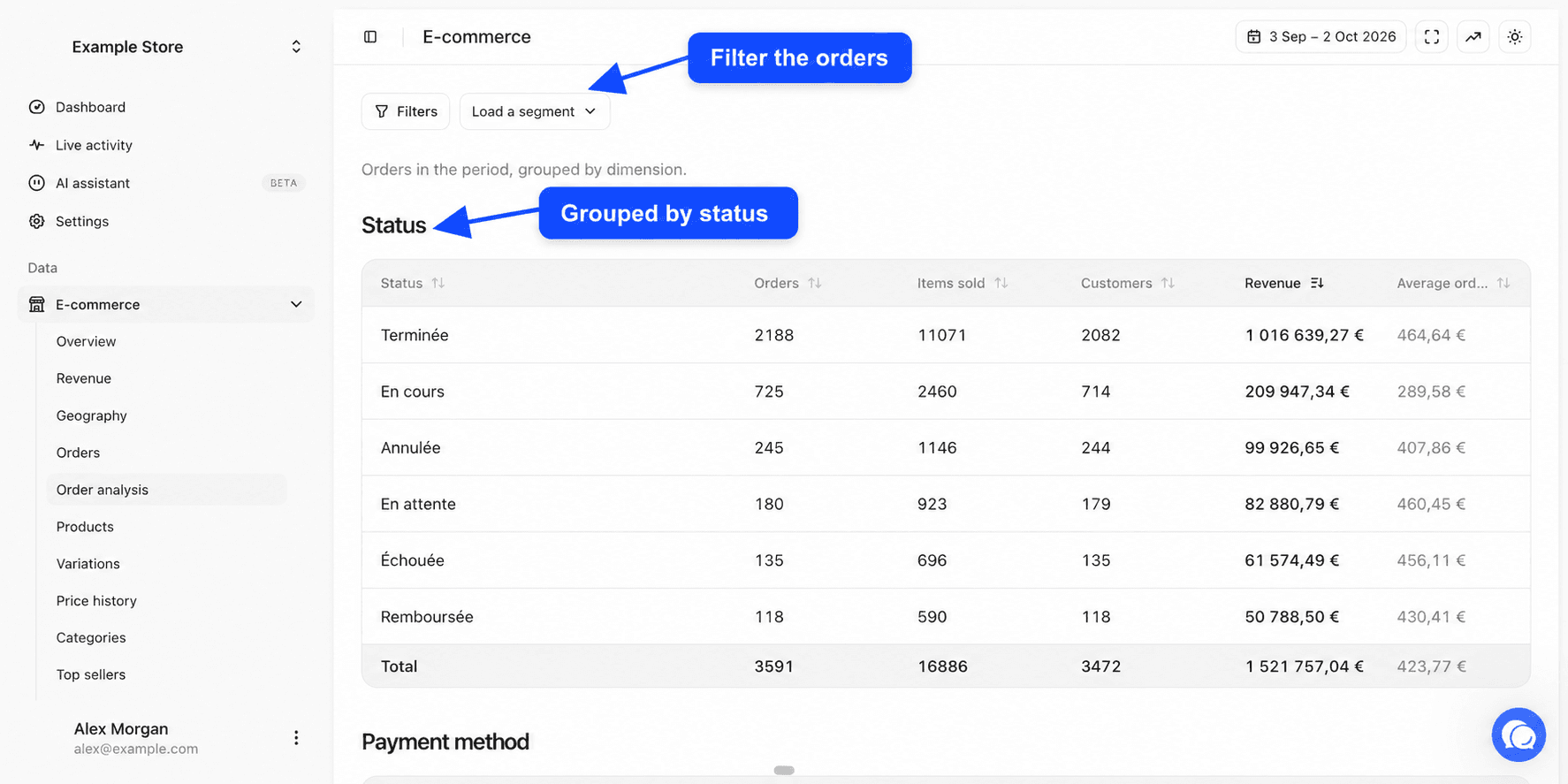
Click Order analysis, just below Orders. The page shows the sentence "Orders in the period, grouped by dimension." followed by the four tables.
Set the period, stores and filters
At the top right, the All sources selector picks the stores and the date picker picks the dates. By default you see the last 30 days up to yesterday. This report doesn't compare with another period. See Choosing stores and Date range and comparison.
Below the header, the Filters button limits the four tables to part of your orders, for example orders from one country or orders containing a product. The Load a segment button applies a saved order segment. See Filters and segments.
Table columns
The four tables have the same columns. Only the first one changes name with the grouping.
| Column | Content |
|---|---|
| First column | The group, for example a status or a payment method |
| Orders | The number of orders in the group placed during the period |
| Items sold | The quantity of items in those orders |
| Customers | The number of different customers, recognized by their email address |
| Revenue | The sum of those orders' amounts, after your tax, shipping and fee deductions |
| Average order value | The group's Revenue divided by its Orders |
Each table is sorted by revenue, highest first. Click a header to sort differently, then click again to reverse the order. The Total row at the bottom adds up the rows.
Why revenue differs from the Revenue report
Here, each order keeps its amount, and we don't remove refunds. The tax, shipping and fee deductions set in Settings, Reports tab, do apply. The total can therefore be higher than in Revenue.
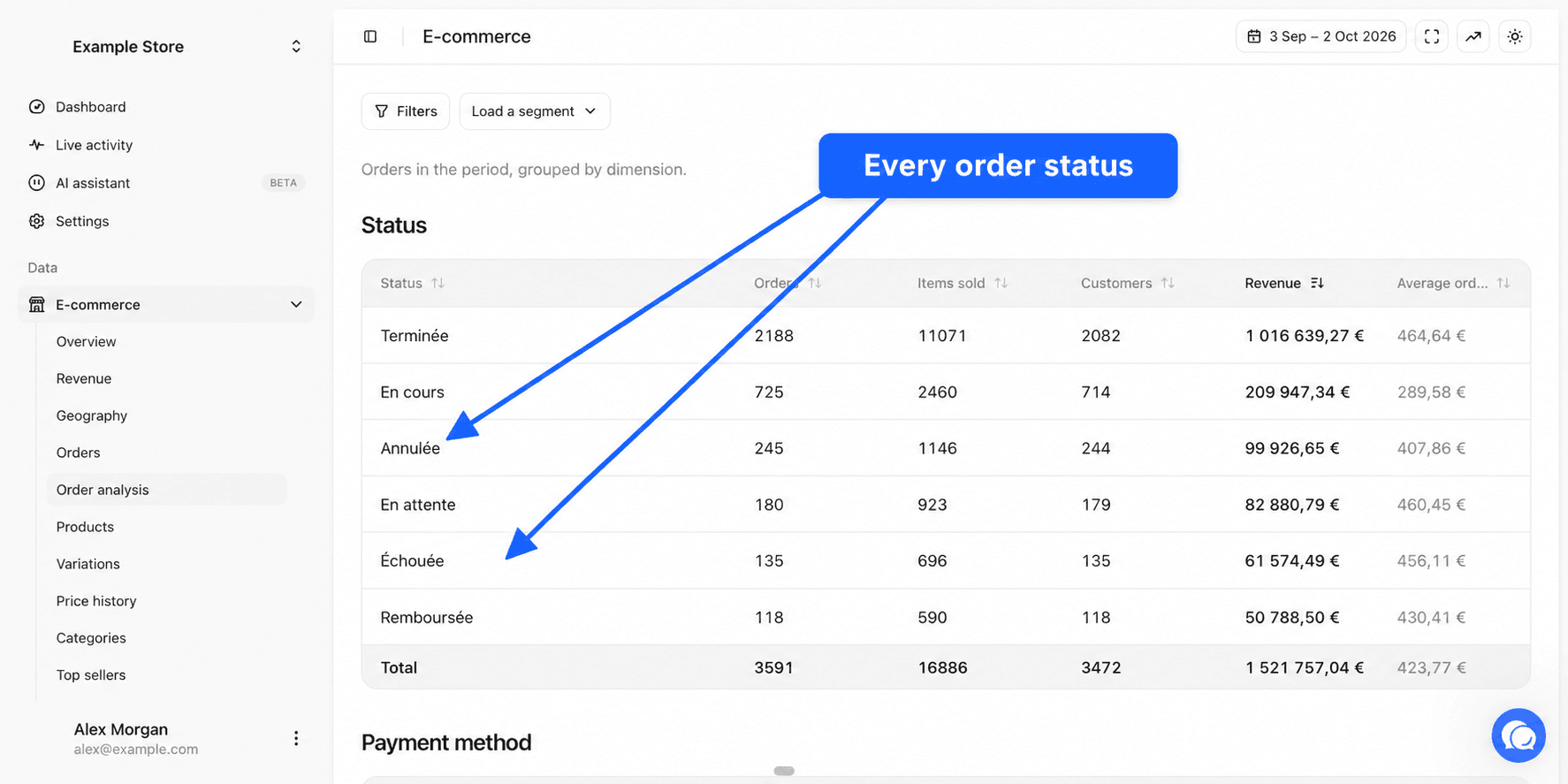
The Customers column of the Total row adds up the customers of each row. A customer who placed two orders with two different payment methods is counted twice in that total.
By status
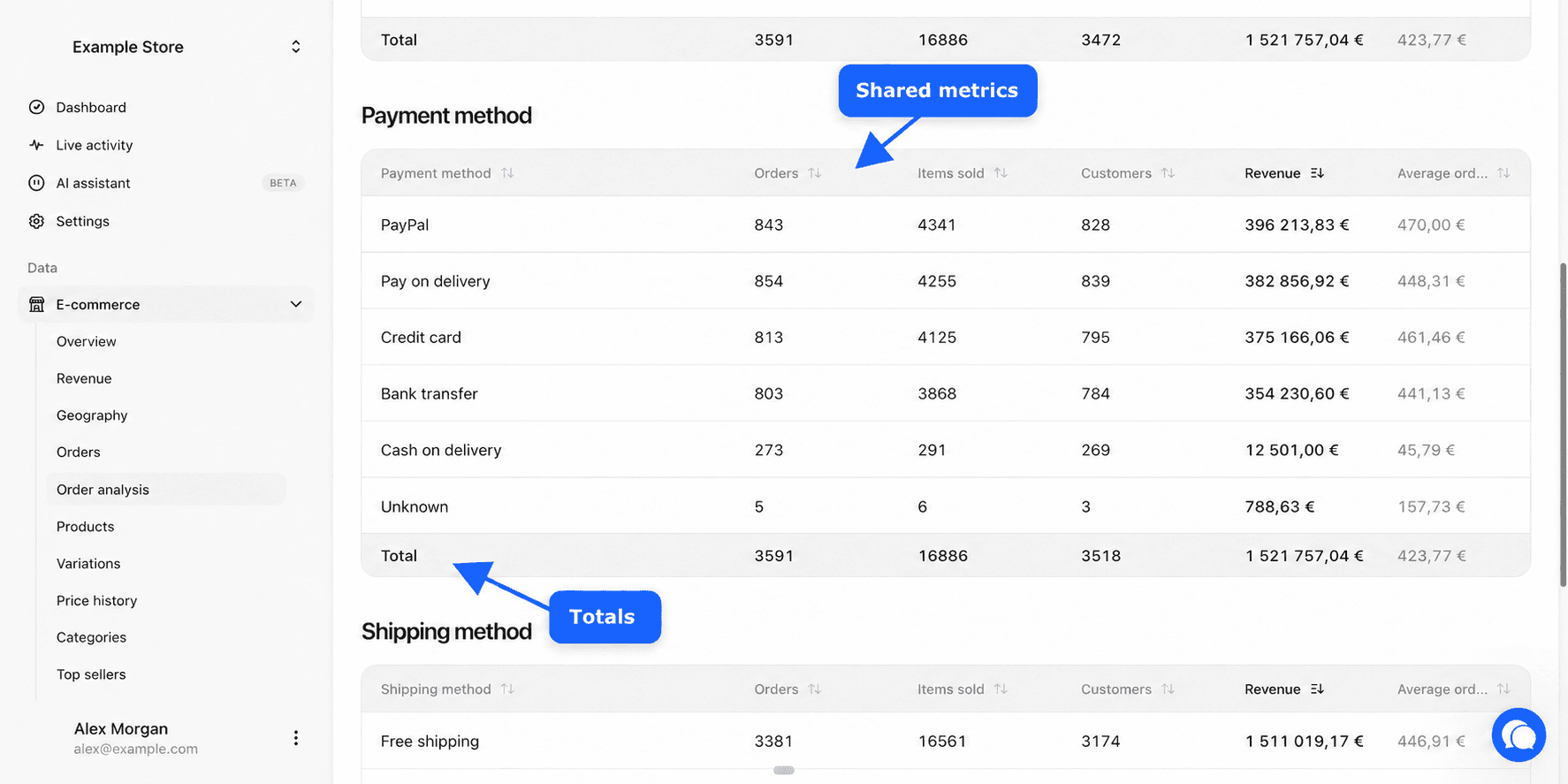
The Status table groups orders by status. It has one particularity. It shows every status, including those you excluded from reports in Settings, Reports tab. You therefore see at a glance how many cancelled, failed or pending orders you had, even if they don't count in your revenue. Only draft orders are never shown.
Status names are the ones set in Settings, Statuses tab. A status without a set name shows the name sent by your store. See Order statuses.
The other scope rules still apply. Zero-amount orders (if that option is on) and orders from ignored customers don't appear.
Usage example. If Cancelled makes up 8% of your orders this month against 2% usually, open Orders with a filter on that status to understand what happened.
By payment method
The Payment method table groups orders by the name of the payment method shown by your store, such as "Credit card" or "PayPal". Two different labels for the same method give two rows. Orders without a payment method are grouped under "Unknown".
This table only contains counted orders. Excluded statuses don't appear.
By shipping method
The Shipping method table groups orders by the chosen shipping method, as your store names it, for example "UPS Standard" or "Store pickup". Orders without a shipping method, such as an order of downloadable products, are grouped under "Unknown".
Use it to see which shipping method is chosen most, and whether customers who choose express shipping have a larger basket.
By customer type
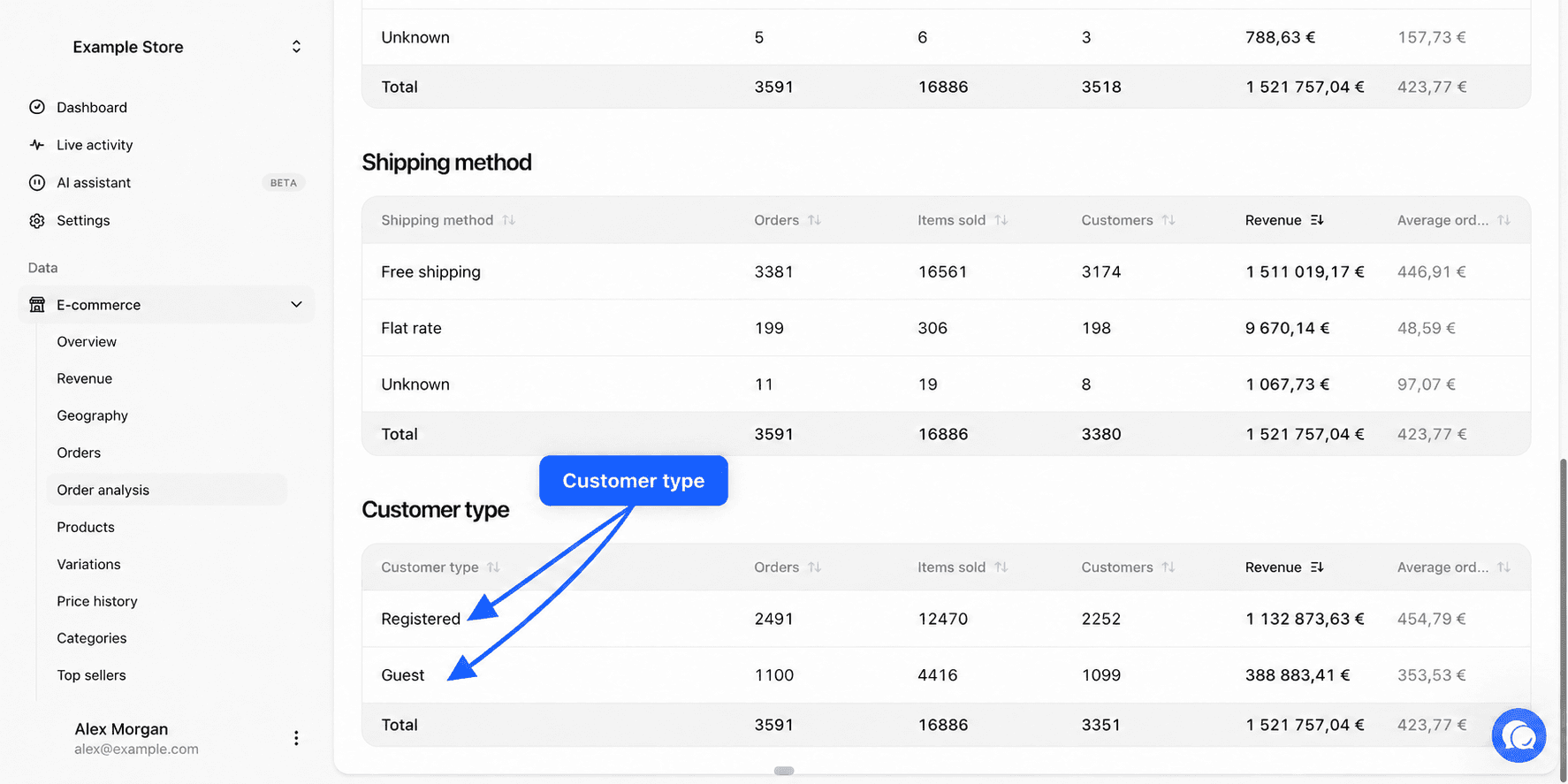
The Customer type table splits orders into two rows.
| Row | Orders included |
|---|---|
| Registered | Orders placed by a customer logged into a customer account on your store |
| Guest | Orders placed without a customer account |
This split relies on the store's customer account, not on purchase history. To separate new and returning customers, use the Revenue by customer type table of the Revenue report.
Example questions
- How many orders did I lose to failed status this month? Read the matching row of the Status table.
- Which payment method brings the largest average order? Sort the Payment method table by Average order value.
- How many customers choose store pickup? Read the Customers column of the Shipping method table.
- Do my registered customers order more items than guests? Compare Items sold and Orders in the Customer type table.
- How are payments split for orders shipped to Spain? Add a country filter with Filters.
Frequently asked questions
Going further
- Orders for the detailed list.
- Customer analysis for the same kind of grouping applied to customers.
- Order statuses to rename and group your statuses.