Live activity
Follow your store's visitors, open carts and today's orders in real time, on a map and in an activity feed.
The Live activity report shows what is happening on your store right now. You see how many people are browsing, what they look at, the carts in progress and today's orders. The page updates by itself, without you having to reload it.
Open it on launch day, during a flash sale or right after sending a newsletter, to see the immediate effect on your site.
Before you start
You need a connected store. Visitors, the map and the activity feed come from the Fullmetrix tracking script installed on your store. Without it, only orders and carts are shown. See Site tracking.
Open the report
The Live activity entry sits at the very top of the sidebar, right under Dashboard, and not in the Data group. It only appears once a store is connected. Click it to open the report.
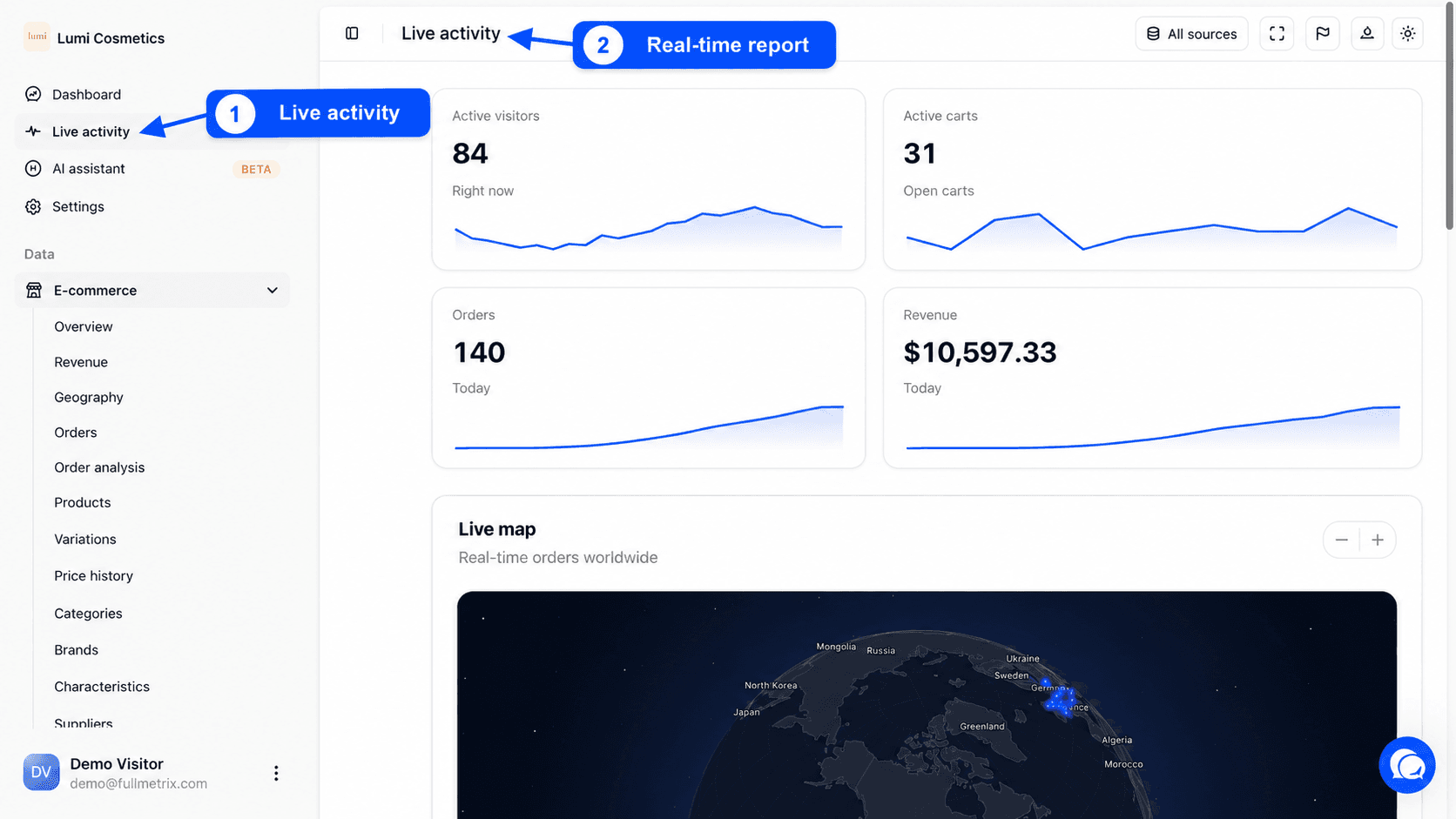
At the top right, the All sources selector picks the stores you follow when you have several. See Choosing stores. This report has no date picker and no filters, because it always shows the present moment and the current day.
The page refreshes about every 15 seconds while it is open in a visible tab. The TV mode button in the header shows it full screen, handy on an office screen. See Charts and TV mode.
The four indicators
| Indicator | Definition |
|---|---|
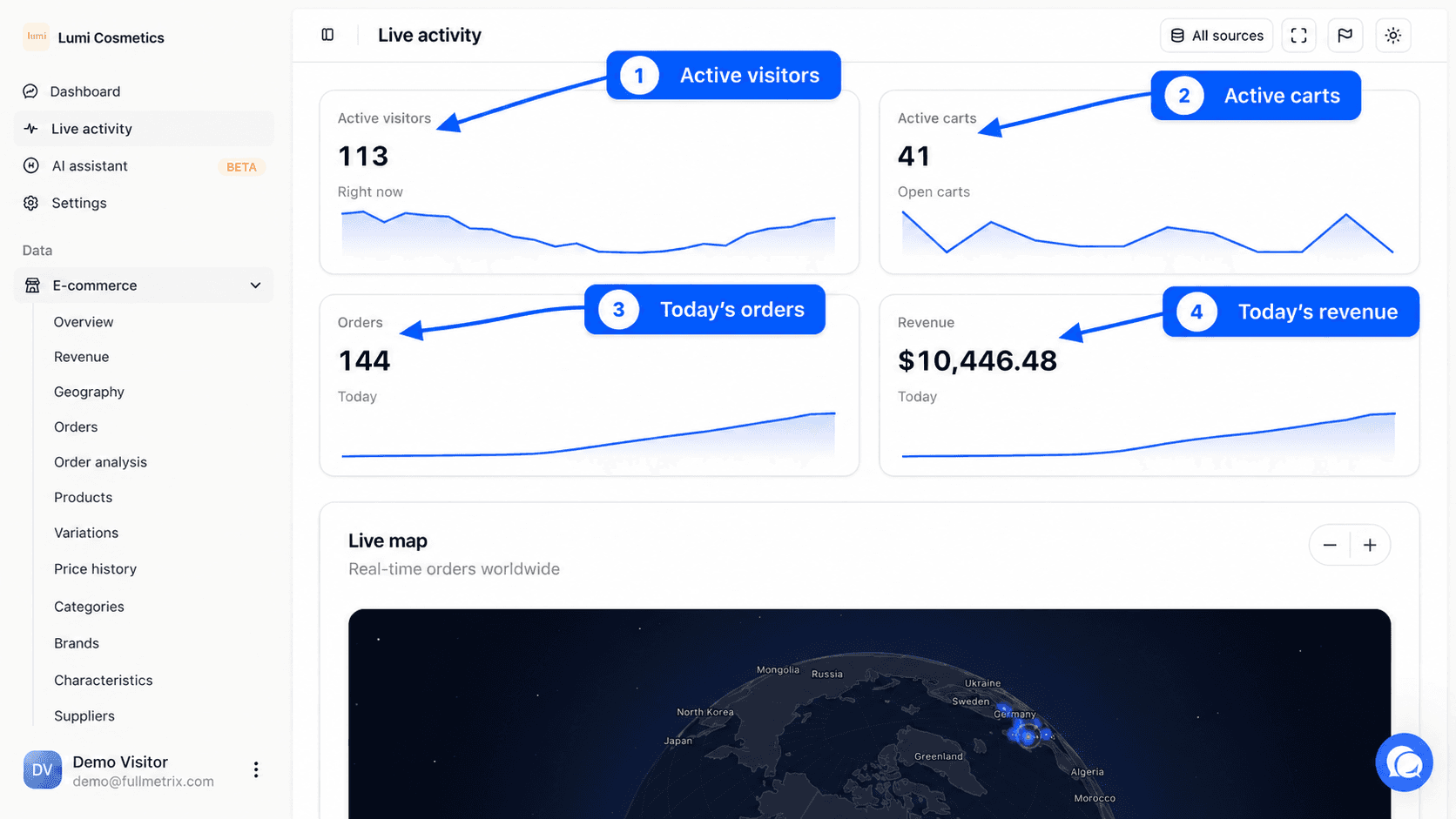
| Active visitors | The number of different visitors who did something on your site in the last 5 minutes. The Right now note reminds you of this. |
| Active carts | The number of carts still open, meaning neither ordered nor deleted, changed during the last 3 days. |
| Orders | The number of counted orders placed since midnight today, in your organization's time zone. |
| Revenue | The amount of today's orders, after your tax, shipping and fee deductions. Refunds are not removed here. |
A counted order follows the same rules as in every report. Its status isn't excluded, its amount is greater than zero and its customer isn't ignored. See Report settings.
Under each value, a small curve shows the recent trend. For visitors and carts it covers the last two hours. For orders and revenue it follows the hours of the day.
The live map
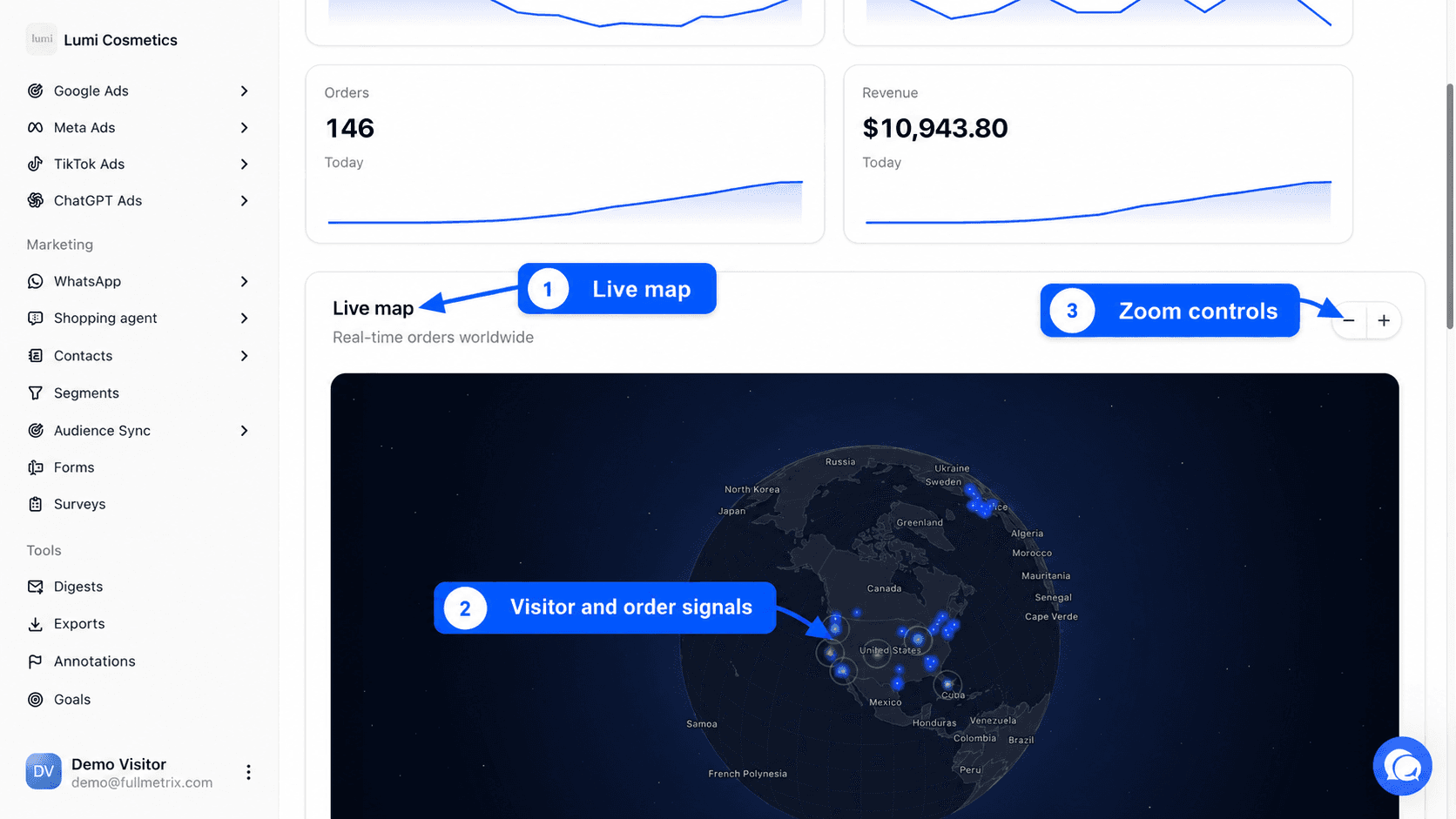
The Live map is a globe that places your active visitors at their approximate location, worked out from their connection. Orders placed in the last quarter of an hour appear as a signal at the billing address location. The globe centers on the area with the most visitors.
Use the minus and plus buttons at the top right to zoom out and in.
The activity feed
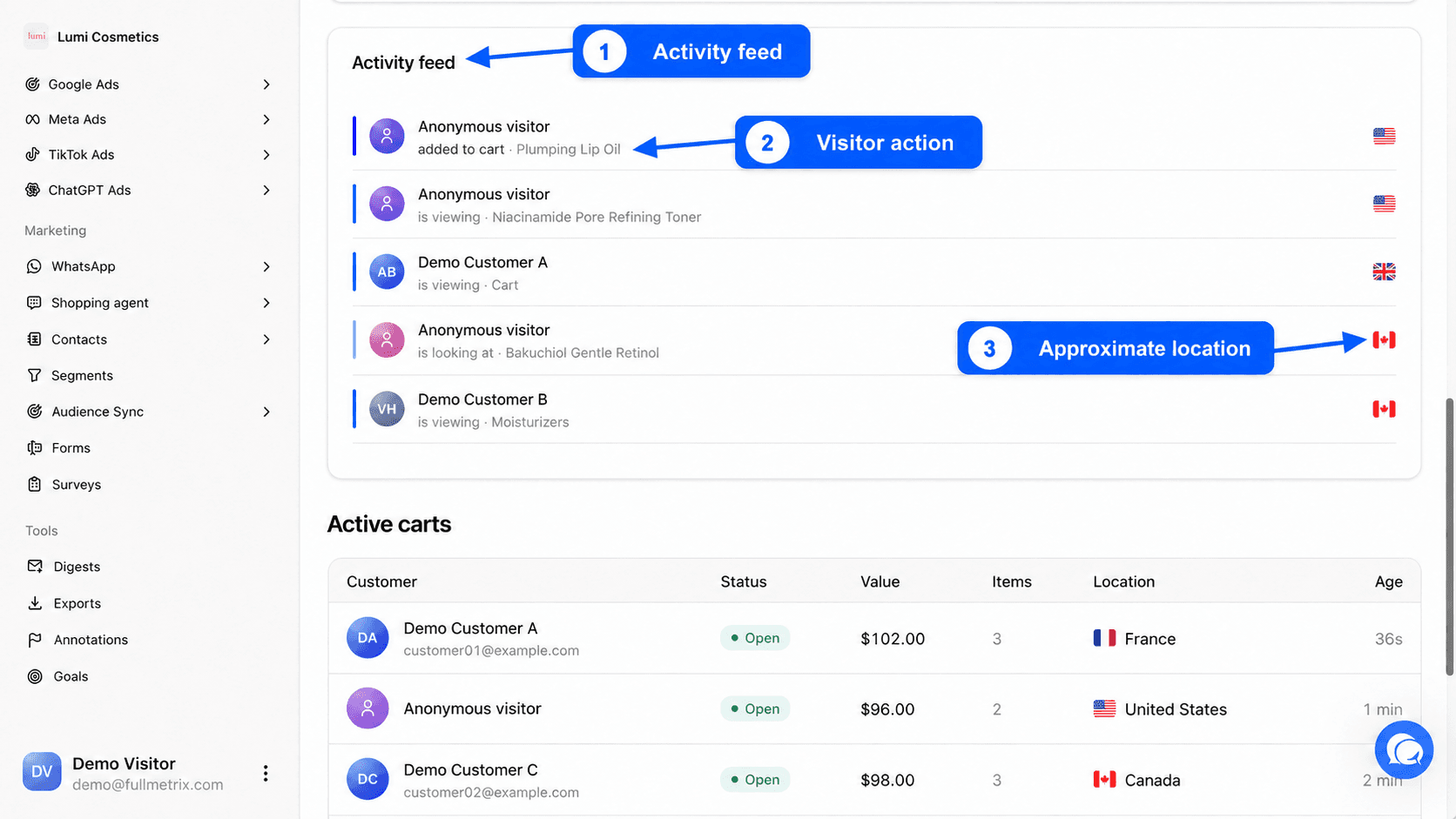
To the right of the map, the Activity feed lists visitors' latest actions, most recent first, over the last 30 minutes. Each row shows the visitor's name, what they are doing and, when we know them, their city and their country's flag.
| Text shown | What it means |
|---|---|
| is viewing | The visitor opened a page, whose title follows |
| is looking at | The visitor opened a product page, whose name follows |
| added to cart | The visitor added a product to their cart |
| removed from cart | The visitor removed a product from their cart |
| started checkout | The visitor started paying, with the amount in green |
| ordered | The visitor placed an order, with the amount in green |
When the visitor is recognized as one of your contacts, we show their name. Otherwise they appear as Anonymous visitor. When several stores are followed, a small label shows the store. When nothing is happening, the feed shows Waiting for activity....
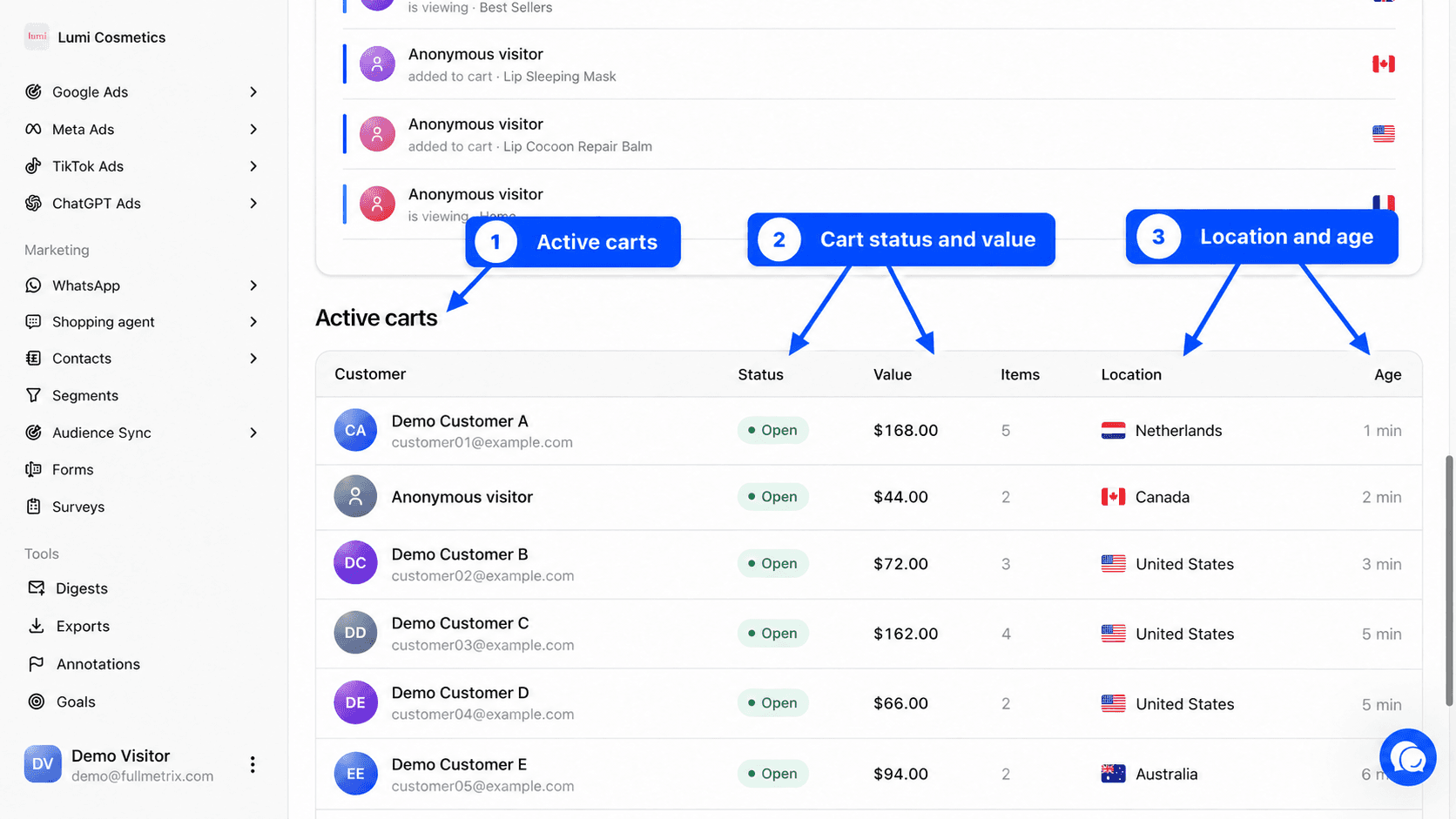
Active carts
The Active carts table shows the 12 open carts changed most recently.
| Column | Content |
|---|---|
| Customer | The customer's name if known, otherwise Anonymous visitor |
| Store | The cart's store, when you follow several stores |
| Status | The cart's state |
| Value | The cart's value |
| Items | The number of items in the cart |
| Location | The cart's country, when known |
| Age | The time since the cart was last changed |
If there is no open cart, the table shows No active carts. For the full history of carts and abandoned carts, open Carts.
Example questions
- My newsletter just went out. Are visitors arriving? Watch Active visitors and the Activity feed.
- How much have I sold since this morning? Read Orders and Revenue.
- Are customers hesitating at checkout? Look in the feed for a started checkout row that isn't followed by an ordered row for the same visitor.
- Which large carts are still open? Look at the Value column of Active carts.
Frequently asked questions
Going further
- Carts for cart history.
- Orders to find one of today's orders.
- Multi-store to follow several stores at once.