Variations
Compare the sales and stock of each variation of your products, by size, color or volume, and open the detail page of a variation.
The Variations report shows one row per product variation. A variation is a version of a product that has its own stock and often its own SKU, for example the blue t-shirt in size M. Where the Products report adds up every size and every color, this one keeps them apart.
Open the report
In the sidebar, open E-commerce in the Data group, then click Variations.
The entry is missing from your menu?
Variations only shows up if at least one product in your stores has variations. A store that only sells simple products does not need it. If you just created variations, the entry appears after the next sync.
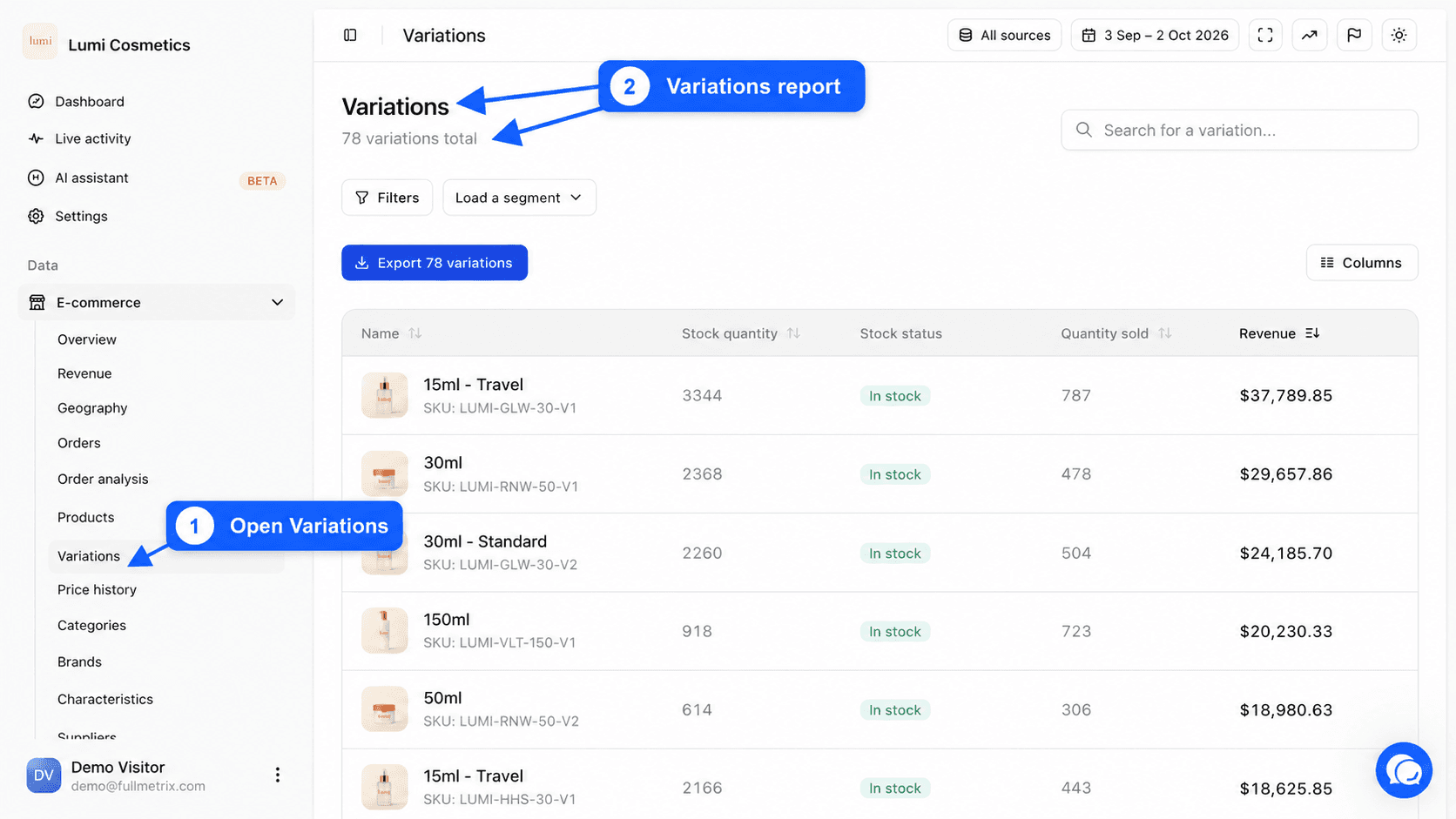
Below the Variations title, a sentence shows the total number of variations matching your search and filters, for example "1,284 variations total".
What this report is for
- Which size or color sells best?
- Which variation is out of stock while the others are still available?
- Should we restock the M rather than the XL?
- Which variations have never sold and can leave the catalog?
Read the table
| Column | What it shows |
|---|---|
| Name | The photo of the variation (or of the main product if the variation has none), its name and its SKU. |
| Stock quantity | The current stock of this variation alone. |
| Stock status | An In stock, Out of stock or On backorder badge, based on the status sent by your store. On backorder means the variation can be sold as a pre-order. |
| Quantity sold | The number of units of this variation sold over the period. |
| Revenue | The sum of the order line amounts for this variation over the period. |
Quantity sold and revenue are calculated the same way as in the Products report, except that they stop at the variation. Orders excluded in Settings, Reports tab, do not count. How the amount of a line depends on your platform is explained in Products.
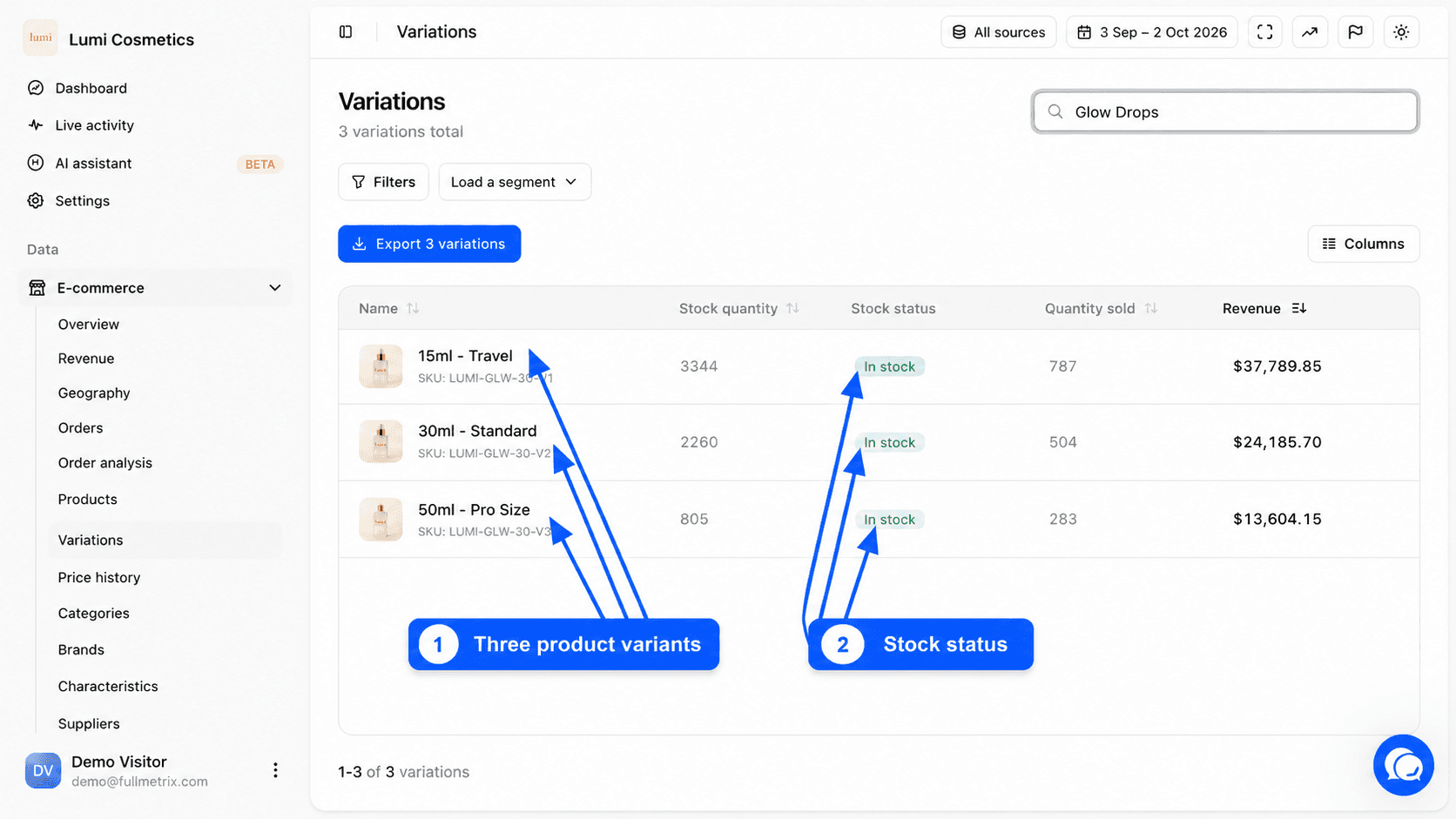
Unlike the Products report, this list shows every variation, even those that did not sell during the period. They appear at the bottom of the default sort, with 0 as quantity sold.
Sort, search and filter
Click the Name, Stock quantity, Quantity sold or Revenue header to sort. The default sort is revenue, from highest to lowest.
The Search for a variation... field searches the variation name, its SKU and the name of the main product at the same time. Type "Linen jacket" to find every size of the linen jacket.
The filter bar works as in the other reports. Click Filters, then Add a filter. A few useful filters here.
- Parent name contains "Jacket", to show only the variations of one product.
- Attribute is in "XL", to compare the same size across the catalog.
- Stock status is in Out of stock, to see sold out variations.
- Quantity sold equals 0, to find variations that do not sell.
See Filters and segments.
Available columns
The Columns button offers Default, All fields and Customize. Here are the columns you can add.
| Group | Columns |
|---|---|
| General | E-commerce source, Parent name, Brand, SKU, Price, Regular price, Sale price, On sale, Publication status, Weight, Product category, Attribute |
| Identifiers | EAN code, UPC code |
| Stock | Stock status, Stock quantity |
| Sales | Quantity sold, Revenue |
| Dates | Date created, Date modified, First sold, Last sold |
| Integrations | Merchant Center ID |
See Columns.
Export
The Export button, for example "Export 1,284 variations", downloads the whole filtered list with the displayed columns. See Exports.
The variation detail page
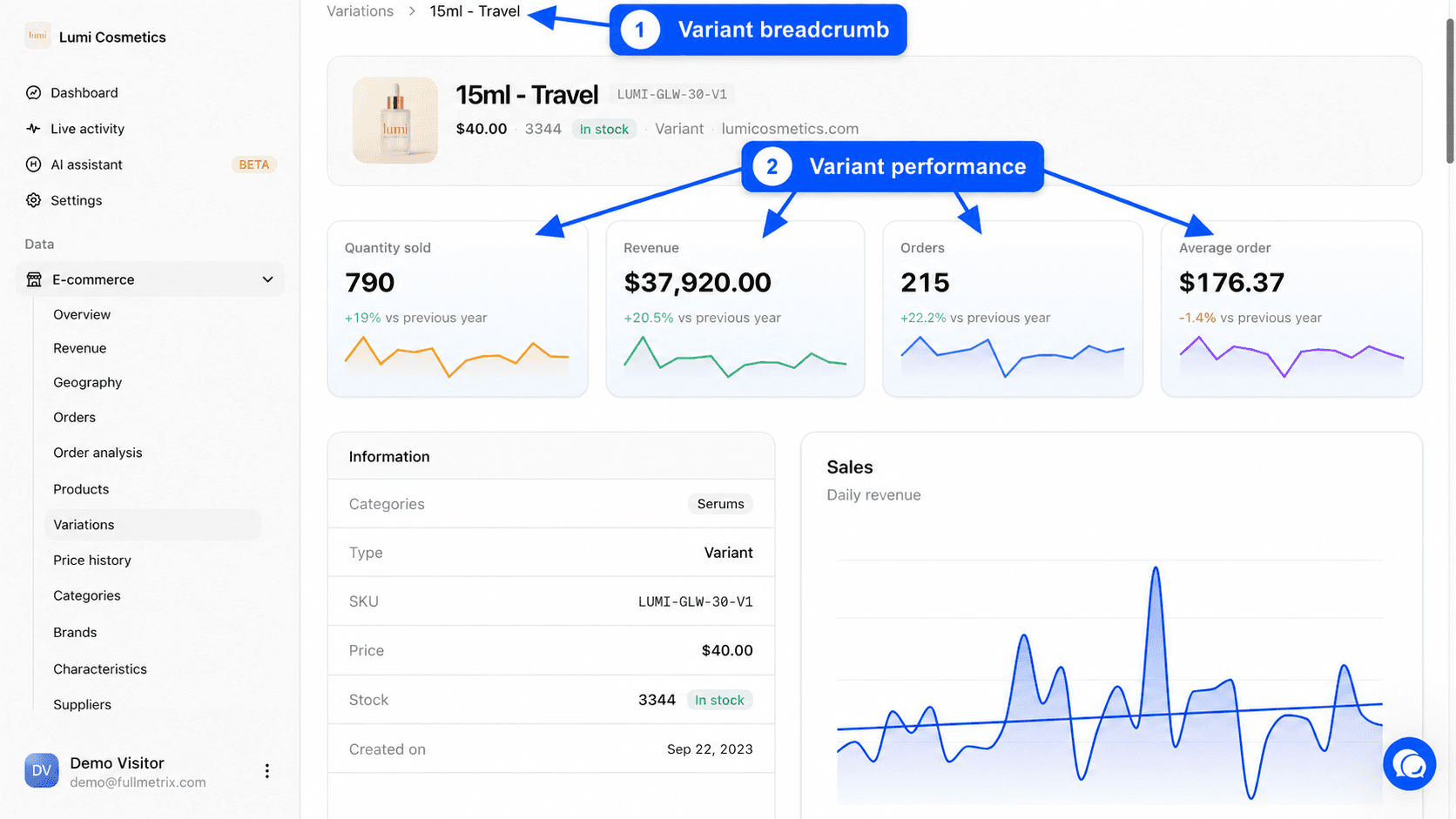
Click a row to open the detail page of the variation. It uses the same layout as the product detail page, with four differences.
- The breadcrumb shows Variations, then the main product name, then the variation.
- The type shown is Variant.
- The Quantity sold, Revenue, Orders and Average order metrics only cover this variation.
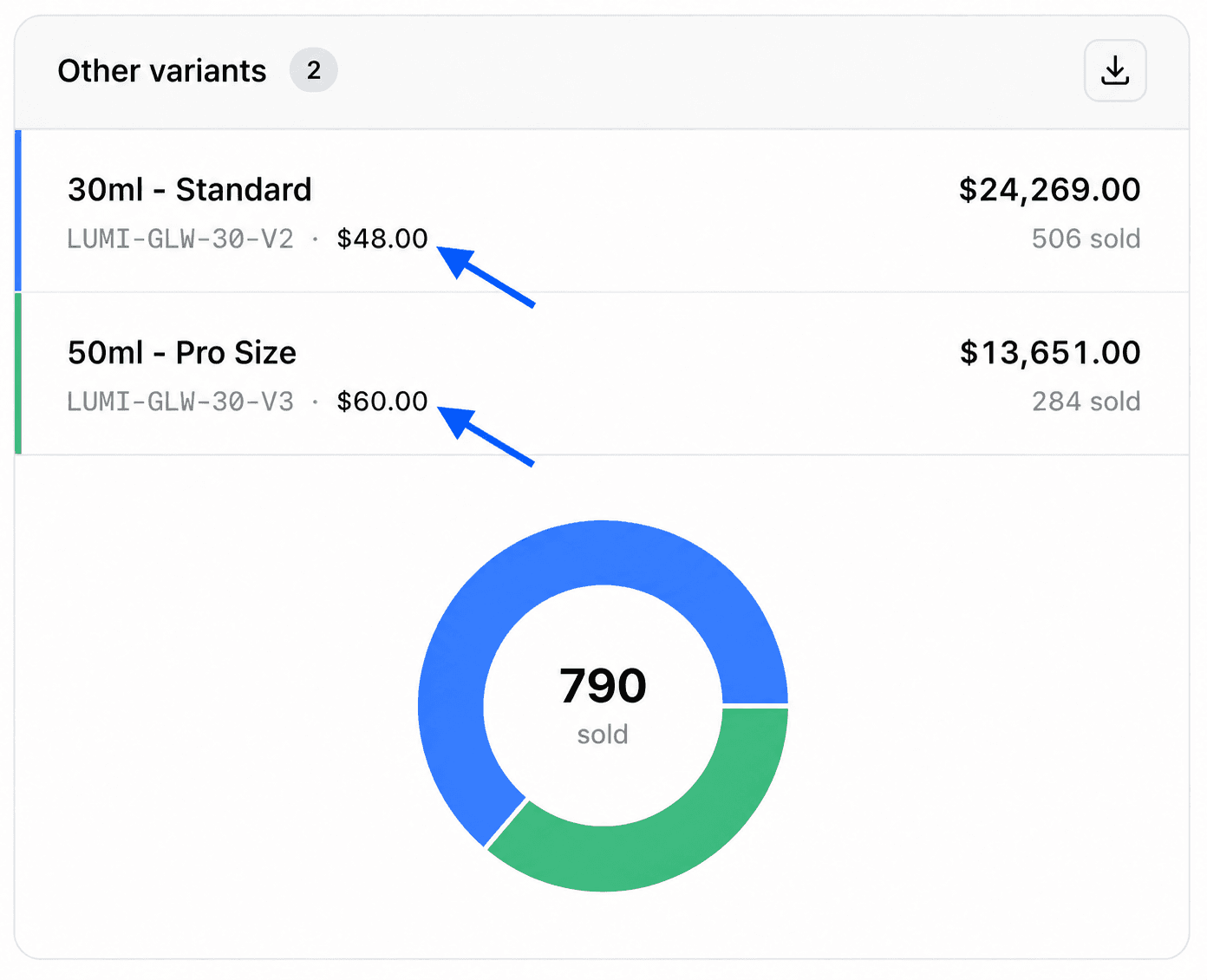
- The Other variants block lists the other variations of the same product with their sales, for a quick comparison.
Differences between platforms
Each platform names variations its own way. They are combinations on PrestaShop, variations on WooCommerce, variants on Shopify and Sylius, and child products of a configurable product on Magento. Fullmetrix puts them all in this same report.
If the page is empty
No variations found appears when no variation matches the search or the filters. Clear the search, click Clear filters, then check the store selection. If your store was just connected, the message "Variations will appear here once data is synced" means the import is not finished.