Top sellers
See on one page the 20 products, variations and categories that brought in the most revenue over the period, and open their detail page in one click.
The Top sellers report is your leaderboard. It shows three side by side rankings of the 20 items that brought in the most revenue over the period. The first ranks your products, the second your variations and the third your categories. Open it when you want a quick answer without setting up columns or sorting.
Open the report
In the sidebar, open E-commerce in the Data group, then click Top sellers. The entry is always visible once a store is connected.
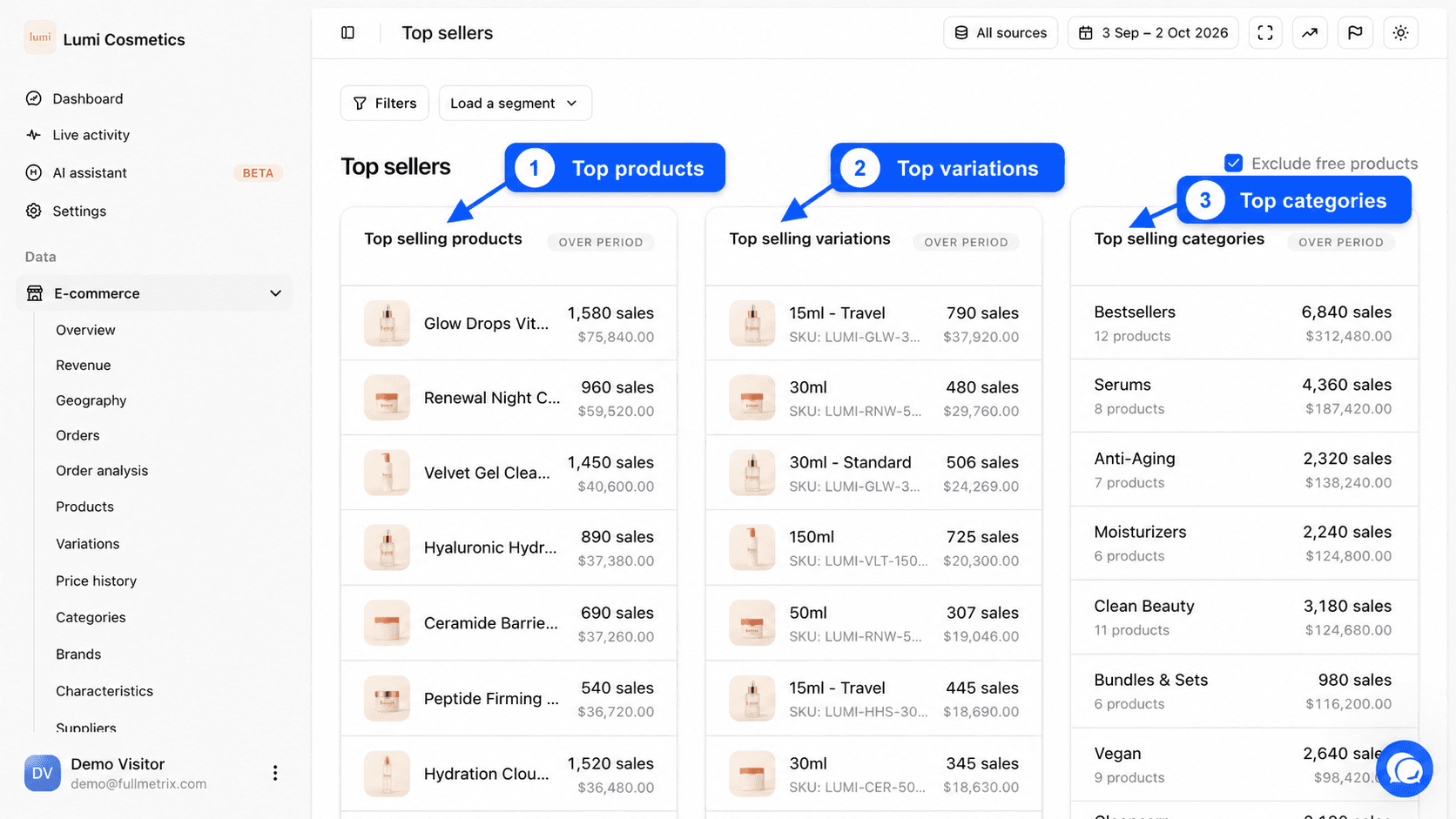
At the top right, All sources picks the stores and the date picker sets the period. By default it covers the last 30 days up to yesterday.
What this report answers
- What are our 20 best products this month?
- Which exact variation sells best?
- Which category deserves the home page?
- Are our top sellers the same during the sales as the rest of the year?
- Which products should we push in the next ad campaign?
Read the three rankings
| Card | What it ranks |
|---|---|
| Top selling products | Parent products. Sales of all their variations add up on the product. |
| Top selling variations | Each variation on its own, for example the blue model in size M. |
| Top selling categories | Your store categories. A sale counts in every category of the product and in its direct parent category. |
Each card reads Over period and ranks up to 20 items, from the highest revenue to the lowest. Each row shows the picture and the name, then two figures on the right.
- On top, the number of units sold, for example "128 sales". These are units, not orders. An order for three copies counts as 3.
- Below, the revenue of the item over the period.
Under the name, a grey line shows the SKU for a product or a variation, and the number of products for a category.
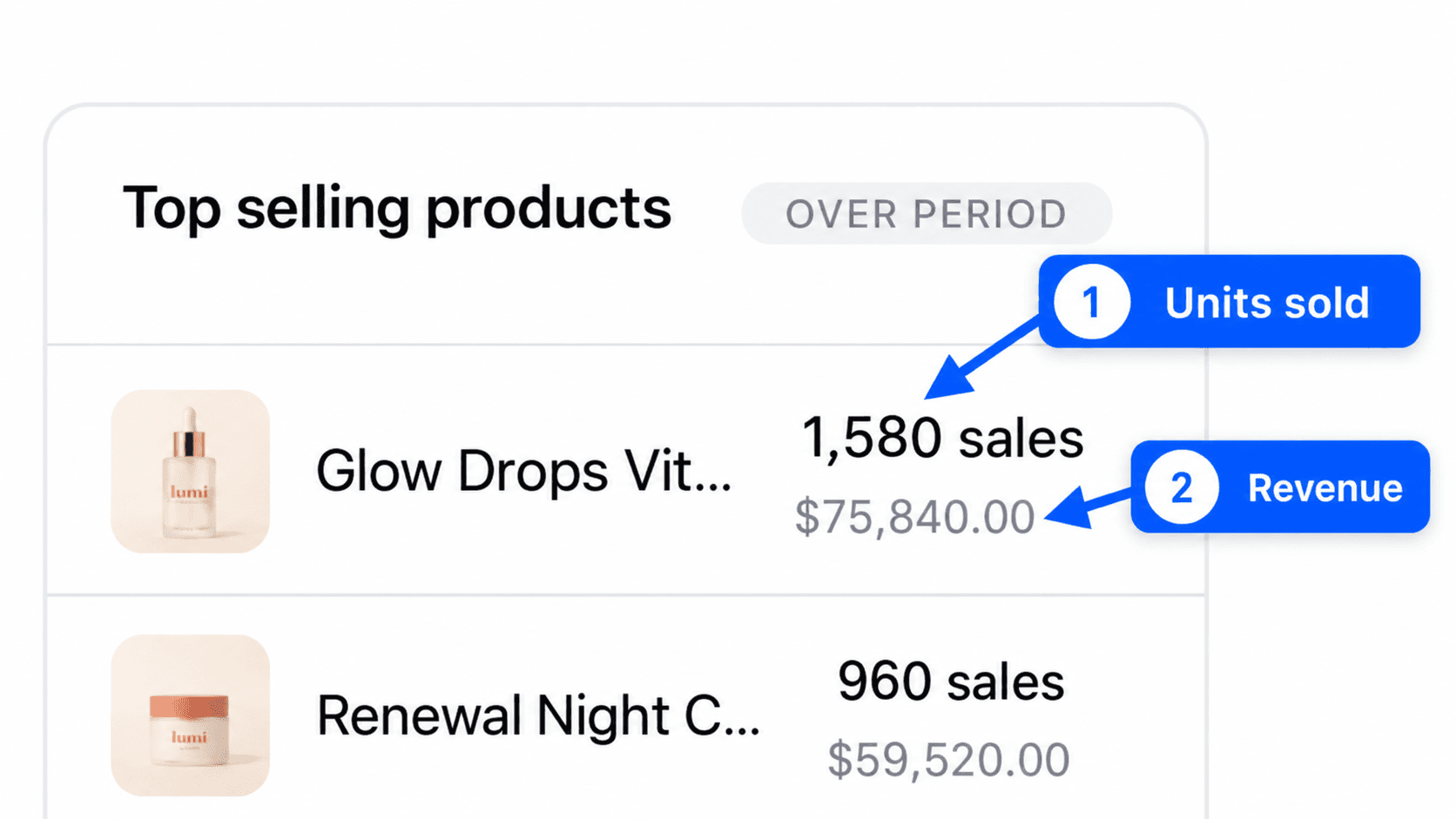
The ranking is based on revenue. An expensive product sold in small quantities can therefore rank above a cheap product sold in bulk. To rank by quantity, open the Products report and sort by Quantity sold.
Revenue is the sum of the order line amounts, following the rules described in Products. Orders excluded in Settings, Reports tab, are not counted.
Exclude free products
The Exclude free products checkbox, to the right of the title, is checked by default. It removes order lines at 0 from the calculation, such as samples, gifts or products given away by a promotion. Uncheck it if you also want to see what leaves your stock for free.
Filter the orders taken into account
The filter bar, above the title, filters orders, not products. It answers "what are the top sellers for this kind of order". For example.
- Billing country is in Belgium, for your top sellers in Belgium.
- Coupon code is in "SALES25", to see what sold with that code.
- Payment method is in a given payment method.
Click Filters, then Add a filter, and confirm with Apply. See Filters and segments.
Go further from a ranking
Click a row to open the detail page of the product, variation or category, with its sales charts, countries and customers. The link at the bottom of each card (View all products, View all variations, View all categories) opens the matching full report.
If a card is empty
No products, No variations or No categories appears when nothing sold over the period with the current filters. The variations card stays empty if your catalog only has simple products, which is expected.