Brands
Compare the sales of each brand in your catalog across all your stores, and open a brand detail page to see its best products.
The Brands report groups your sales by brand. For each brand, it shows how many products you carry, how many units sold, in how many orders, and for how much revenue. Open it before a meeting with a brand, to plan a restock, or to decide which brands to promote.
Open the report
In the sidebar, open E-commerce in the Data group, then click Brands.
Brands is missing from your menu?
It only shows when at least one product in your stores has a brand filled in. Fill in the brand of your products in your store (see the table by platform below). The entry appears after the next sync.
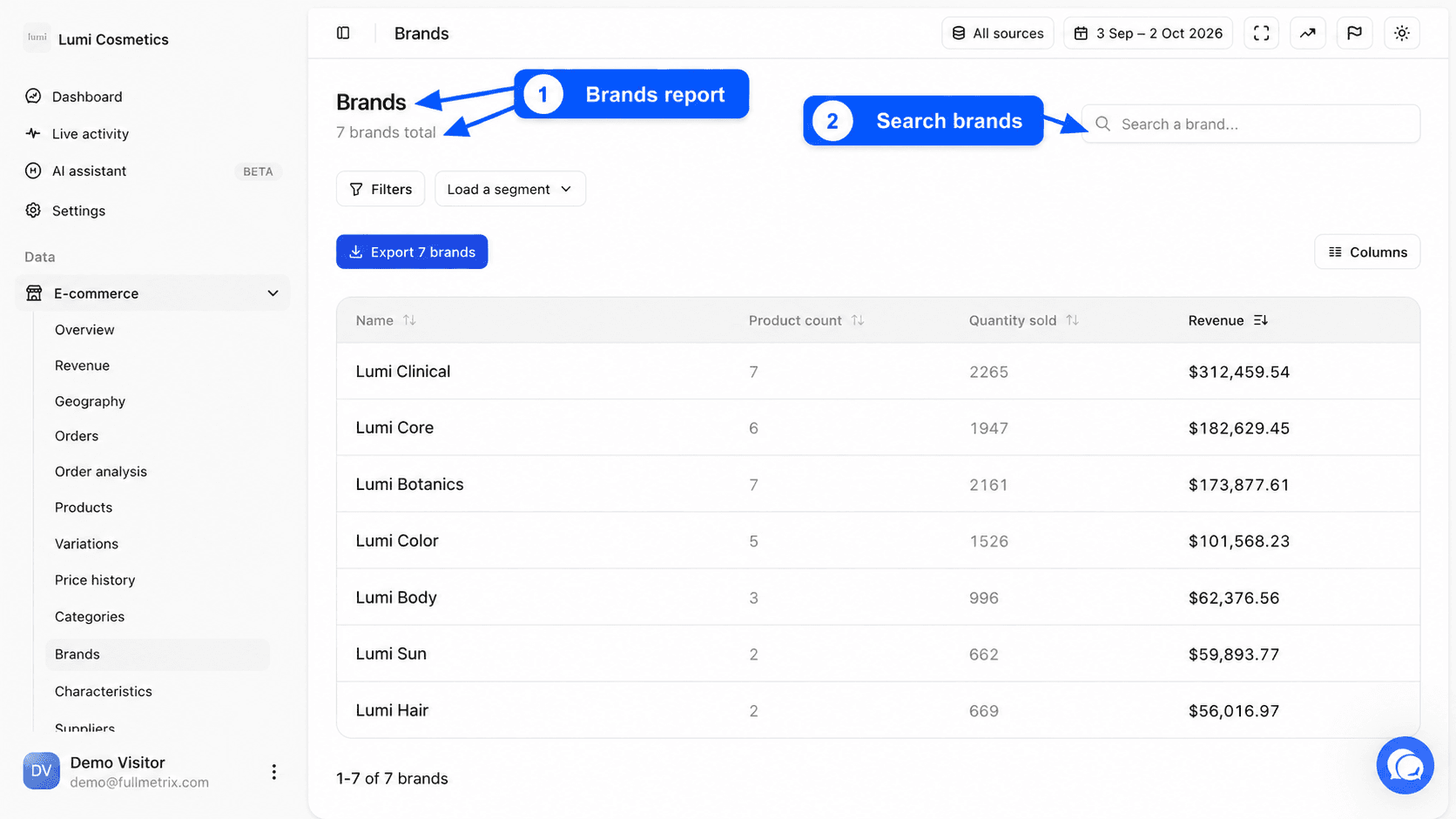
Under the Brands title, a line gives the number of brands, for example "36 brands total".
What this report answers
- Which brand brings in the most revenue this year?
- Which brand has declined compared to last year?
- In how many orders does this brand appear?
- Which products of this brand make most of its sales?
- In which countries does this brand sell?
Read the table
| Column | What it shows |
|---|---|
| Name | The brand name. |
| Product count | The number of product records linked to the brand, products and variations included. A variation counts as soon as its parent product has the brand. |
| Quantity sold | Units sold over the period for the brand's products and their variations. |
| Revenue | The sum of the order line amounts for these products over the period. |
You can add the Order count column, which counts the orders containing at least one product of the brand. An order with three products of the same brand counts once.
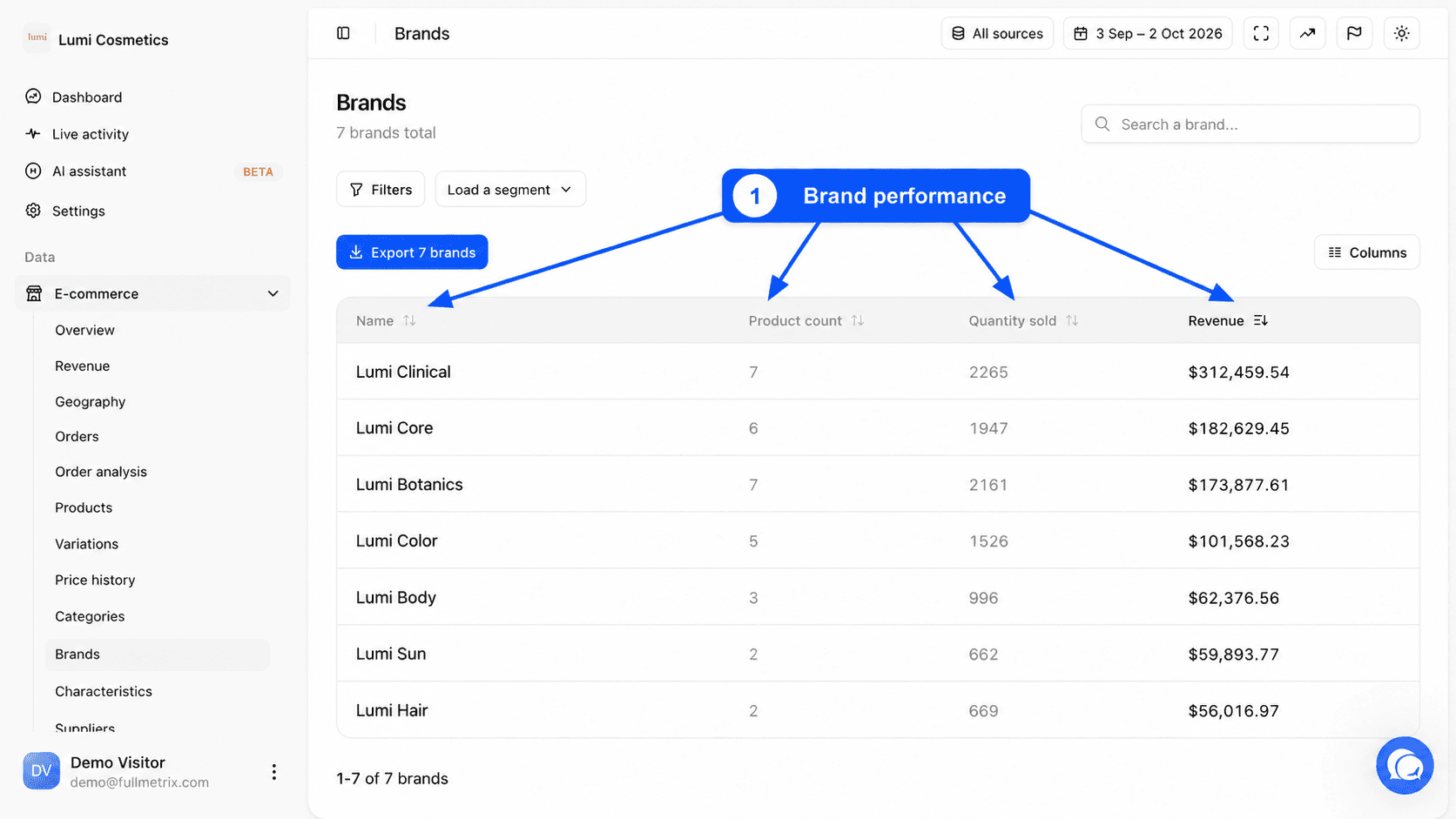
Every brand in your catalog is listed, even those with no sales over the period.
Several stores
Brands are grouped by name. If two of your stores sell the same brand under the same name, it has a single row that adds up both stores. Use All sources to keep only one store.
Only orders that count in your reports are included, according to your Settings, Reports tab. The amount of a line follows the rules described in Products.
Sort, search and filter
Click a header to sort by Name, Product count, Order count, Quantity sold or Revenue. By default, the brands with the most revenue are at the top.
The Search a brand... field filters the list by name.
The filter bar accepts conditions on the name, product count, order count, quantity sold and revenue. For example, Revenue is in the top (%) with 20 keeps only the brands that carry most of your sales. See Filters and segments.
Columns and export
The Columns button offers Default, All fields and Customize. On top of the base columns, you can show E-commerce source and Order count. See Columns.
The Export button, for example "Export 36 brands", downloads the filtered list. See Exports.
The brand detail page
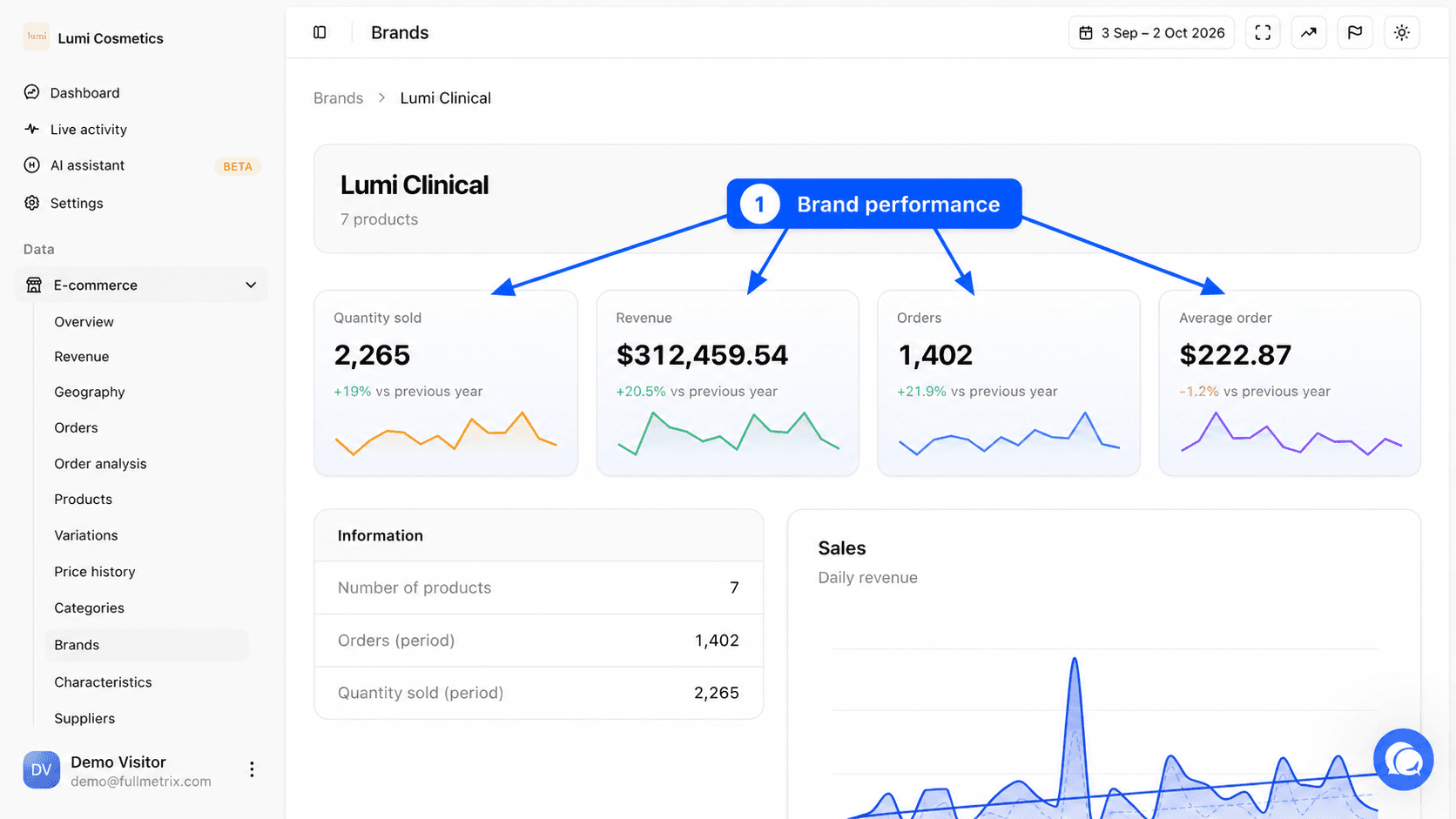
Click a row to open the brand detail page. The Brands breadcrumb takes you back to the list.
The metrics
| Metric | Definition |
|---|---|
| Quantity sold | Units of the brand sold over the period. |
| Revenue | The amount of the brand's lines over the period. |
| Orders | The number of orders containing at least one product of the brand. |
| Average order | The brand's revenue divided by its number of orders. It is what the brand brings in on average in an order where it appears. |
Each metric shows its change compared to the comparison period set in the date picker.
The blocks of the page
- Information shows the Number of products, the Orders (period) and the Quantity sold (period).
- Sales plots the brand's revenue day by day, with the comparison period.
- Sales by hour and Sales by day show at what time and on which day of the week the brand sells.
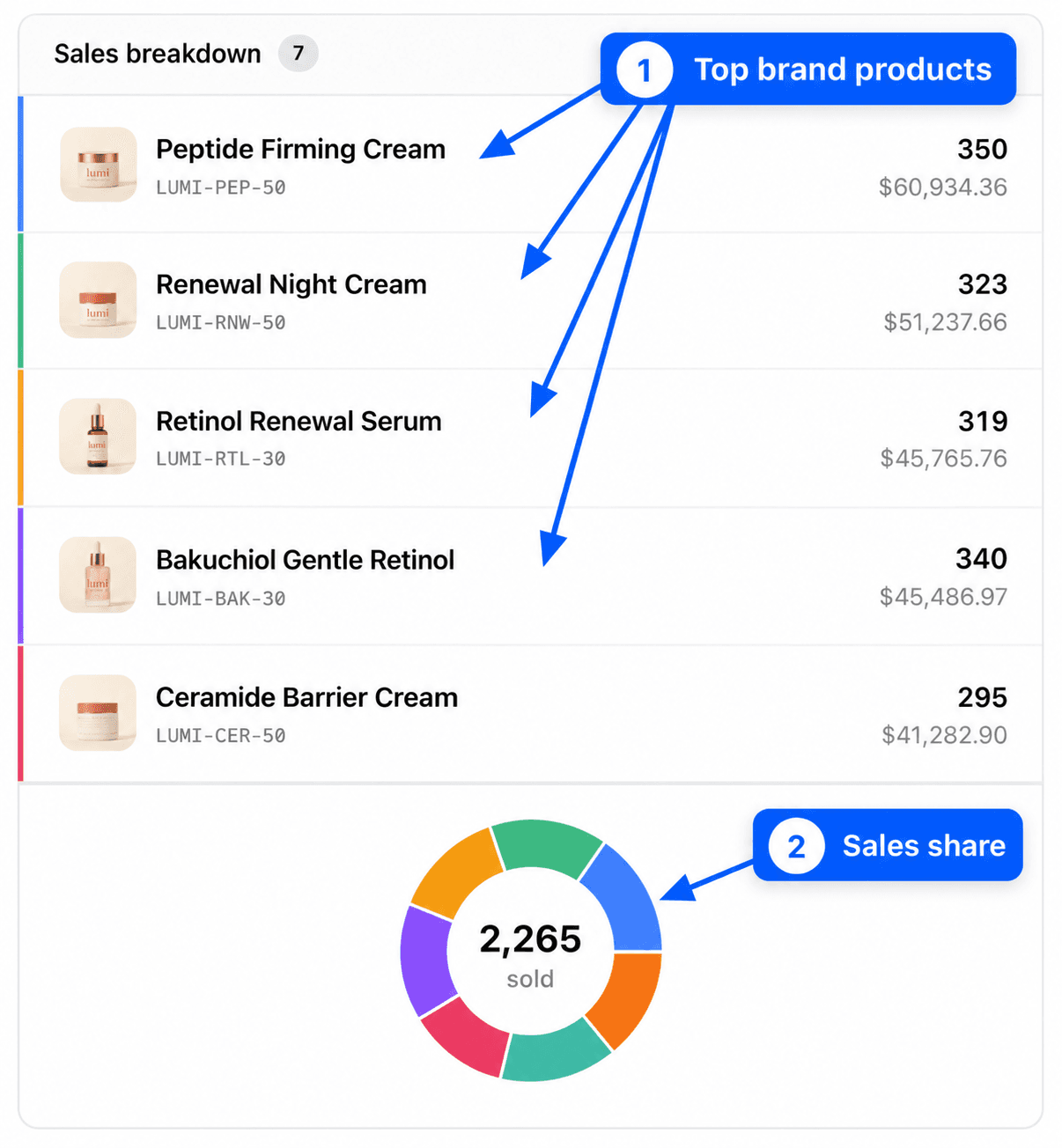
- Sales breakdown ranks the 20 products of the brand with the most revenue, with their share in a donut chart. Click one to open its detail page.
- Sales by country and Sales by customer show the 10 countries and 10 customers that matter most for the brand.
- N orders from this brand lists the recent orders that contain the brand.
Each block can be exported as CSV with its export button.
Differences by platform
| Platform | Where the brand comes from |
|---|---|
| PrestaShop | the brand (manufacturer) linked to the product |
| WooCommerce | the brand taxonomy of your brands extension (WooCommerce Brands, Perfect Brands or YITH Brands), or else an attribute or field named brand or marque |
| Magento | the manufacturer attribute of the product |
| Shopify | no brand is synced, the report does not appear |
| Sylius | no brand is synced, the report does not appear |
If the page is empty
"Brands will appear here once data is synced and brand fields are filled on products" means no brand is known yet. No brand found appears when the search or the filters leave nothing. Brand not found on a detail page means no product carries this brand anymore.