Coupons
Measure each discount code's usage, the discount granted and the sales generated, then open a coupon's page to see who uses it and on which products.
The Coupons report lists every discount code from your stores and measures what they bring you. For each code, you see how many times it was used in the period, how much discount it cost and how many sales it came with. A coupon, or discount code, is a code the customer enters at checkout to get a reduction.
Use it to find out whether a promotion worked, spot codes that circulate more than expected, or decide which codes to disable.
Before you start
The Coupons entry only appears in the menu if your store has sent us at least one coupon. If you don't see it although you created discount codes, check that the historical import is finished.
Open the report
Expand the E-commerce section
In the left sidebar, in the Data group, click E-commerce.
Choose Coupons
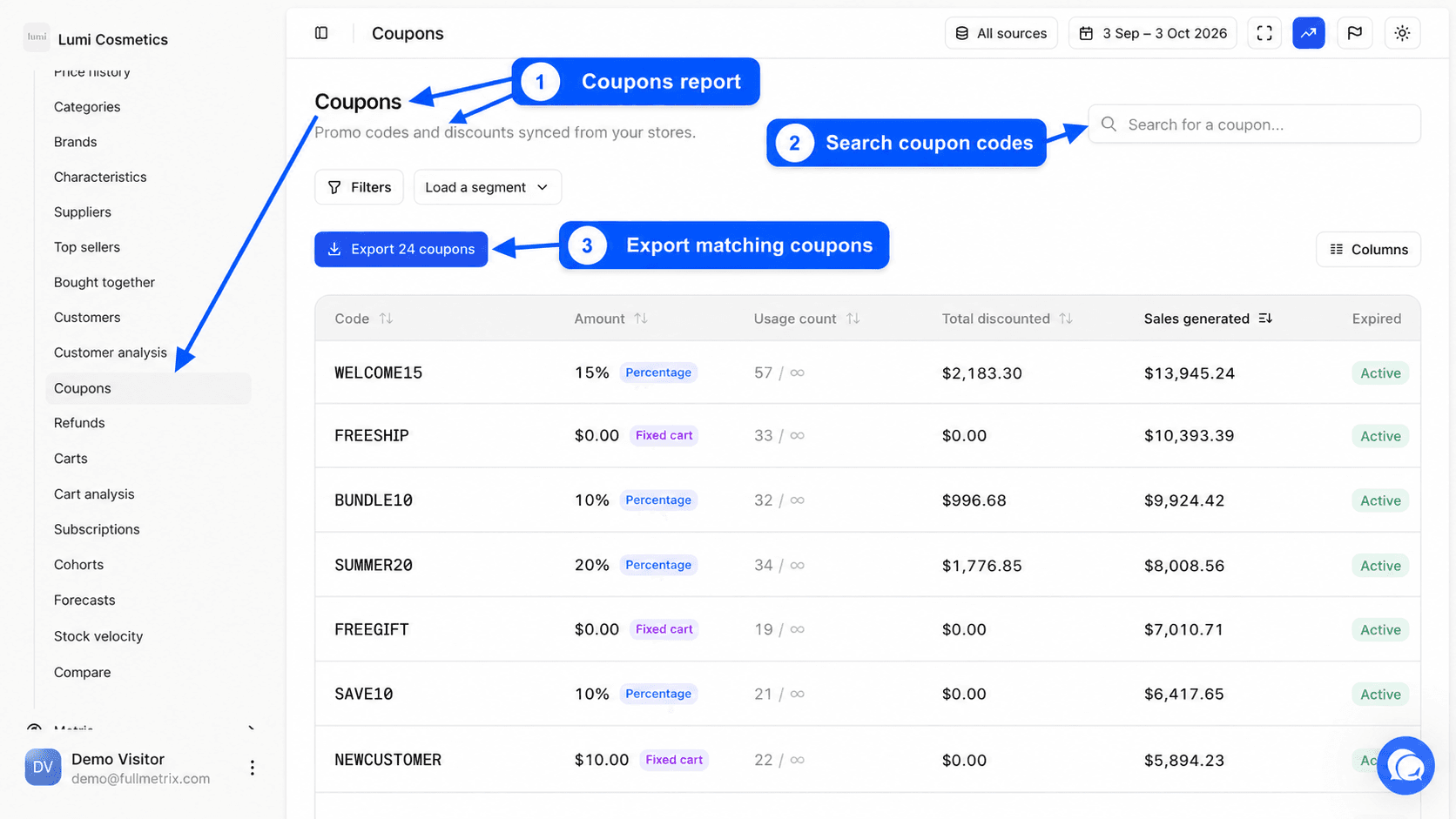
Click Coupons, below Customer analysis. The page shows the Coupons title and the sentence "Promo codes and discounts synced from your stores."
Set the period, stores and filters
At the top right, the All sources selector picks the stores and the date picker picks the dates. By default you see the last 30 days up to yesterday. The period is used to compute each coupon's uses, discount and sales. The list itself shows all your coupons, even those not used during the period. See Date range and comparison and Choosing stores.
The Search for a coupon... field finds a coupon by its code. The Filters button narrows the list, for example to expired coupons, percentage coupons or coupons that give free shipping. The Load a segment button applies a coupon segment, for example Expired coupons or High usage. See Filters and segments.
List columns
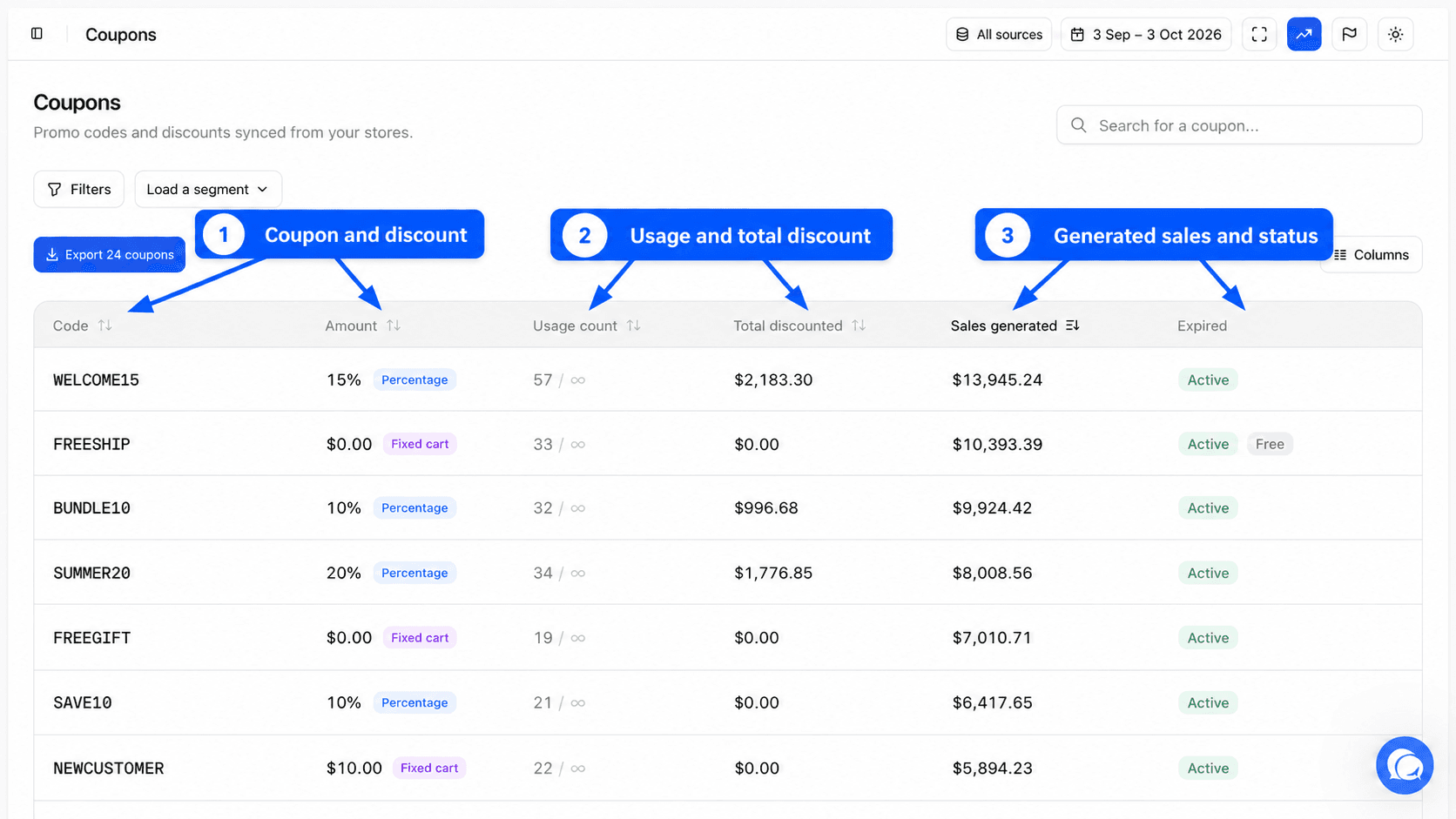
By default, the list shows six columns.
| Column | Content |
|---|---|
| Code | The discount code as the customer enters it |
| Amount | The reduction value set in your store, for example 10 for 10% or 10 in currency depending on the type |
| Usage count | The number of counted orders placed with this code during the period |
| Total discounted | The total discount granted through this code during the period |
| Sales generated | The amount of orders placed with this code during the period, after your tax, shipping and fee deductions |
| Expired | Active while the coupon can still be used, Expired after its expiry date. A Free badge marks free shipping. |
A counted order follows the same rule as in every report. Its status isn't excluded, its amount is greater than zero and its customer isn't ignored. See Report settings.
A few useful details.
- If a coupon wasn't used by any order during the period, the Usage count column shows the total counter your store keeps for that code. Total discounted and Sales generated are then zero.
- Sales generated doesn't remove refunds. A refunded order still counts here.
- An order that uses two codes counts in full in the Sales generated of both. Sales of several coupons therefore don't add up.
The list is sorted by Sales generated, highest first. Click a header to sort differently. The Columns button adds other information, such as the Discount type (Percentage, Fixed cart or Fixed product), the Usage limit or the Expiry date. See Columns.
Export the list
The Export button, above the list, shows how many coupons are concerned. It exports every coupon matching your search and filters, with the period's figures. See Exports.
A coupon's page
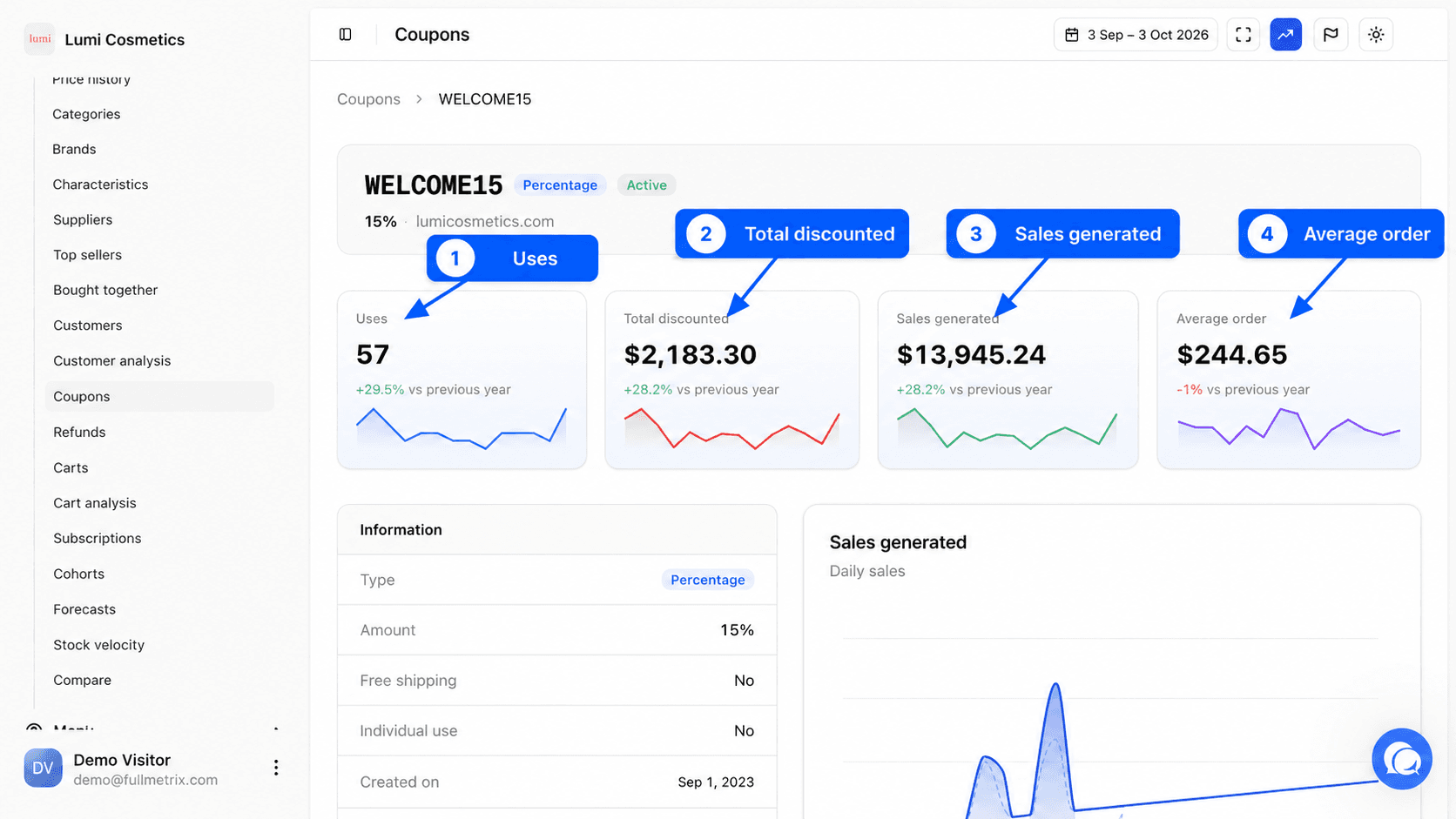
Click a row to open the coupon's page. The Coupons breadcrumb takes you back to the list. The date picker stays available at the top of the page and all its figures follow it. To learn more, read Detail pages.
The four indicators
| Indicator | Definition |
|---|---|
| Uses | The number of counted orders placed with this code during the period. If your store set a limit, the Limit note shows it. |
| Total discounted | The total discount granted with this code |
| Sales generated | The amount of orders placed with this code |
| Average order | Sales generated divided by the number of uses |
Each card shows the change against the comparison period chosen in the date picker.
Information
The Information block repeats the coupon's settings in your store. It shows the discount Type and Amount, the usage Limit, the order Minimum and Maximum, Individual use (the code can't be combined with another), Exclude sale items, Free shipping, the Expires on date and the Description. Only the information sent by your store is shown.
Charts
The Sales generated chart shows the sales made with this code each day, with the comparison period as a dotted line. The Sales by hour and Sales by day charts show when the code is used.
Sales by country, top products and top customers
The Sales by country table splits the coupon's orders by country, with items sold, revenue and number of orders.
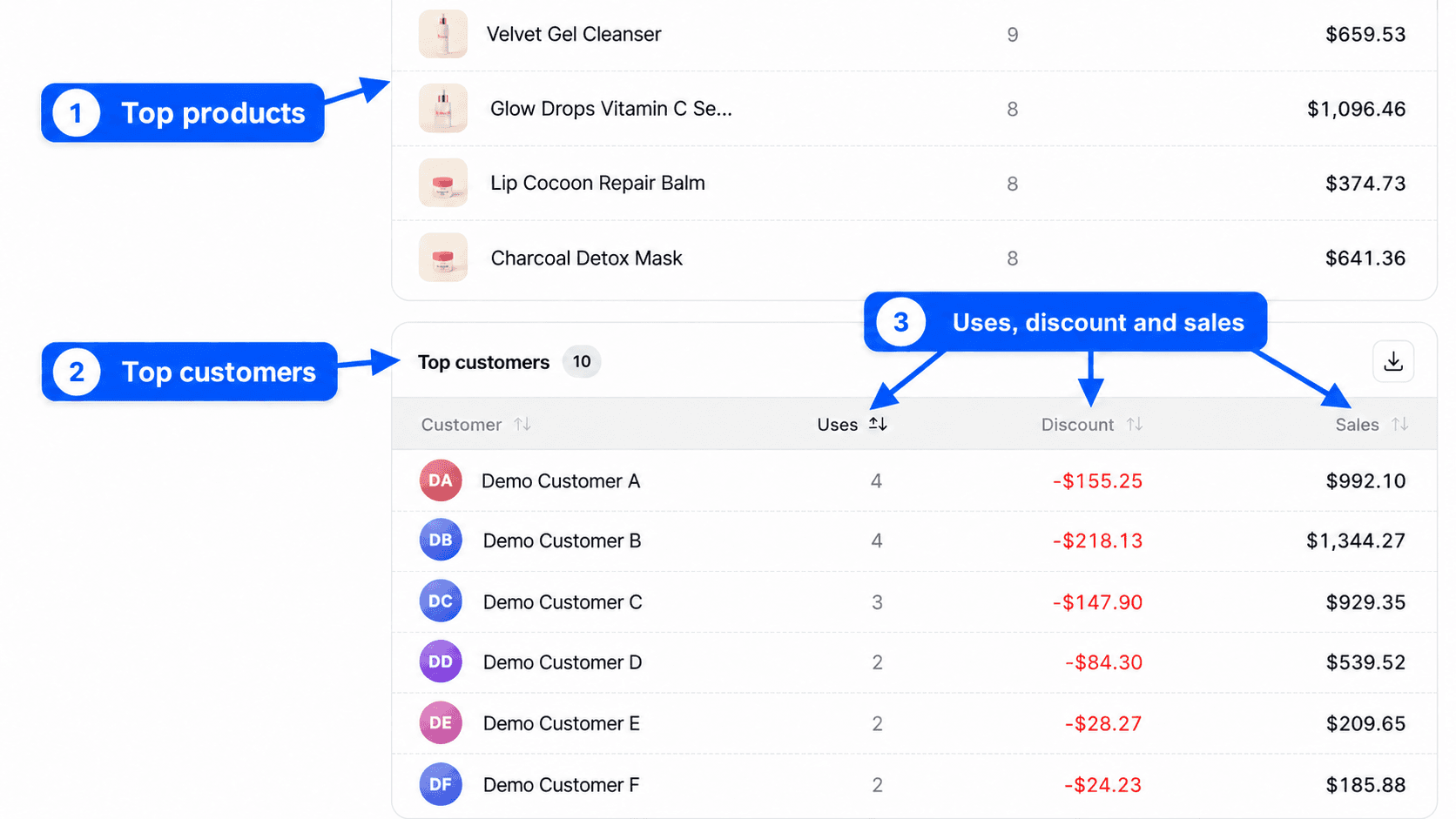
The Top products table lists the 10 products bought most with this code, with quantity and revenue. Click a product to open its page.
The Top customers table lists the customers who used the code most, with their Uses, the Discount they got and their Sales. Click a customer to open their page.
The coupon's orders
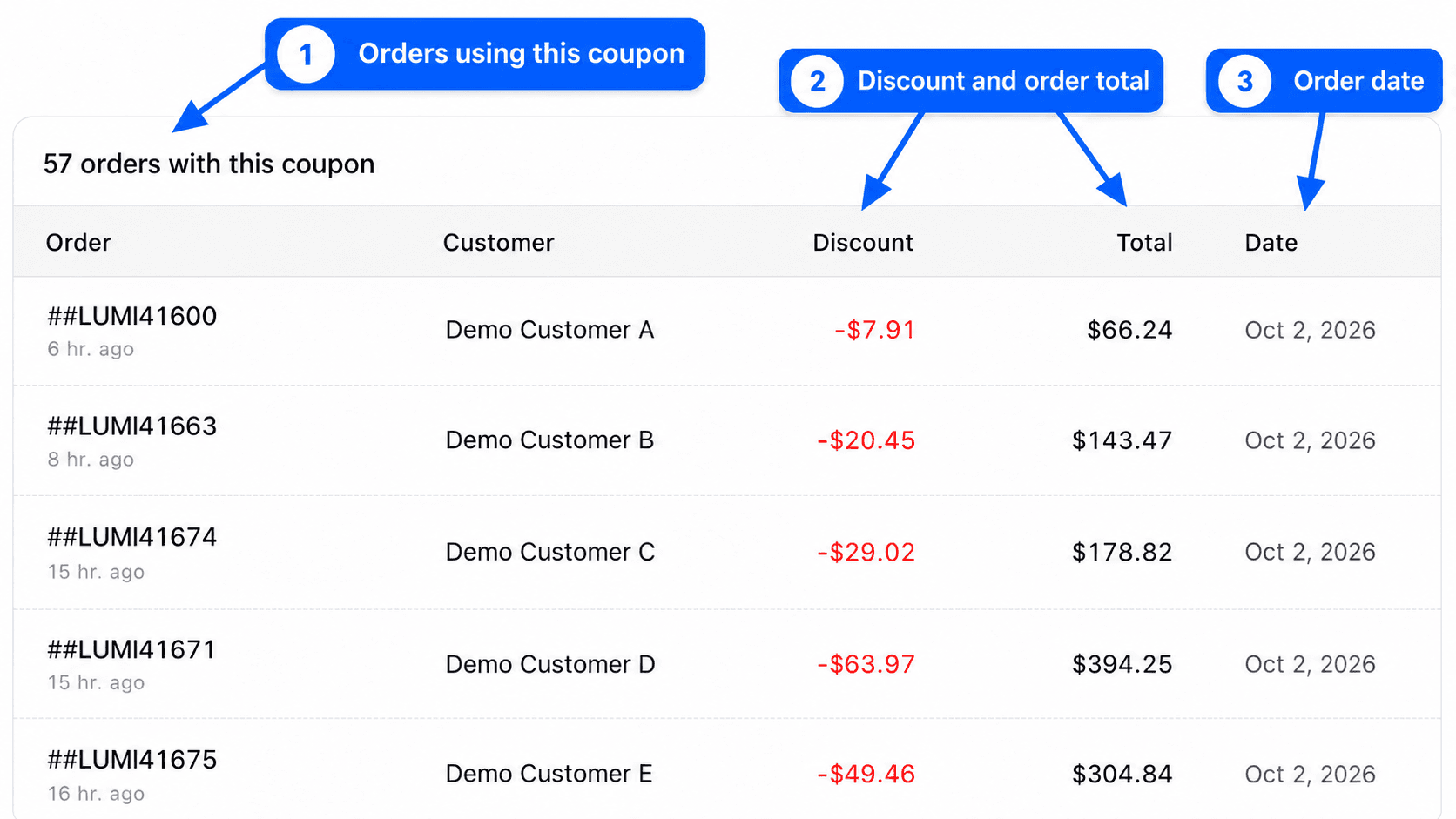
The last table, titled for example 42 orders with this coupon, lists the period's orders placed with this code, with their number, date, status and total. Click an order to open its page.
Several tables have a small button to download them as CSV.
Example questions
- Did my sale code bring in more than it cost? Compare Sales generated and Total discounted over the promotion period.
- Is a code reserved for my subscribers circulating elsewhere? Open its page and look at Top customers and Sales by country.
- Which products do customers buy with this code? Read Top products on its page.
- Which codes have expired but are still used? Filter on Expired then sort by Usage count.