Refunds
Find every refund granted in the period, its amount, its reason and the original order, and understand how refunds weigh on your revenue.
The Refunds report lists every refund granted by your stores, one row per refund. A refund is money returned to a customer, for their whole order or only part of it. For each one, you see the original order, the customer, the amount returned and the date.
Use it to monitor return volume, find the refund of a customer who writes to you, or understand why a day's revenue dropped.
Before you start
The Refunds entry only appears in the menu if your store has sent us at least one refund. A store that has never refunded an order therefore doesn't show this entry.
Open the report
Expand the E-commerce section
In the left sidebar, in the Data group, click E-commerce.
Choose Refunds
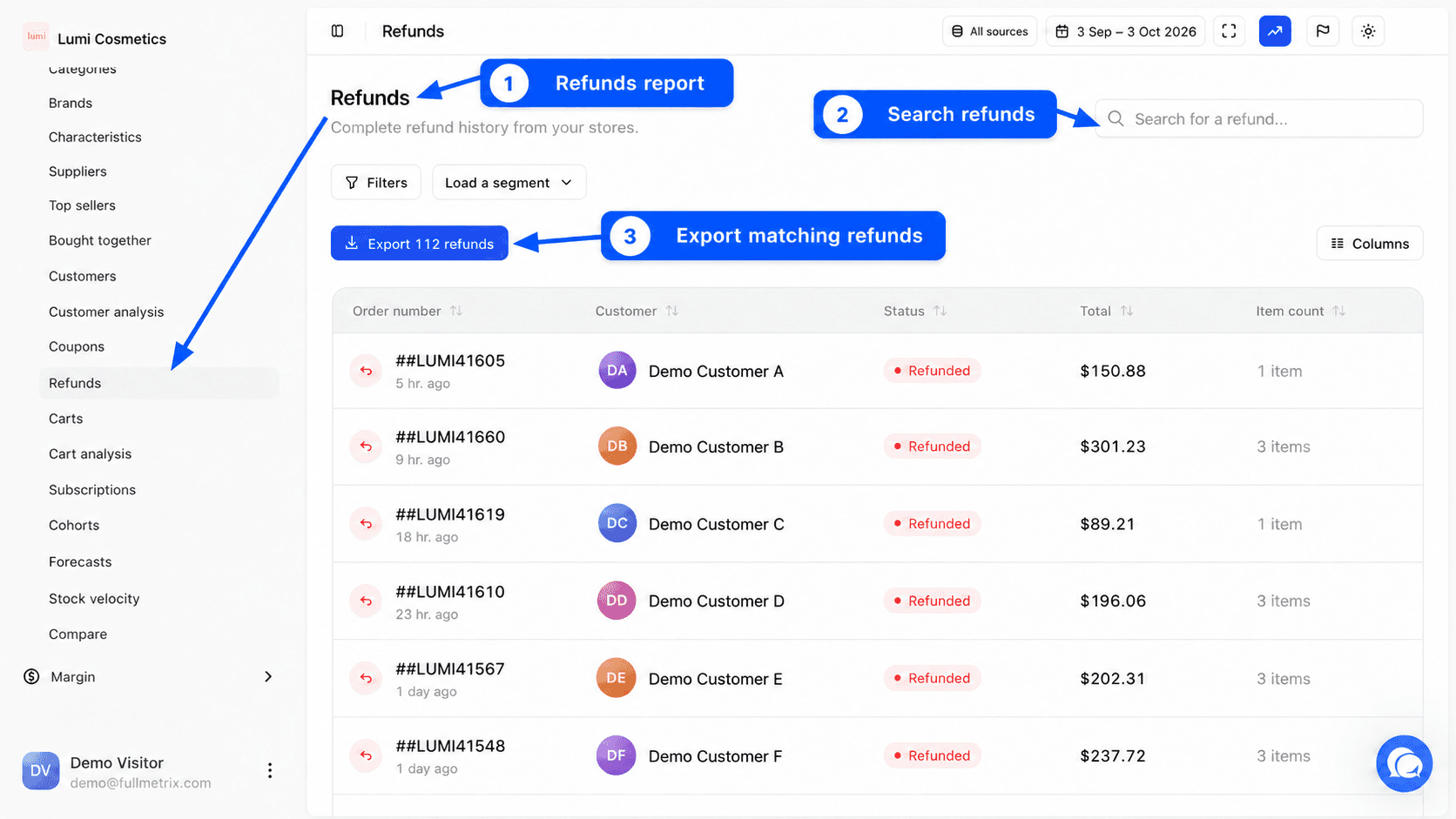
Click Refunds, below Coupons. The page shows the Refunds title and the sentence "Complete refund history from your stores."
How refunds weigh on your figures
By default, every report removes refunds from revenue, on the date the refund was granted. An 80 order placed on March 28 and refunded on April 3 counts 80 of revenue in March, then lowers April by 80. The number of orders doesn't change.
You can turn this deduction off by unticking Deduct refunds in Settings, Reports tab. Revenue in every report then includes refunded orders. See Report settings.
The Exclude refunded orders from product reports option in the same tab only affects sales by product and by category. It changes neither revenue nor this list.
Set the period, stores and filters
At the top right, the All sources selector picks the stores and the date picker picks the dates. By default you see the last 30 days up to yesterday. The list shows refunds granted during that period, whatever the original order's date. See Date range and comparison and Choosing stores.
The Search for a refund... field looks in the order number, the refund ID, the customer's name and email address, and the refund reason. The Filters and Load a segment buttons narrow the list. See Filters and segments.
Refunds of Ignored customers don't appear. If you turned on Paying customers only, only refunds of customers who have already paid an order appear.
List columns
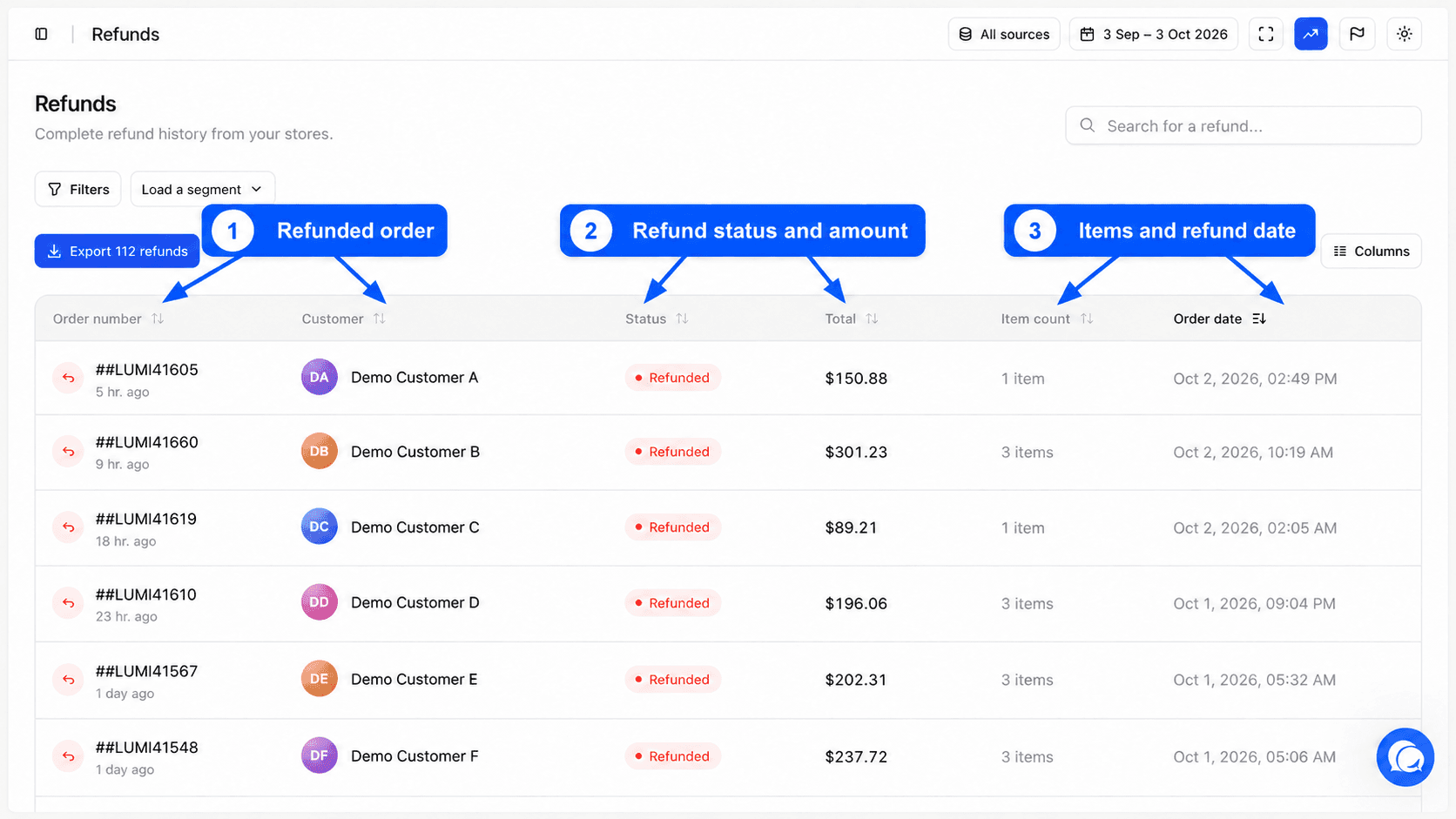
By default, the list shows six columns.
| Column | Content |
|---|---|
| Order number | The refunded order's number, with how long ago the refund was granted below it |
| Customer | The customer's name. A customer without a usable email address appears as anonymous. |
| Status | Always Refunded |
| Total | The amount refunded, in your organization's currency |
| Item count | The number of items in the original order |
| Order date | The refund date, despite the column's name |
The list is sorted from the most recent refund to the oldest. Click a header to sort differently. The Columns button adds other information about the original order. See Columns.
An order refunded in two steps appears on two rows, one per refund.
Export the list
The Export button, above the list, shows how many refunds are concerned. It exports every refund matching your period, search and filters. See Exports.
A refund's page
Click a row to open the refund's page. The Refunds breadcrumb takes you back to the list. To learn more, read Detail pages.
The header
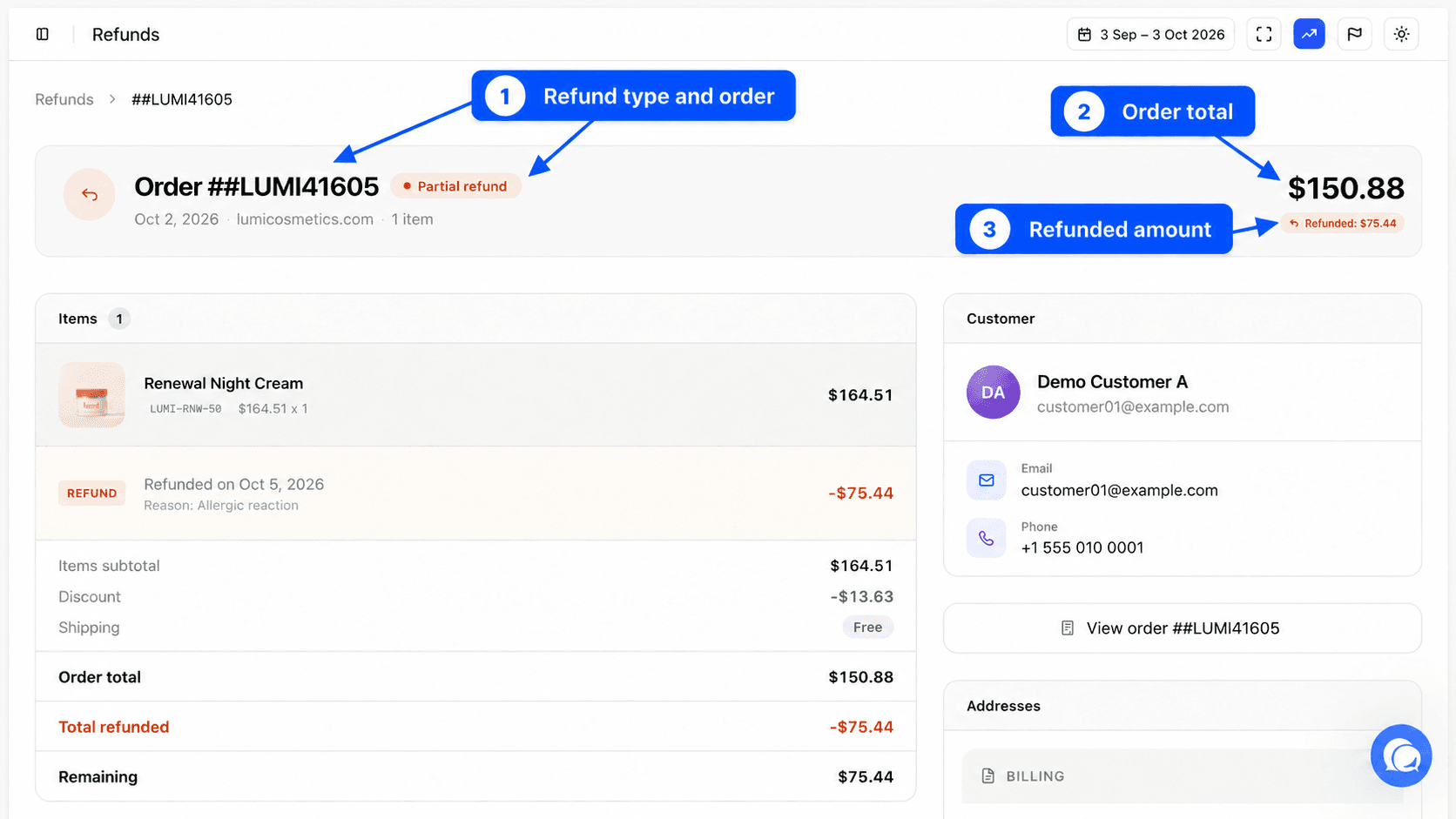
The header shows Order followed by the number, a Partial refund or Full refund label, the order date, the store and the item count. On the right, you read the order total and, below it, Refunded followed by the amount returned.
Items and the refund line
The items section lists the products of the original order. For a refunded product, the quantity and amount returned show under the line. A Refund line at the bottom shows Refunded on followed by the date and, if the store recorded it, Reason followed by the reason for the refund.
The summary
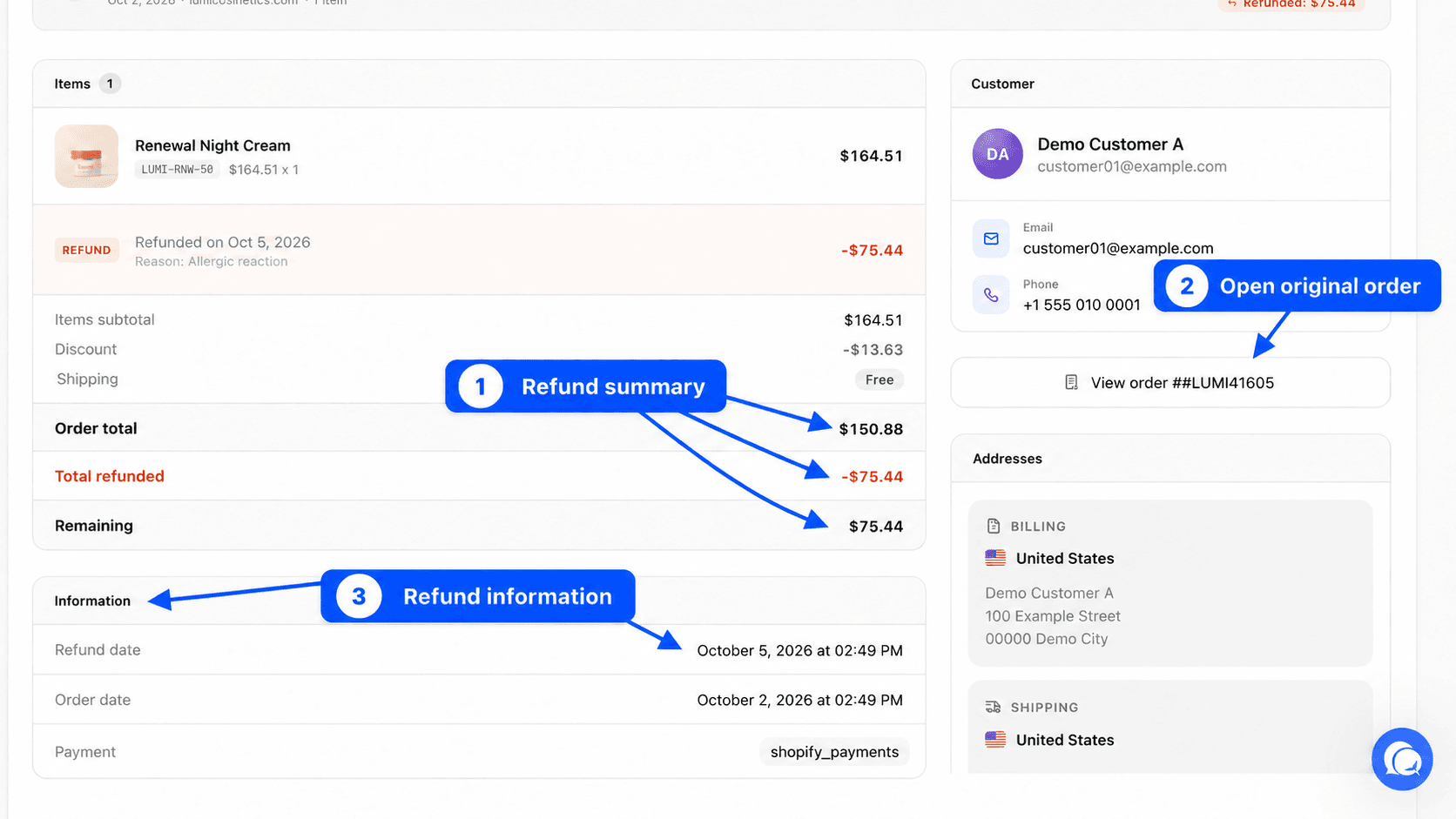
The summary gives the Items subtotal, Discount, Shipping, Taxes, Order total, Total refunded and Remaining, meaning what the customer finally paid.
Information, customer and addresses
The Information block shows the Refund date, the Order date, the Payment and the Store. The customer block shows their name, email address and phone. The View order button opens the original order's page. The Addresses section shows the billing and shipping addresses.
Example questions
- How much did I refund this month? Choose This month and read the number of refunds, then export the list to get the total.
- Why is Tuesday's revenue negative? Choose that single day and look at the refunds granted.
- Which reasons come up most? Export the list with the reason, or search for a word such as "size".
- Has this customer already been refunded? Search their email address.