Multiple stores
Add several stores, filter your reports store by store and follow all your organizations from the Multi-store view.
Fullmetrix lets you follow several stores in two ways. You can link several stores to one organization and filter each report with the All sources selector. You can also open the Multi-store view, which adds up the stores of every organization you have access to.
Either way, each store keeps its own connection. Its orders, customers and sync status stay attached to it. Grouping stores in a report never moves or copies any data.
One organization or several
An organization is the workspace that holds stores, their reports and their settings. Organization settings apply to all of its stores, including the time zone, the currency, excluded order statuses and net sales deductions.
Put several stores in the same organization when all of these are true.
- They run on the same platform (for example three PrestaShop stores).
- They sell in the same currency.
- They share the same reporting rules and the same people have access.
- You have no more than three of them.
In every other case, create one organization per store. That covers a WooCommerce store next to a Shopify store, a store in euros next to one in Swiss francs, or a brand whose team should not see another brand's numbers. You will then find all these stores together in the Multi-store view.
To create an organization, click your organization name at the top of the sidebar, then Create an organization.
What prevents adding a store
An organization accepts at most three stores. It also refuses a store on a different platform from the one already connected. In both cases Fullmetrix shows an error when it tries to generate the connection code, and the fix is to create a new organization.
Add a store to an organization
Open integrations
In the sidebar, click Settings, then the Integrations tab. In the E-commerce category, each linked store has its own card, with its address and the date of its last sync.
Click Add a store
The dashed Add a store tile appears next to the cards as long as the organization has fewer than three stores. It opens the Connect a platform window.
If a store in the organization has already been imported, the window picks the same platform for you and generates a new code. Otherwise it asks you to pick the platform first.
Install the module on the new store
The window shows the Download plugin button and the Connection code for this new store. Then follow your platform guide, exactly as you did for the first store.
- Install the PrestaShop module
- Install the WooCommerce plugin
- Connect Shopify
- Install the Magento extension
- Install the Sylius plugin
Always use the code shown for this store. The module refuses a code already used by another store.
Check the connection
As soon as the module accepts the code, the window shows "Plugin connected. Import has started, you can close this window." A new card appears in Integrations, with an Import in progress bar during the first import.
Check each card on its own. One store being up to date does not mean another store's import has finished.
Filter reports by store
As soon as the organization has at least two stores, an All sources button appears at the top of reports, next to the date range picker. With a single store, the button is hidden.
Open the selector
Click All sources. The list shows each store by its domain name, for example example-store.com.
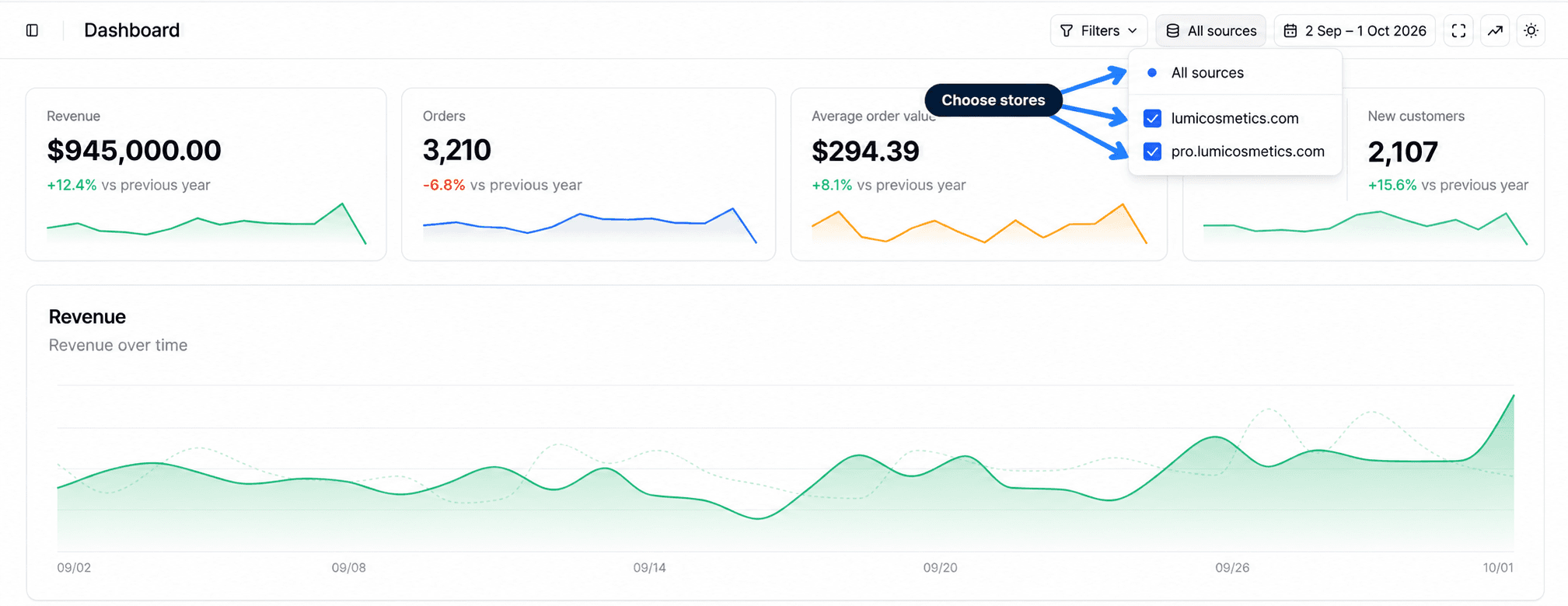
Check the stores to analyze
Uncheck the stores you want to leave out. The button then shows the domain of the chosen store, or the number of stores kept, for example "2 sources". To go back to the total, click All sources at the top of the list.
Read the report
The report recalculates for the checked stores, over the chosen period. Your choice is remembered in your browser for that section of the app. It is still there when you come back later, but not on another computer.
A store whose first import has not finished is left out of the All sources total. It joins the total as soon as its import is done. For details on the selector in each report, read Choose the stores in a report.
Before you export or share a number
Look at the selector label. All sources means the number adds up every store in the organization. A domain means the number covers only that store.
Use the Multi-store view
The Multi-store view brings the stores of all your organizations together on one page. It is built for following a group of brands or a portfolio of clients without switching from one organization to another.
Open the view
Click your organization name at the top of the sidebar. In the menu that opens, click Multi-store, below the list of organizations.
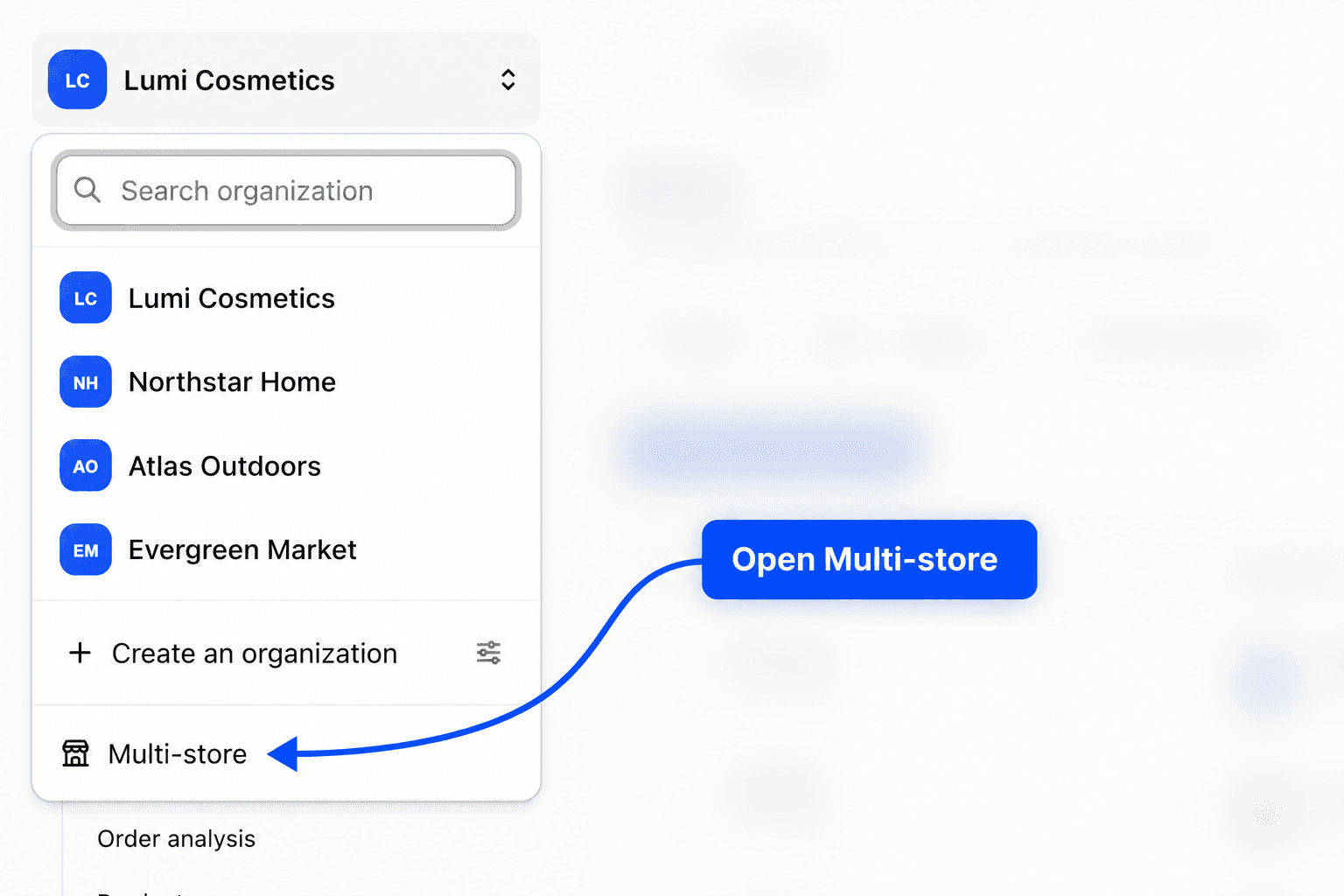
The page opens full screen, without the sidebar. The arrow at the top left, Back to my store, takes you back to your organization's dashboard.
Which stores appear
The view shows the stores of organizations where you are an administrator of your company, or that you have been given access to. A store only appears once its first import has finished, and only if its organization is on a trial or has an active subscription.
If no store meets these conditions, the page shows "No store connected. Connect your stores from your organization settings."
Controls at the top of the page
- The All stores selector works like All sources. Each store is listed under its organization name, followed by a number when the organization has several stores, and a colored dot that identifies it on the map and in the activity feed.
- The date range picker sets the dates analyzed and the comparison. It works as it does in reports, see Date range and comparison.
- The two buttons on the right switch the screen to TV mode and toggle between light and dark themes. TV mode is covered in Charts and TV mode.
What the page shows
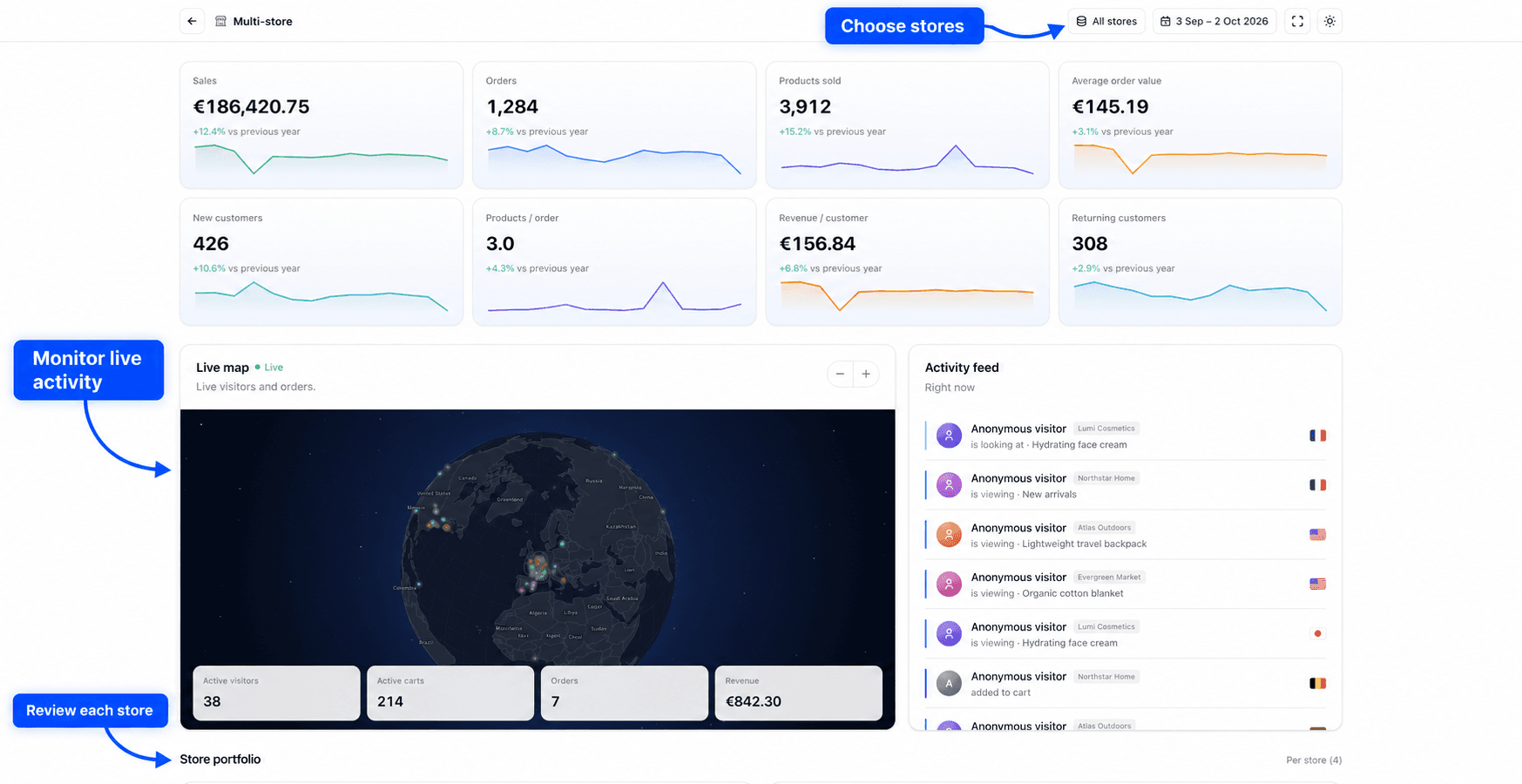
At the top, eight indicators add up the selected stores over the period, each with its own curve. They are Sales, Orders, Products sold, Average order value, New customers, Products / order, Revenue / customer and Returning customers.
Below, the Live map places visitors and orders in real time, with four counters (Active visitors, Active carts, Orders and Revenue for the day). Next to it, the Activity feed lists what is happening Right now across your stores. This information comes from site tracking, see Site tracking.
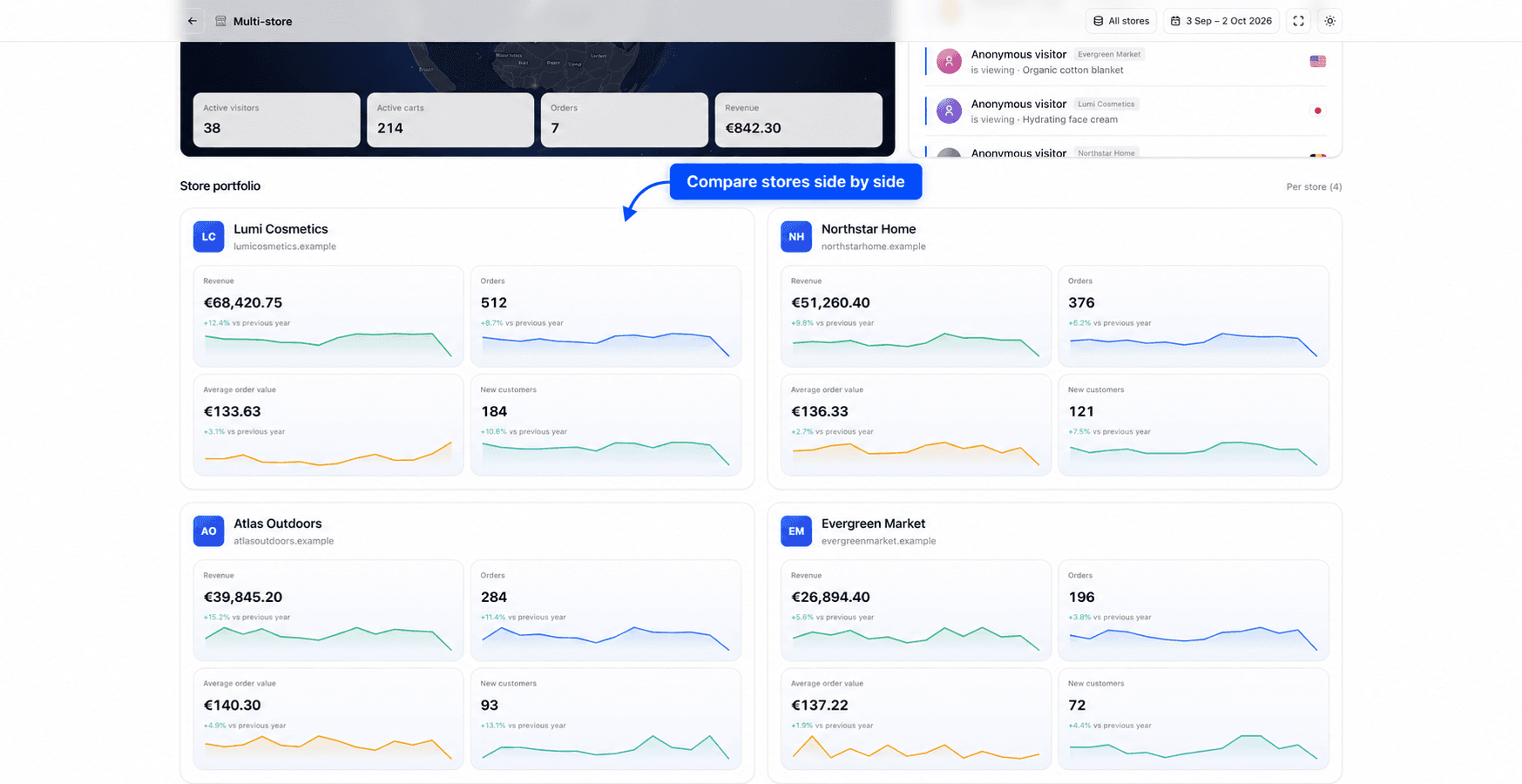
At the bottom, the Store portfolio shows one card per store, with its Revenue, Orders, Average order value and New customers. The Per store heading shows in brackets how many stores have data over the period.
Currencies are not converted
The view adds up each store's amounts as they are, with no currency conversion. If your stores sell in different currencies, the sales total is meaningless. In that case select only stores that share a currency, or read the portfolio cards one by one.
Remove a store
To remove a single store, open Settings, then Integrations, and click Disconnect on that store's card. Fullmetrix asks you to confirm, because this deletes the connection and all imported orders from that store. It cannot be undone. Other stores in the organization are not affected.
The PrestaShop and WooCommerce uninstall guides explain what to do on the store side.