Installation
Connect your Sylius store to Fullmetrix step by step, from getting the code to the connection confirmation, with what each command does.
This page follows the actual order of the connection. The parts marked for your developer can be forwarded to them as they are. Adding the plugin takes a few minutes, plus the time of your usual deployment process. The history import then depends on your store's volume.
Have two things ready
The name of the person who develops your Sylius project (developer or agency), and a Sylius admin account. Also check your store's compatibility.
Get your connection code
The connection code links your store to your Fullmetrix organization. It looks like FMTX-7K4M-Q2HD-9WXR. It works only once. As soon as a store has accepted it, it cannot be used anywhere else.
During the setup wizard
Create the organization and set the basics
On the Welcome to Fullmetrix screen, enter a name in Store name, then click Create and continue. On the Basic settings screen, choose your Timezone and Currency, then click Save and continue, or Skip this step to do it later in General.
Choose Sylius
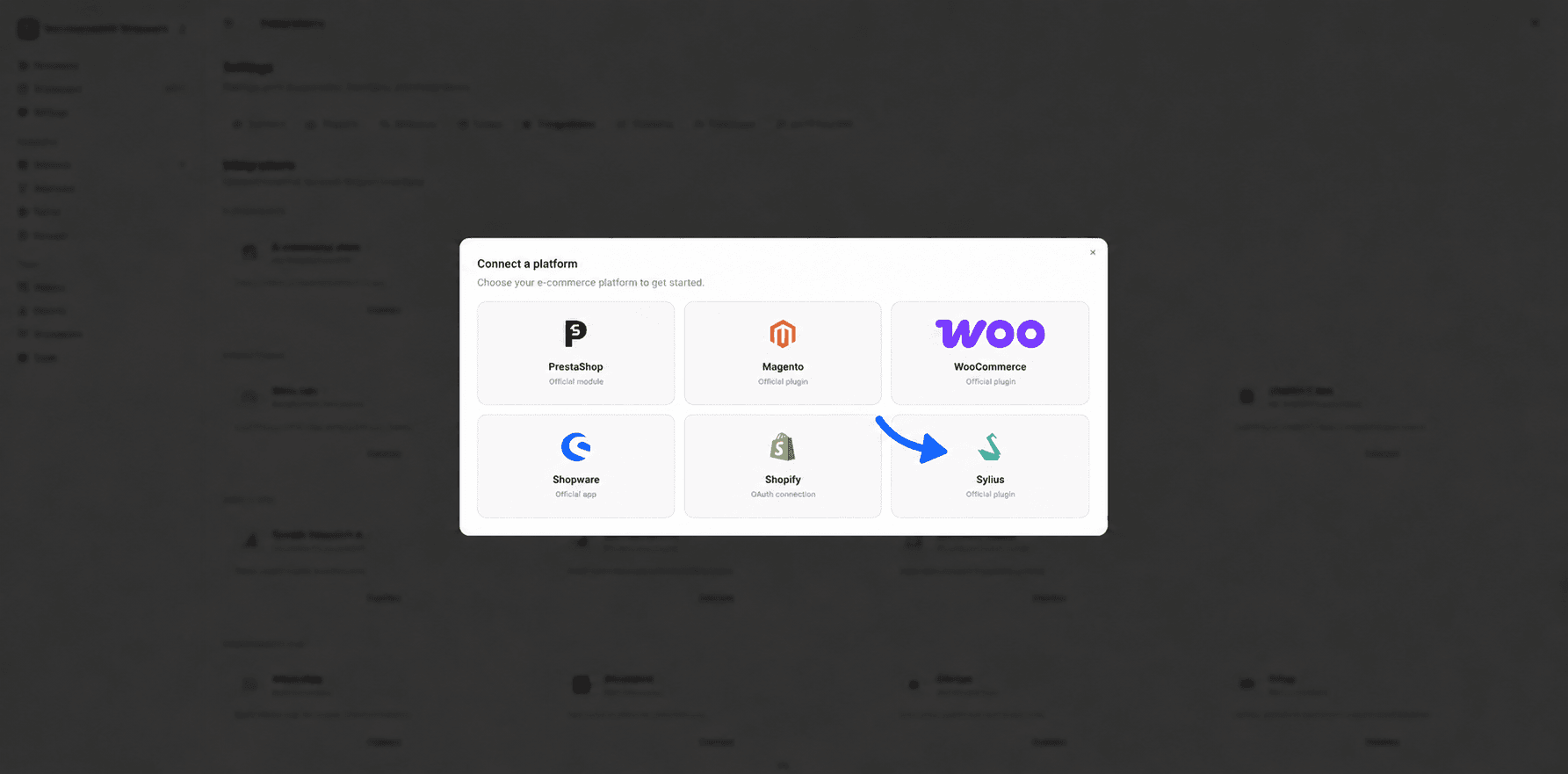
On the Connect your store screen, click the Sylius row, labeled Sylius 1.13+ / 2.0. Fullmetrix shows Generating connection code... for a second.
Copy the command and the code
The screen shows two numbered boxes.
- Install the extension holds the Composer command. The button on the right copies it and shows Command copied.
- Connect your store holds your connection code. One click copies it and shows copied.
Below these boxes, the Waiting for plugin connection panel asks you to leave the page open. It updates on its own as soon as your store accepts the code.
You can close the page and come back later. When you sign back in to Fullmetrix, the wizard resumes at the same point with the same code. The Change platform link takes you back to the list if you picked the wrong platform.
From Settings
If you have already finished the wizard, or you are adding a store, open Settings, then the Integrations tab. In the E-commerce category, click Connect on the E-commerce store card, or the Add a store tile if a store is already connected. In the Connect a platform window, choose Sylius.
The window shows the Connection code with a copy button, the install command and a Send instructions to my developer link.
Hand the installation to your developer
Send the instructions by email
In the Connect a platform window, click Send instructions to my developer. Enter their address in Developer email, then click Send instructions. The message Instructions sent to followed by the address confirms it was sent.
Your developer receives an email with the installation steps, your connection code and the path to the Fullmetrix menu in Sylius. This link is not offered in the setup wizard. During the wizard, copy the command and the code, then send them yourself with a link to this page.
The code is confidential
Anyone who has your code can connect a store to it. Send it only to the person installing the plugin, and never put it in the code repository, a public ticket or a shared screenshot.
Add the plugin to the project (for your developer)
The plugin is the Composer package fullmetrix/sylius-plugin. It is added as a Symfony bundle. Install it on your development environment, check it, then deploy with your usual process. Back up the database before running the production migration.
Install the package
At the project root, run the following command.
composer require fullmetrix/sylius-pluginIt downloads the plugin and adds it to composer.json and composer.lock.
Register the bundle
Check that config/bundles.php contains this line, and add it if Composer did not.
Fullmetrix\SyliusPlugin\FullmetrixPlugin::class => ['all' => true],It tells Symfony to load the plugin in every environment. The plugin brings its own configuration, so there is no configuration file to add.
Import the routes
Create the file config/routes/fullmetrix.yaml with this content.
fullmetrix:
    resource: '@FullmetrixPlugin/Resources/config/routing.yaml'
These routes open the Fullmetrix page of the admin, the /fullmetrix/api/ addresses Fullmetrix calls to read the store, and the link that lets a shopper resume an abandoned cart.
Create the plugin tables
bin/console doctrine:migrations:migrateThe migration creates two small tables, one for the connection settings and one for the activity log shown in the admin. It does not touch any Sylius table.
Clear the cache
bin/console cache:clearClear the cache with the same environment as the live site, usually APP_ENV=prod. A command that finishes without errors confirms that Symfony loads the plugin.
The plugin needs no scheduled task. It sends changes to Fullmetrix right after each response is sent to the visitor.
If the site runs on several servers, deploy the same version everywhere, run the migration only once and clear the cache on each server.
Paste the code in Sylius
This part happens in the Sylius admin. You can do it yourself once the plugin is deployed. The Fullmetrix page in the admin is in English, whatever your admin language.
Open the Fullmetrix page
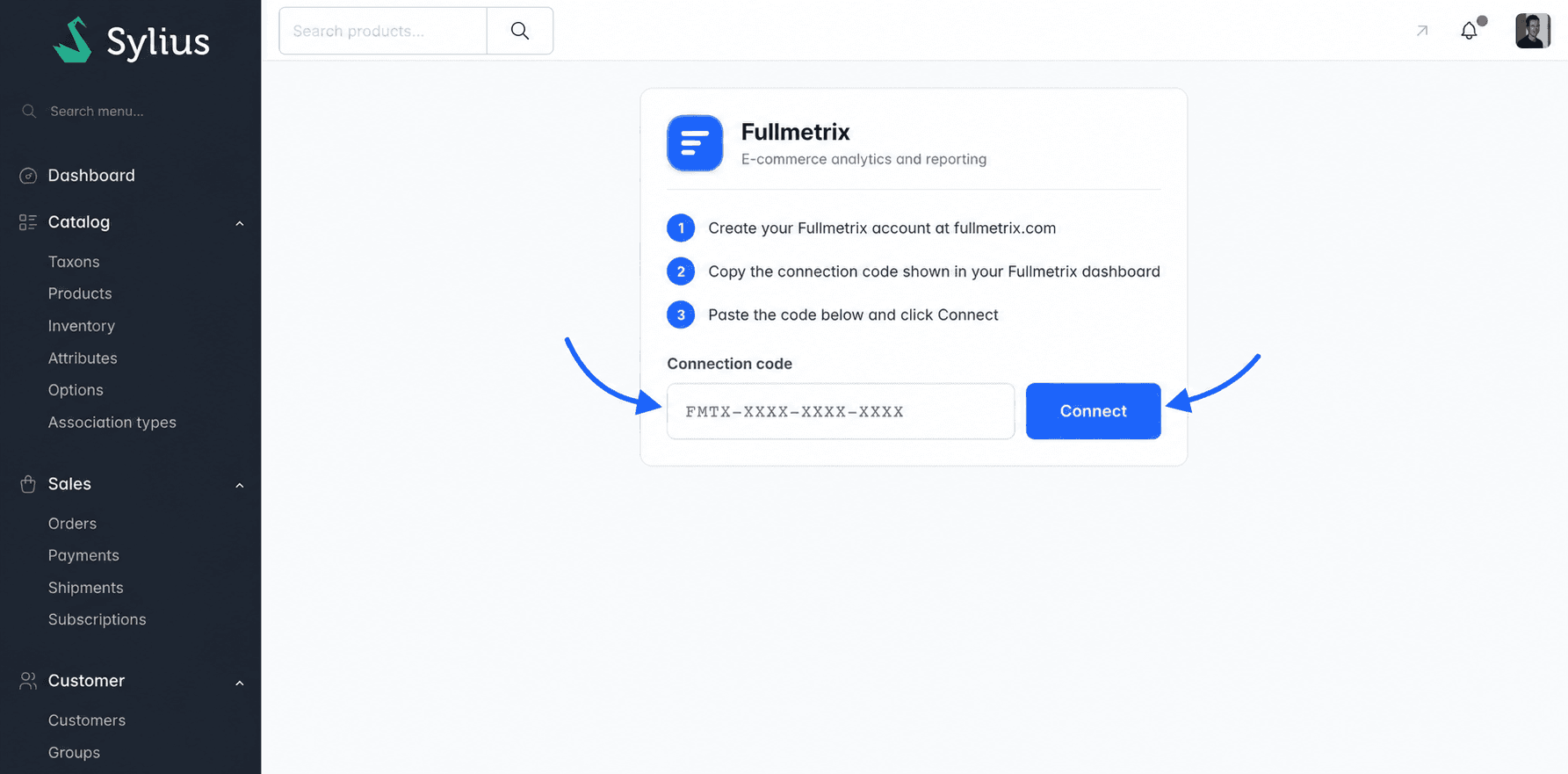
Open the Sylius admin with your store's public HTTPS address, the one your customers use. The plugin records this address when you connect. In the left menu, click Marketing, then Fullmetrix. Depending on your Sylius version, the entry may also appear directly in the main menu. It always leads to the /admin/fullmetrix address.
Paste the code and connect
The page recaps the three connection steps. Paste your code into Connection code, then click Connect. Upper or lower case and spaces around the code do not matter.
Read the confirmation
The page reloads with a Connected badge, the code in read-only mode and a Disconnect button. Two boxes appear below, Sync activity for the import and Recent activity for the log.
If a red Connection failed banner appears instead, the reason follows right after it. The possible reasons are explained in Troubleshooting.
Follow the import
Go back to Fullmetrix. During the wizard, the panel switches to Plugin connected and the screen moves on by itself to Preparing your workspace. A progress bar follows the import of your orders, products, customers and revenue history. The Go to dashboard anyway button lets you into the app without waiting, while the import keeps running in the background.
From Settings, the window closes with the message Import started and the Sylius card shows Import in progress with a percentage.
On the Sylius side, the Sync activity box shows Waiting for sync, then Sync in progress, then Sync complete with the number of imported items per type. The Recent activity box lists the last 30 events, with the date (When), the type (Type), the message (Message) and the number of items (Count). The Clear logs button empties this log without touching the connection.
Check that everything works
- In Fullmetrix, open Settings, then Integrations. The Sylius card shows the store address, a green dot and the Last sync line.
- Place a test order or edit a product. The change appears in Fullmetrix a few moments later.
- Open your store, browse a few pages, then check event delivery in Tracking script.
Update the plugin
When a new version is released, your developer fetches it with Composer, runs any new migrations, clears the cache and deploys.
composer update fullmetrix/sylius-plugin
bin/console doctrine:migrations:migrate
bin/console cache:clear
The connection is kept during an update. There is no code to enter again.