Uninstall
Pause, disconnect or remove the Fullmetrix app from Shopware without losing data by mistake.
Deactivating the app, disconnecting the store in Fullmetrix and uninstalling the app are different actions. Choose the one that matches your goal.
| Goal | Action | Result |
|---|---|---|
| Pause synchronization for a short time | Deactivate Fullmetrix in Shopware | The app stays installed and its settings remain, but sync and storefront tracking stop |
| Erase the store from Fullmetrix | Disconnect the Shopware card in Fullmetrix | The connection and imported commerce data are deleted from the organization |
| Remove the app from Shopware | Uninstall Fullmetrix in My extensions | Shopware revokes the app credentials and the store stops sending data |
| Remove every local app setting | Uninstall and choose the permanent data removal option | Shopware also deletes the app data kept for this installation |
Pause the app
Open Extensions, then My extensions, find Fullmetrix and turn off its Active switch. Do not uninstall it. Turn the switch on again to resume.
Orders created during the pause are normally collected by the next incremental sync. The Fullmetrix card can show a warning until the app is active again.
Delete the store from Fullmetrix
Export anything you need
Disconnecting deletes imported commerce data. Export any report or list that must be kept.
Open the store card
In Fullmetrix, open Settings, then Integrations, and find the Shopware card.
Disconnect
Click Disconnect, read the warning and confirm. The card shows a deleting state, then disappears.
This action does not uninstall the app in Shopware. Remove it separately if the store must stop contacting Fullmetrix.
Uninstall the Shopware app
- In Shopware, open Extensions, then My extensions.
- Find Fullmetrix and open the three-dot menu.
- Click Uninstall.
- Confirm the Shopware warning.
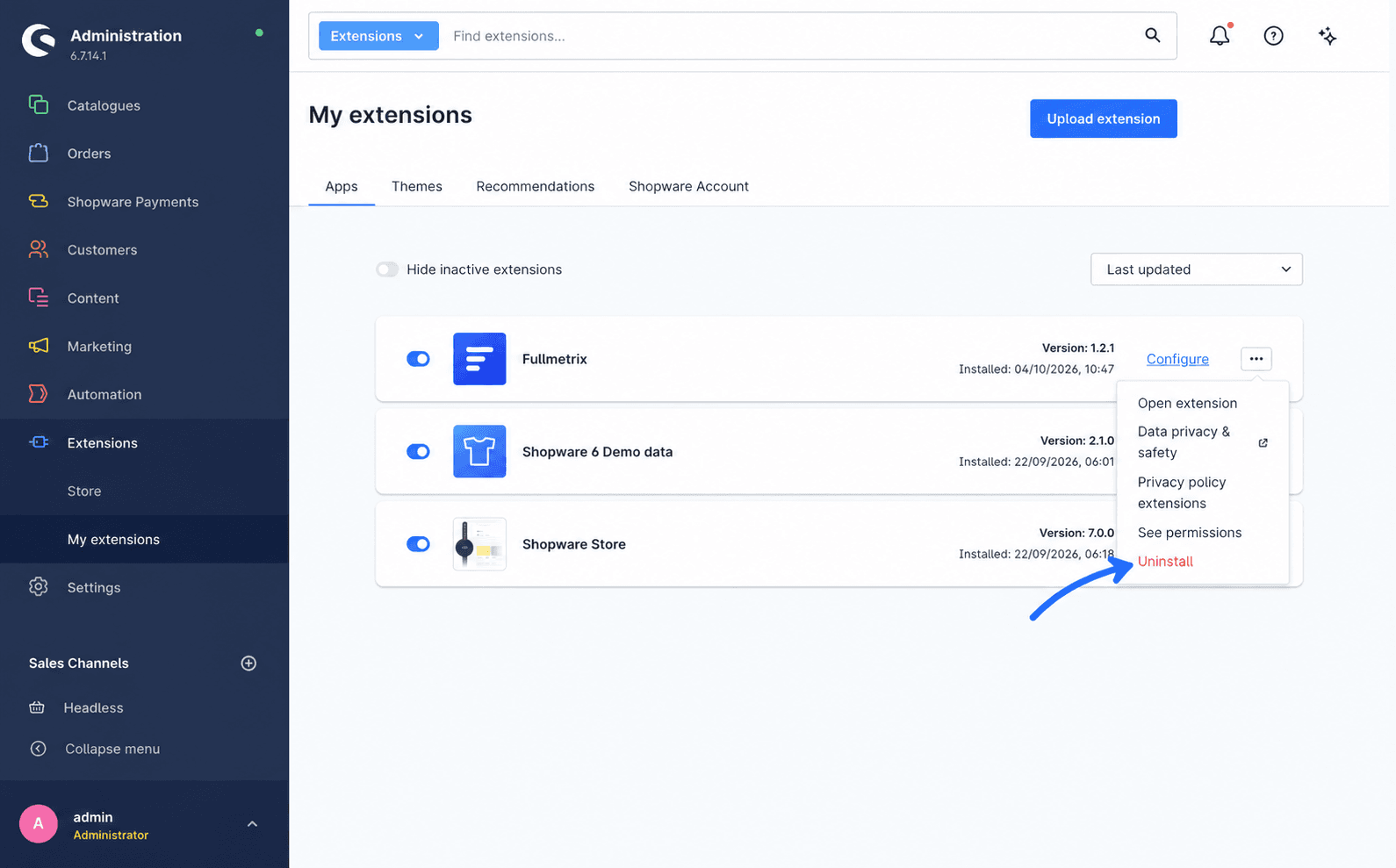
Shopware may offer Remove all app data permanently. Select it only when you are sure the app settings are no longer needed. Shopware states that this removal cannot be undone.
For a complete removal, disconnect the store in Fullmetrix first, then uninstall the app in Shopware. If the app is uninstalled first, the Fullmetrix card remains with sync errors until you disconnect it.
Reconnect later
Install and activate the app again by following Installation. Shopware creates new app credentials. Generate a fresh code for the intended Fullmetrix organization, paste it into Connection key, save and let the full historical import run again.
If you want to preserve the existing Fullmetrix history during a migration, contact support before disconnecting anything.