Install and connect
Install the Fullmetrix Magento module and connect a store view step by step.
Install the module from the Magento project directory with the same operating-system user that normally runs Composer and Magento commands.
Before you start
Sign in to Fullmetrix and Magento. Confirm that you have a recent backup and a normal deployment window, then check compatibility.
1. Prepare the connection in Fullmetrix
Select Magento
In the Fullmetrix onboarding, select Magento as your store platform.
Copy the connection code
Copy the displayed code. Its format is FMTX-XXXX-XXXX-XXXX.
Keep the code private
Use the code only on the store you are connecting. Do not send it in a ticket or include it in a screenshot.
2. Install the Magento module
From the Magento project directory, run:
composer require fullmetrix/magento-connector
bin/magento module:enable Fullmetrix_Connector
bin/magento setup:upgrade
bin/magento cache:flush
If your production deployment compiles dependency injection, also run:
bin/magento setup:di:compileVerify that Magento reports the module as enabled:
bin/magento module:status Fullmetrix_ConnectorUse your normal deployment process
On a managed or clustered Magento installation, deploy the package and generated files through the same release process you use for other Magento modules.
3. Open Fullmetrix in Magento
In the Magento administrator, open Marketing, then select Fullmetrix.
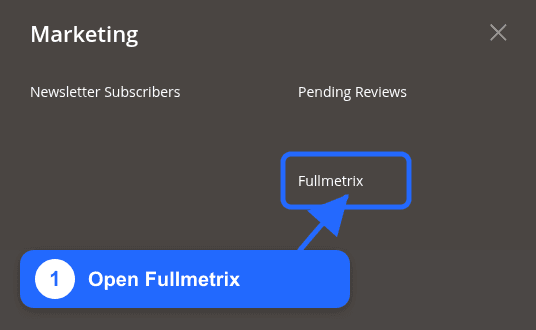
If the menu item is missing, sign out and in again after clearing the Magento cache.
4. Connect the store view
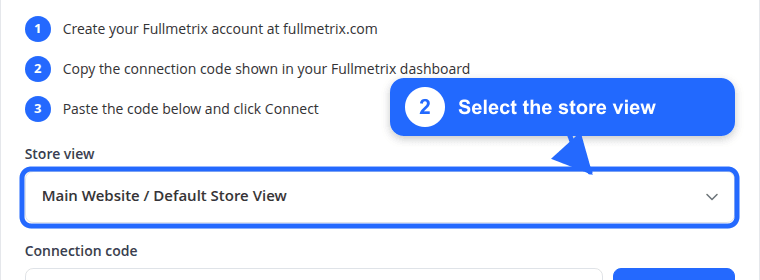
Select the store view
Choose the store view whose URL, currency, catalog, customers, and orders must be synchronized. Do not select a disabled store view.
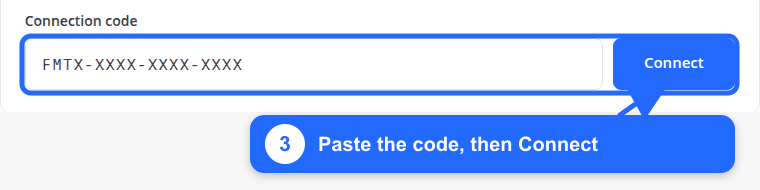
Wait for the first import
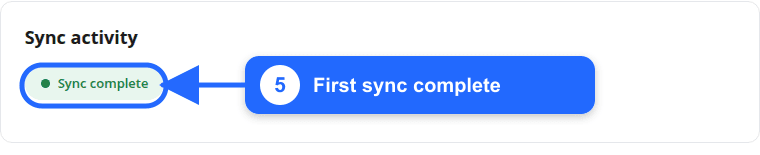
Keep Magento cron running. When the historical import finishes, Sync activity shows Sync complete.
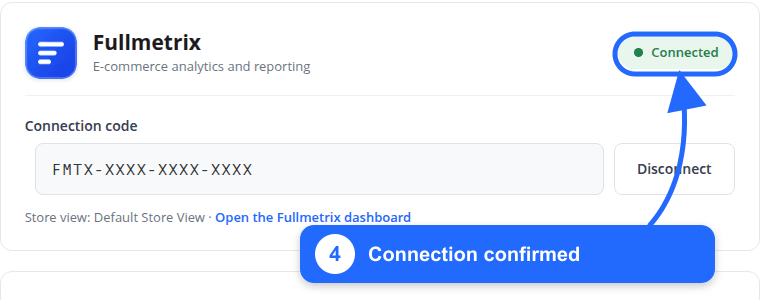
Your store view is connected
Return to Fullmetrix. The onboarding continues automatically and dashboards populate as the historical import progresses.
Optional: connect from the command line
Use the store-view ID when the installation contains more than one store view:
bin/magento fullmetrix:connect FMTX-XXXX-XXXX-XXXX --store-id=1
bin/magento fullmetrix:status
The status command prints the connection code. Redact that line before sharing command output.
If Magento displays an error or the import does not progress, use Magento troubleshooting.