Authorize and connect
Connect a Shopify store to Fullmetrix through the secure OAuth authorization flow.
Shopify is connected through OAuth. You never need to create or send an Admin API token.
Before you start
Sign in to Fullmetrix and to the correct Shopify store. Check compatibility and confirm that your Shopify role can install apps.
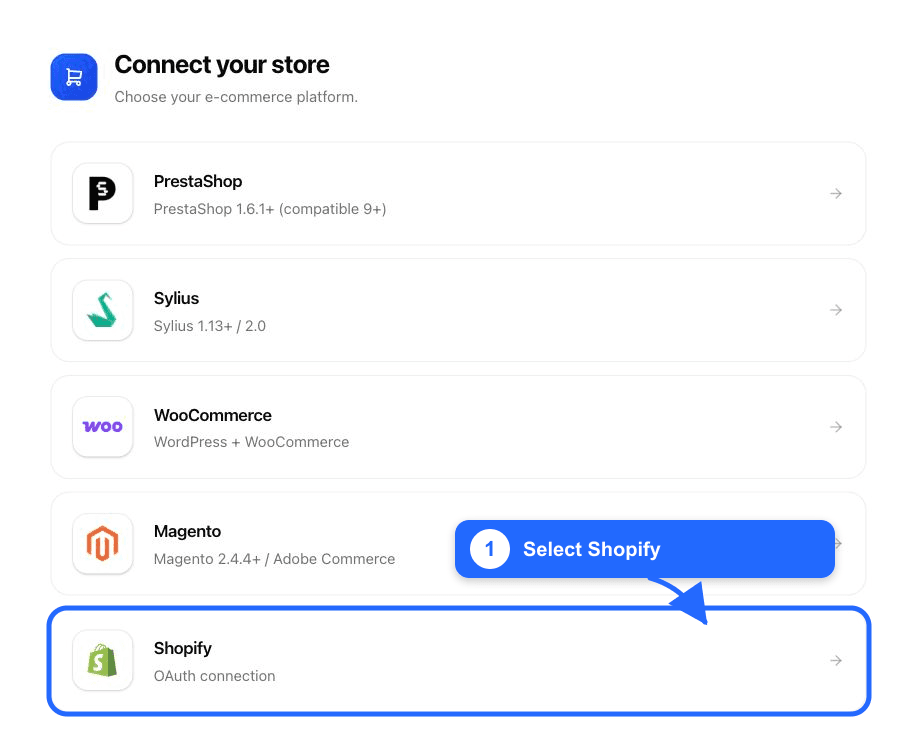
1. Select Shopify in Fullmetrix
In the Fullmetrix onboarding, choose Shopify.
2. Enter the store address
Enter either the public store domain or the permanent address ending in .myshopify.com. The permanent address avoids ambiguity after a custom-domain change.
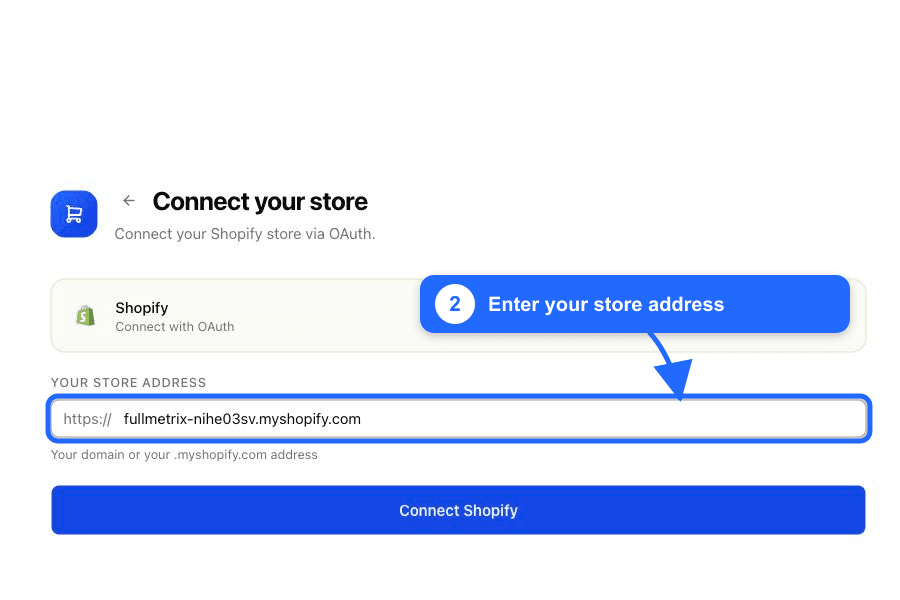
Do not paste an administrator URL such as admin.shopify.com/store/... and do not include a page path.
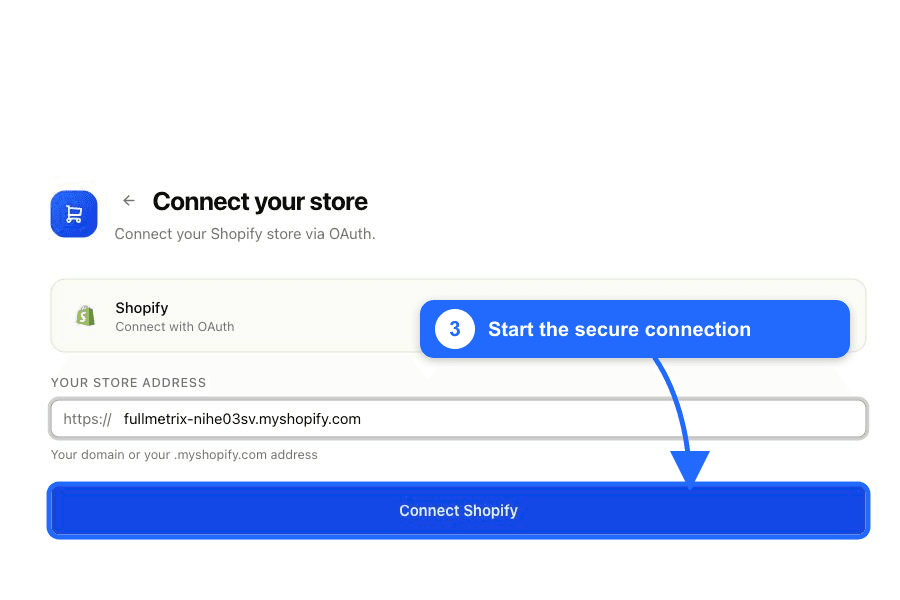
3. Start the secure connection
Click Connect Shopify. Fullmetrix redirects you to Shopify; no password or token is sent to Fullmetrix by this form.
4. Review and approve access in Shopify
Confirm that the Shopify store shown in the administrator is the store you intend to connect. Review every requested data category and the linked privacy policy.
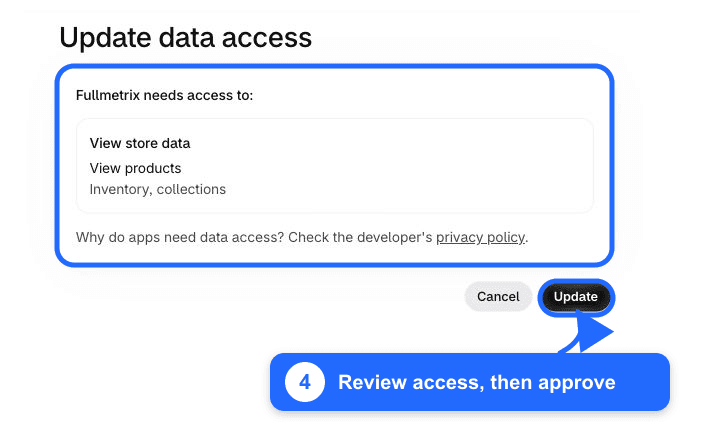
The final button is Install on a first installation. Shopify can instead show Update or Update data access when Fullmetrix is already installed and needs a newer permission.
Why Fullmetrix requests store data
Fullmetrix imports the commerce records used by its dashboards and keeps them current with Shopify webhooks. It also installs the Fullmetrix storefront tracker. Review the data-access details before approving.
5. Finish in Fullmetrix
After approval, Shopify returns you to Fullmetrix automatically.
- If you started from an existing Fullmetrix organization, the connection is attached to that organization.
- If you started from a Shopify installation link, sign in to Fullmetrix and choose an organization or create one for this store.
- Fullmetrix starts the historical import immediately. The status progresses from Import in progress to Connected.
Keep the browser page open until Fullmetrix confirms the connection. Large order histories take longer to import, but you can use the dashboard while later stages finish in the background.
6. Confirm the app in Shopify
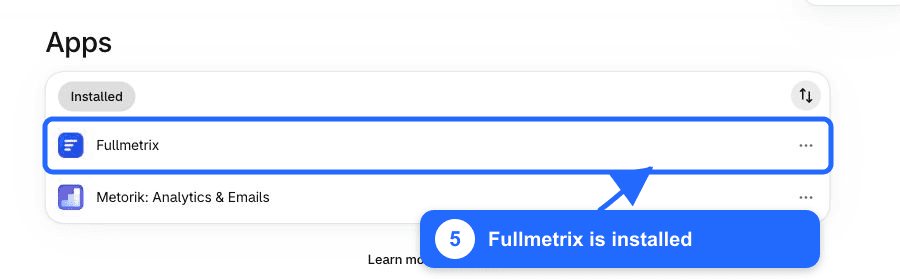
Open Settings > Apps in Shopify. Fullmetrix must appear under Installed.
Your Shopify store is connected
Return to Fullmetrix and check the e-commerce integration card. It should show the Shopify store and eventually the Connected status.
If Shopify does not return to Fullmetrix or the import does not progress, use Shopify troubleshooting.