Subscriptions
Find the subscriptions of your WooCommerce store, follow their status and next payment, and read a subscription's detail page.
The Subscriptions report lists the subscriptions sold on your store, such as a monthly box or a coffee refill every two weeks. Use it to find a customer's subscription, see which subscriptions are about to renew and spot those that are on hold or cancelled.
When this report is available
Fullmetrix imports subscriptions from WooCommerce stores that use the WooCommerce Subscriptions extension. The Subscriptions entry only appears in the sidebar once at least one subscription has been synced. If you sell subscriptions and the entry is missing, check that the sync has finished in Sync status. Installing the plugin is covered in WooCommerce.
Open the report
In the sidebar, open Data, then E-commerce, then click Subscriptions. Under the title, the page shows the total number of subscriptions, for example "312 subscriptions total".
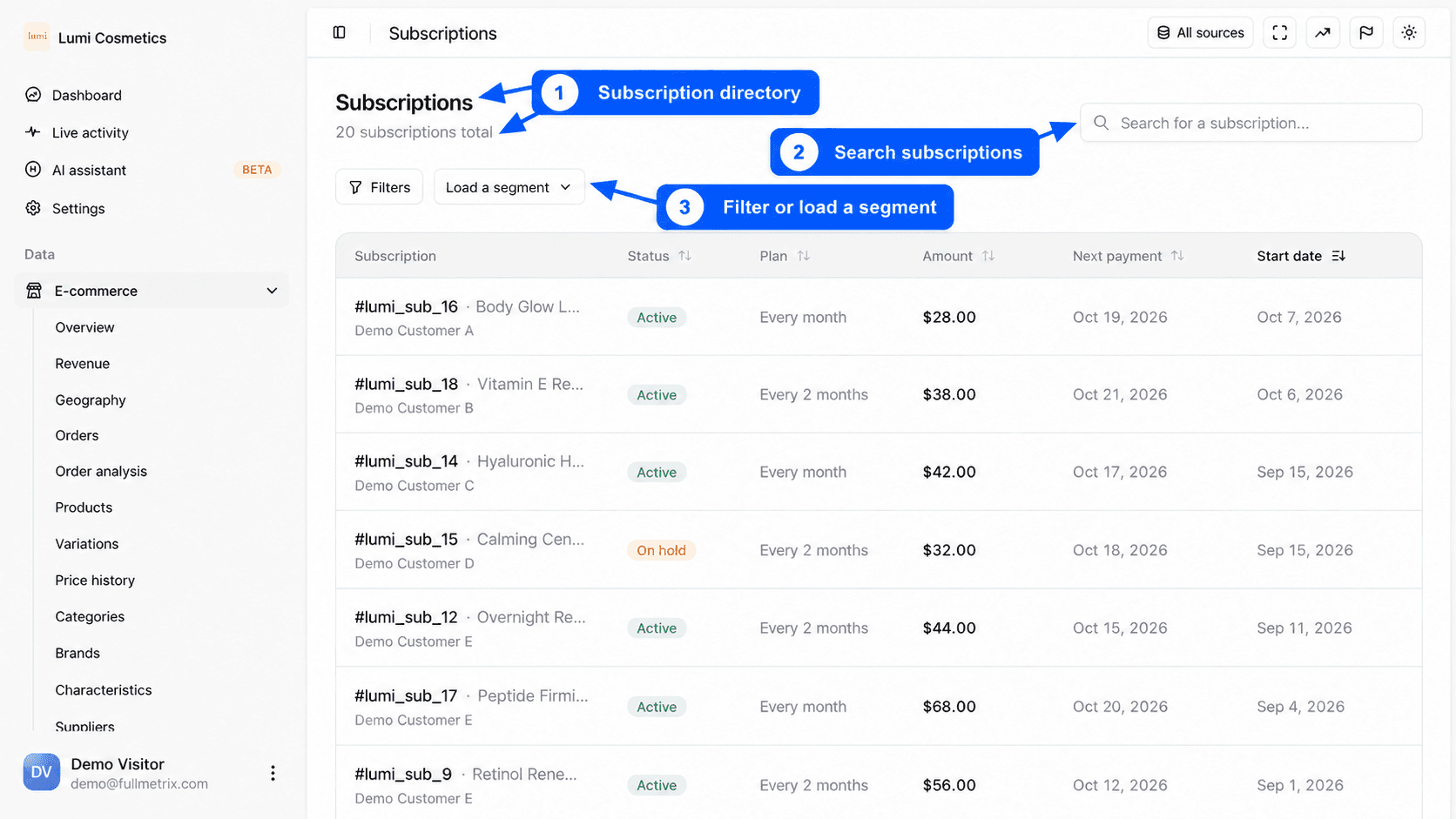
If you have several stores, the All sources selector at the top right limits the list to some of them. See Choose the stores you see. The page has no date range picker, it shows every subscription whatever its start date.
Read the table
By default, the most recent subscriptions come first.
| Column | What it shows |
|---|---|
| Subscription | The subscription number in your store, followed by the product name. The customer's name is shown underneath. |
| Status | The state of the subscription in your store (see the next table). |
| Plan | The billing frequency, for example Every month, Every week or "Every 2 weeks". |
| Amount | The amount billed at each renewal, as stored in your store. |
| Next payment | The date of the next scheduled payment. A dash means no payment is scheduled, for example for a cancelled subscription. |
| Start date | The date the subscription started. |
Click Status, Plan, Amount, Next payment or Start date to sort. A second click reverses the order.
Statuses come from WooCommerce Subscriptions.
| Status | Meaning |
|---|---|
| Active | The subscription is running and will be billed at the next renewal. |
| On hold | The subscription is suspended, often after a failed payment or at the customer's request. |
| Pending | The subscription is created but not paid yet. |
| Pending cancellation | The customer cancelled, and the subscription stays active until the end of the period already paid. |
| Cancelled | The subscription ended after a cancellation. |
| Expired | The subscription reached its planned end date. |
Find a subscription
Type in the Search for a subscription... field. The search covers the subscription number, the customer's email and name, the product name and the number of the order that created the subscription. If nothing matches, the table shows No subscriptions found and suggests trying a different search term.
Filter and load a segment
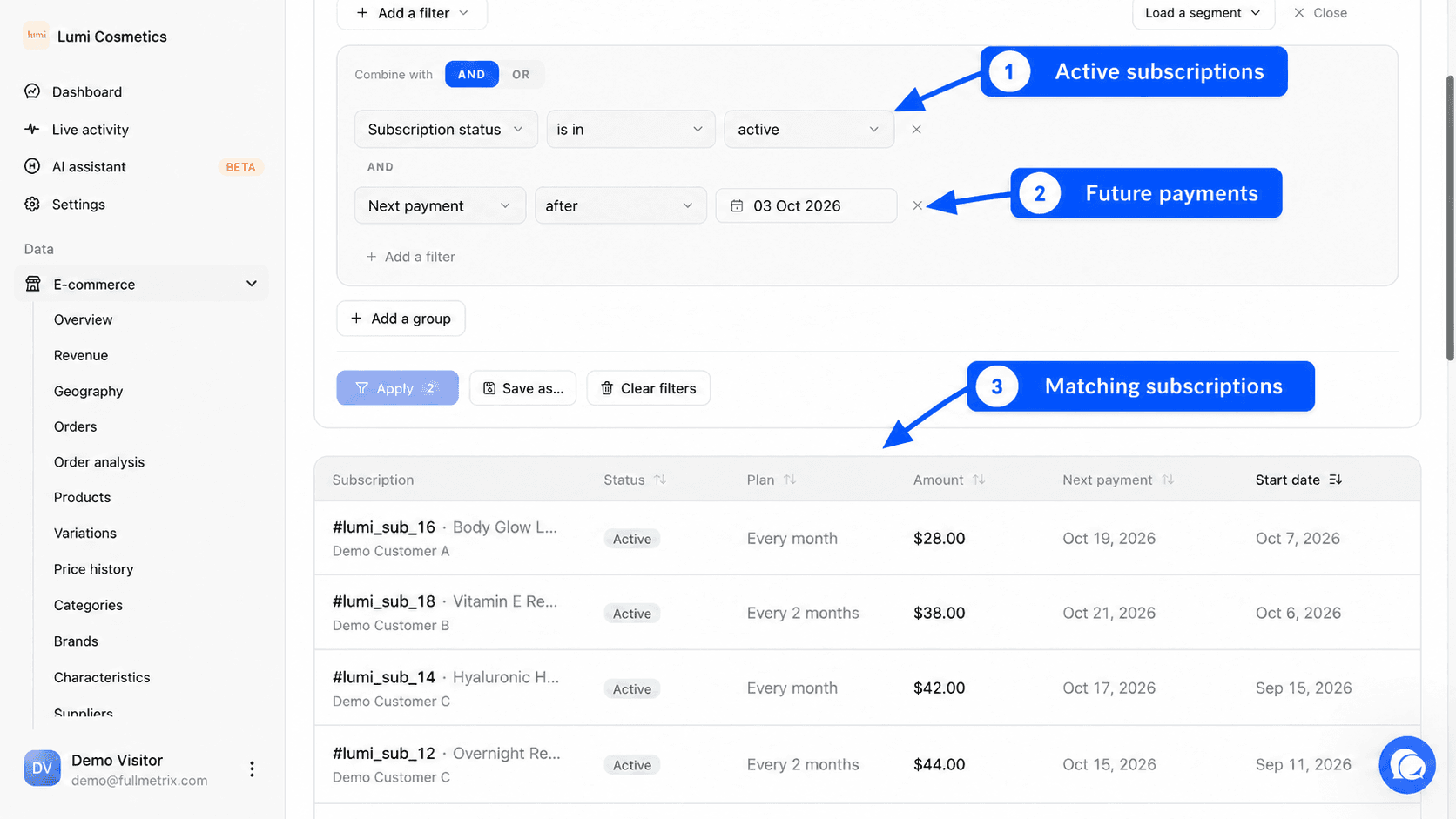
The Filters and Load a segment buttons narrow the list. The fields are specific to subscriptions, for example Subscription status, Billing period, Billing interval, Total amount, Product name, Customer email, Payment method, Manual renewal, Billing country, Start date, Next payment, End date or Trial end date. See Filters and segments.
Subscriptions of customers you added to Ignored customers, in Settings, Reports tab, do not appear.
Open a subscription's detail page
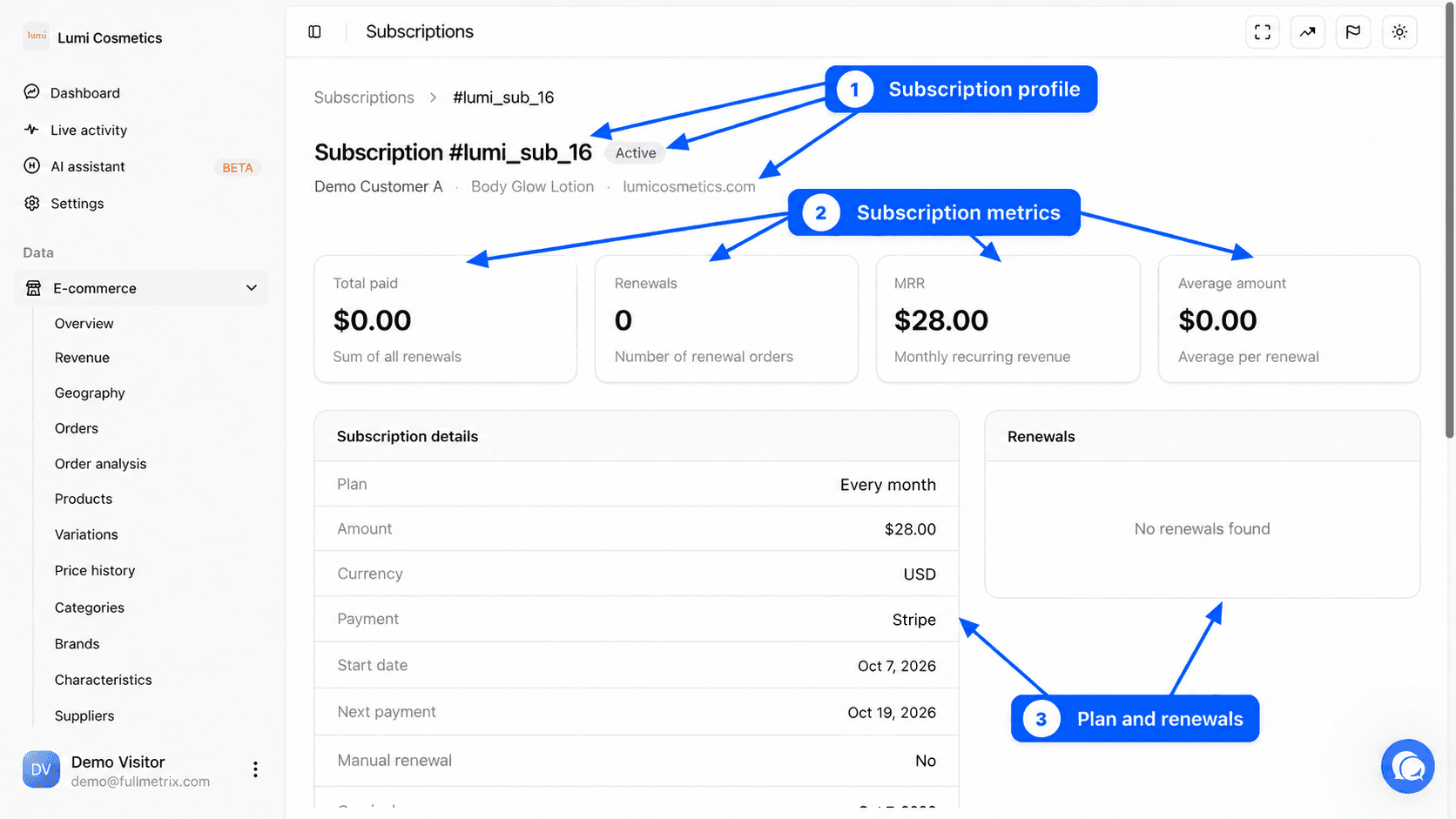
Click a row to open the detail page. Its title shows the number, for example Subscription #1042, followed by the status badge. Underneath you find the customer's name, the product and the store. Click the customer's name to open their customer page. The Subscriptions breadcrumb takes you back to the list.
The four cards
| Card | Definition |
|---|---|
| Total paid | The sum of the orders linked to the subscription and listed in the renewals section. |
| Renewals | The number of those orders. |
| MRR | The subscription's monthly recurring revenue, that is what it brings in over one month. Fullmetrix only computes it for an Active subscription with a positive amount. A €30 subscription every 2 weeks gives about €64 of MRR, a €120 yearly subscription gives €10. For any other status, MRR is 0. |
| Average amount | Total paid divided by the number of Renewals. |
Orders linked to the subscription
Today, Fullmetrix links the order that created the subscription. The Total paid, Renewals and Average amount cards therefore reflect that order. To see all of a subscriber's orders, open their customer page by clicking their name.
Details, products and addresses
The Subscription details section shows the Plan, the Amount, the Currency, the Payment method, the Start date, the Next payment, the Trial end and the End date when they exist, Manual renewal (Yes if the customer pays each renewal themselves) and the creation date.
The Products section lists the subscription's products with their Quantity, Price and Total. The Billing address and Shipping address sections follow.
On the right, the list of linked orders shows each order's number, status, total and date. Click an order to open it. If no order is linked, you see No renewals found.
If the subscription was deleted from the store, the page shows Unable to load this subscription.
Example questions
- Which active subscriptions have a future payment? Filter on Subscription status, is in, active, then Next payment, after, and today's date.
- How many subscriptions are on hold? Filter on Subscription status equals On hold and read the total at the top of the page.
- Which subscription does this customer have? Search their email.
- Which subscribers pay by hand every month? Filter on Manual renewal.