Sync status
Read your store's card in the settings, understand each color and message, and use the right button for the situation.
The sync status tells you whether your store and Fullmetrix are properly linked and whether your numbers are up to date. Everything is shown on a single card per store.
Where to find it
Open Settings in the sidebar, then the Integrations tab. In the E-commerce category, each connected store has its own card. You can connect up to three stores per organization, all on the same platform.
What the card shows
From top to bottom, the card shows these items.
- The platform's logo and name (PrestaShop, WooCommerce, Shopify, Magento or Sylius).
- A colored dot that sums up the connection state.
- Your store's address, or the Connection code as long as the module isn't linked yet.
- A progress bar during the first import.
- The Last sync line, with the date and time of the last successful sync, shown in your computer's time.
- An orange or red box when something is wrong.
- The buttons available in the current situation.
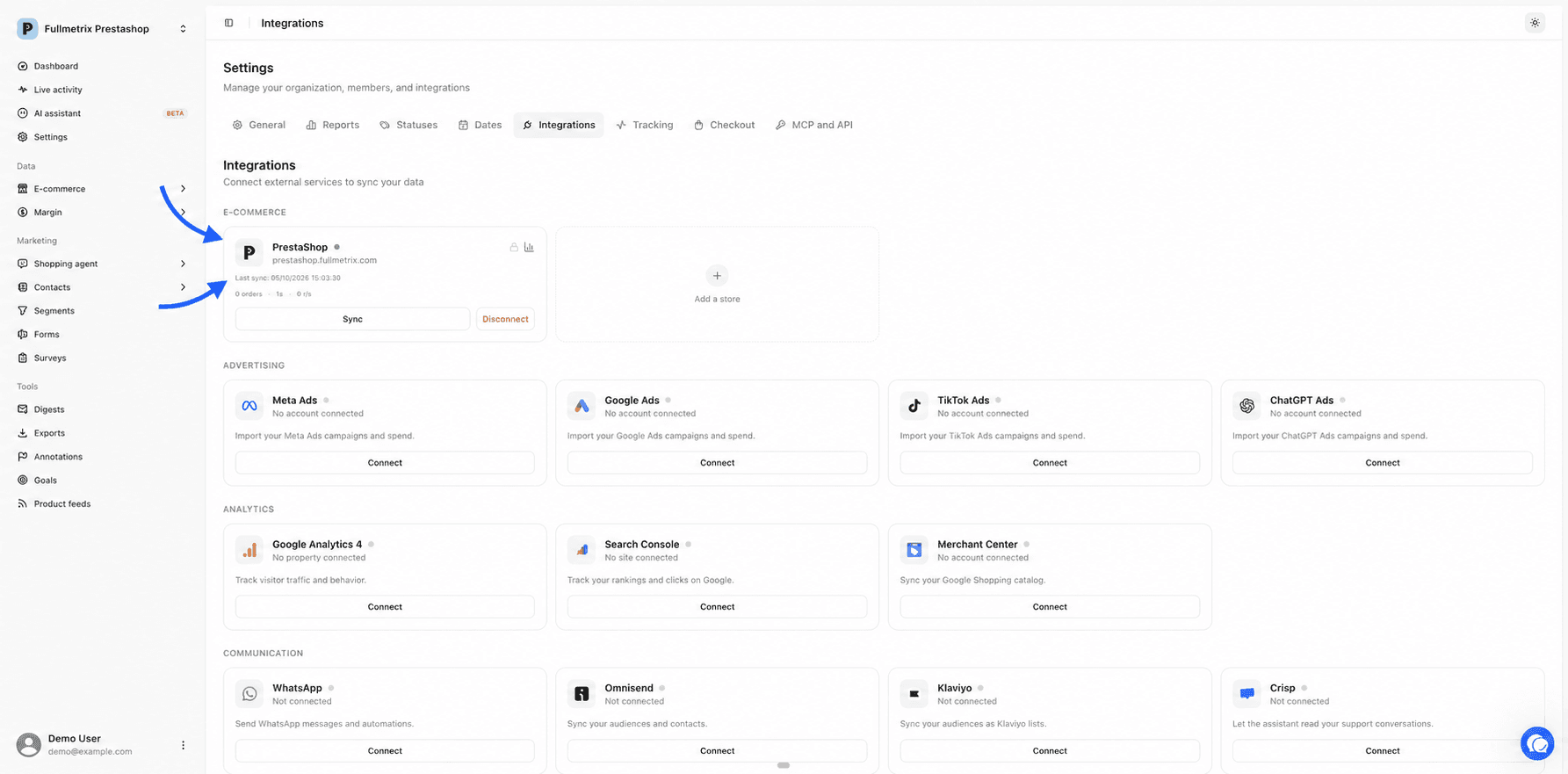
Next to your store's card, a dashed Add a store card lets you connect another one. It disappears once you reach three stores.
What each state means
| Dot | What is written | What it means | What to do |
|---|---|---|---|
| Amber | The Connection code and "Waiting for plugin installation" | The connection exists in Fullmetrix, but the store's module hasn't used it yet | Install the module and paste the code into it. See Connection and access issues |
| Amber | "Waiting for OAuth authorization" | Shopify hasn't confirmed the authorization yet | Finish installing the app in Shopify |
| Blinking blue, with a bar | "Import in progress" and a percentage | The first history import is running | Wait. See Historical import |
| Blinking blue | The Sync button spins | An update is running | Wait a moment |
| Green | "Last sync" and a date | Everything works | Nothing |
| Red | An error message in a red box | The last sync failed | Read the message, fix the cause, then click Resume, or Reset if Resume isn't offered |
| Orange | "Auto-sync disabled after N consecutive errors" | After several failures, Fullmetrix stopped its automatic checks | Fix the cause, then click Resume, or Reset if Resume isn't offered |
| Blinking red | The Disconnect button spins | The store is being deleted | Wait for it to finish before reconnecting |
A Cloudflare message can show even with a green dot
If your store's Cloudflare protection blocked a sync, the card shows the full message in a red box, with the steps to follow. The fix is explained step by step in Cloudflare and firewalls.
When automatic sync turns off
Fullmetrix checks each store every 15 minutes and every hour. If these checks fail several times in a row and no sync has succeeded in the last 24 hours, Fullmetrix pauses them so it doesn't keep calling your store for nothing. The dot turns orange and the card shows the number of consecutive errors.
Changes your store sends us on its own keep arriving. But nothing catches up on what was missed anymore, so fix the cause quickly. The most common cause is a store that can't be reached, because of a firewall, a disabled module or a site that is down.
The card's buttons
The card only shows the buttons that are useful in the current situation.
Sync
Sync starts an update right away, fetching changes since the last successful sync. It shows when the store is in good shape. It's greyed out while a sync is running, because only one can run at a time.
Resume
Resume replaces Sync after a failure, if the import had already made progress. It restarts the sync and keeps the recorded progress. It's the first button to try once you've fixed the cause of an error.
Reset
Reset also shows after a failure. A Reset sync? window asks you to confirm. It sets the progress back to zero and restarts the sync. Orders already imported are kept. Use it if Resume isn't offered or doesn't solve the problem.
Reconnect
Reconnect only shows for Shopify, when the app needs a new authorization, for example because it asks for additional access. The button sends you to Shopify to approve, then brings you back to Fullmetrix.
Disconnect
Disconnect removes the store from Fullmetrix. A Disconnect this store? window warns you that the connection and all imported order data will be deleted, and that this can't be undone.
Disconnect is not a retry button
Never use it to fix an error. After a disconnection, you have to reconnect the store and redo the whole history import. To only stop synchronization, disable the module in your store, your data then stays in Fullmetrix.
If the card doesn't load
If the card shows "Unable to load store status.", click Retry. This message is about displaying the card, not about your store or your data. If it comes back, reload the page.
If the E-commerce category shows "No store connected", no store is linked to this organization. Check you're in the right organization with the selector at the top of the sidebar, or click Connect.