Data accuracy
Understand why a Fullmetrix number differs from your store or from Google Analytics, and align the settings to compare like with like.
A Fullmetrix number that doesn't match your store admin almost never means data is missing. In most cases, the two tools don't count the same thing. One includes taxes and the other doesn't, one counts cancelled orders and the other doesn't, one cuts days at midnight Paris time and the other at midnight New York time.
This page explains exactly what Fullmetrix counts, which settings change the numbers and how to make a fair comparison.
What Fullmetrix counts as an order
Fullmetrix imports every order from your store, whatever its status. A status is the state of an order in your store, for example "Pending payment", "Shipped", "Cancelled" or "Refunded".
In reports, an order is counted when it meets all of these conditions.
- It belongs to a store selected in the source selector at the top of the report.
- Its creation date falls within the chosen date range, in your organization's timezone.
- Its status is not in the Excluded order statuses list in the Reports tab.
- Its amount is above zero, as long as Only orders with gross amount > 0 is checked (it is by default).
- It wasn't placed by a customer in the Ignored customers list.
Trashed orders and the draft orders WooCommerce creates during checkout are never counted.
By default, no status is excluded
Until you check something in Excluded order statuses, Fullmetrix also counts cancelled, failed and pending payment orders. This is the most common cause of differences with a store admin that only shows confirmed orders. Set this list up early, see below.
The same definition is used everywhere in Fullmetrix, in reports, the dashboard, segments and exports. When you change a setting, every number follows.
How revenue is calculated
Fullmetrix shows two main amounts in sales reports.
Gross sales are the sum of the totals of counted orders, as your store records them. They include taxes, shipping and fees, and discounts are already taken off.
Revenue starts from gross sales and removes what you checked under Net sales deductions, in the Reports settings tab.
| Checkbox | What it removes | Effect |
|---|---|---|
| Deduct refunds | Refunded amounts | A refund is removed on the date it was issued, not on the order date |
| Deduct taxes | VAT and other order taxes | Revenue becomes tax-exclusive |
| Deduct shipping | Shipping charged to the customer | Revenue only contains the value of products |
| Deduct fees | Extra fees charged (payment fees, packaging...) | These fees leave revenue |
Depending on your settings, Revenue can therefore be tax-exclusive, shipping-exclusive and net of refunds, while your store admin often shows a tax-inclusive total with shipping. Open the Reports tab to see which boxes are checked in your organization.
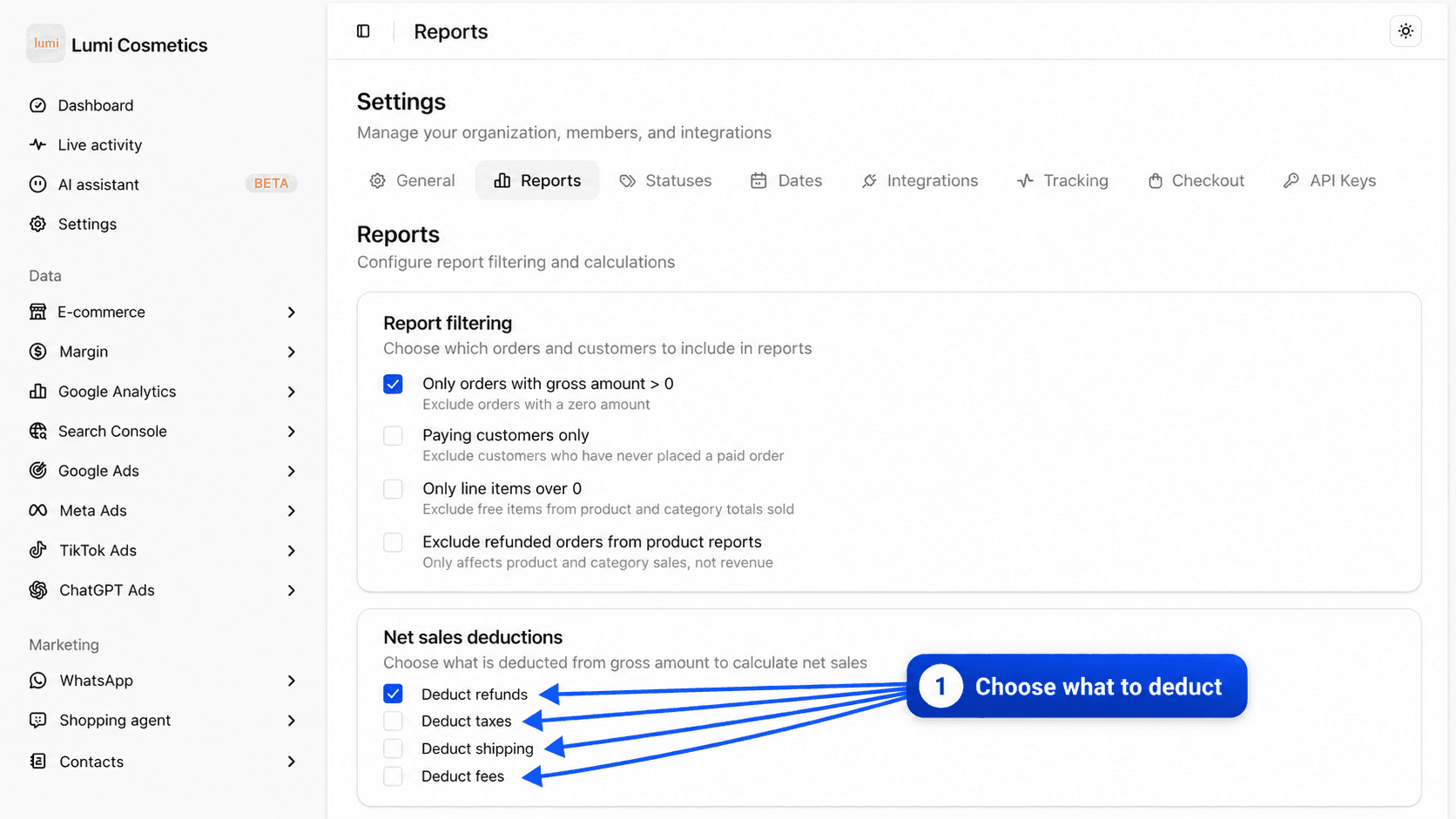
Refunds land on their own date
When Deduct refunds is checked, a refund issued on October 3 for an order from September 28 lowers October revenue, not September. September sales stay what you actually took in during September. If your store removes the refund from the original order instead, the two tools differ on both months, then match over the whole period. Refund details are in the Refunds report.
Settings that change the numbers
All of these settings live in Settings. They apply immediately to your whole history, with no re-import. Just reload the report.
General tab, timezone and currency
The Timezone decides where a day ends. An order placed at half past eleven at night in Paris lands on the next day in a report set to a timezone further east. Every period (day, week, month) follows this timezone.
The Currency is the one every amount is shown in. Orders placed in another currency are converted. Details are in Currencies and timezones.
Reports tab, which orders are in scope
The Report filtering card has four checkboxes.
| Checkbox | Default | What it changes |
|---|---|---|
| Only orders with gross amount > 0 | Checked | Orders at 0, for example a fully free order, are not counted |
| Paying customers only | Unchecked | Orders from customers who never placed a paid order are removed |
| Only line items over 0 | Unchecked | Free items leave the quantities sold per product and category |
| Exclude refunded orders from product reports | Unchecked | Refunded orders leave product and category sales, without touching revenue |
The Excluded order statuses card lists every status found in your orders, with its display name and its code in brackets. Check the ones that shouldn't count, usually cancelled, failed and pending payment orders. The Refunded status doesn't appear in this list, because refunds are handled by the Deduct refunds checkbox.
The Ignored customers card removes a customer's orders from every e-commerce report, for example your own test address or an internal account. Search for the customer by email to add them.
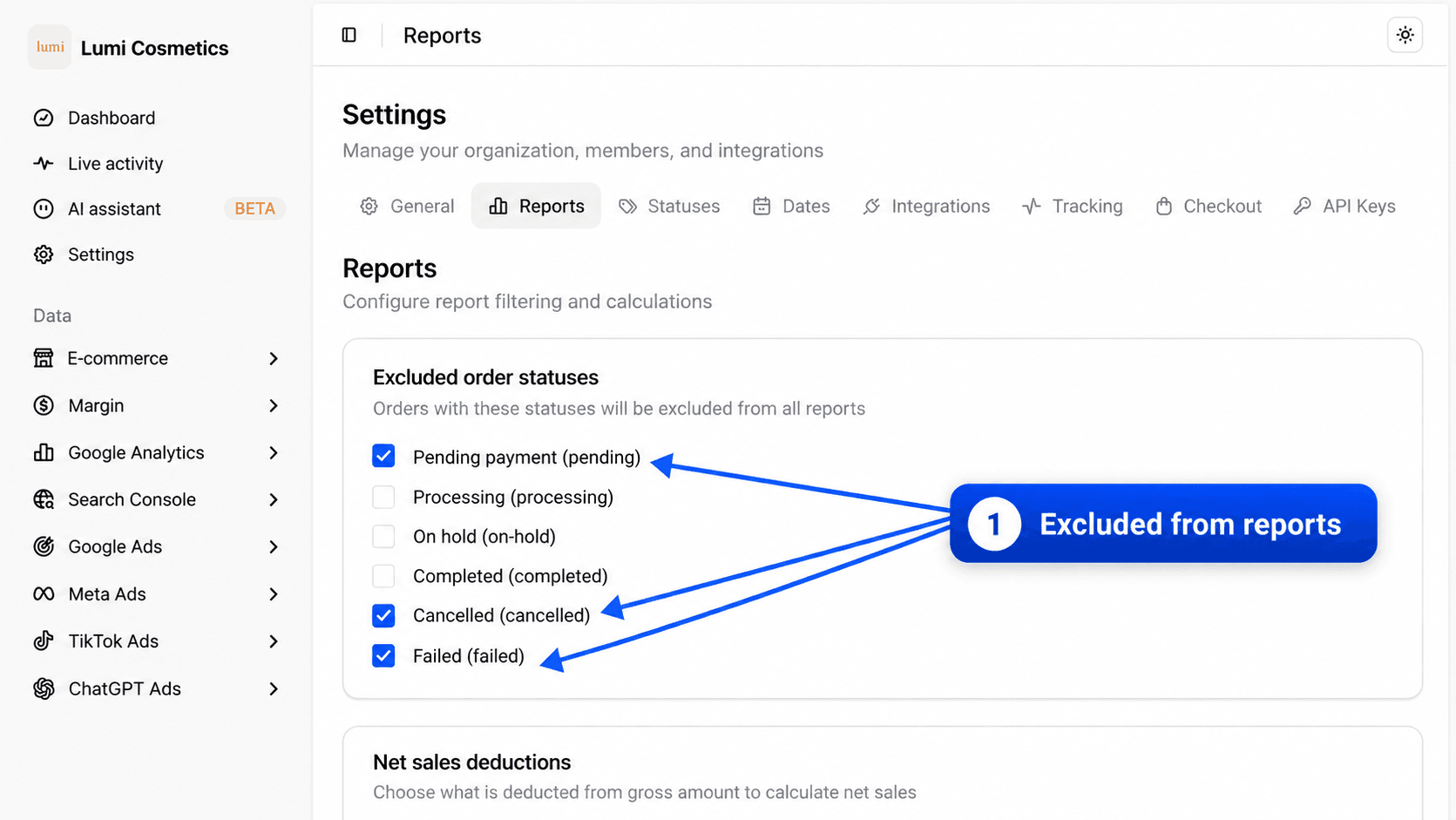
Statuses tab, status names
The Statuses tab lists the statuses discovered in your orders. You change each status's Display name, Color and Canonical group (Completed, Processing, Pending, Cancelled, Refunded, Failed, Draft) there. These changes don't alter report numbers. If a recent status is missing from the excluded statuses list, click Refresh statuses in this tab, then go back to Reports.
Dates tab
The Dates tab sets, among other things, the start of your fiscal year, used by goals, and the time format. In reports, an order's date stays its creation date.
Make a fair comparison with your store
Follow this order. Each step rules out one cause of difference.
Pick a short, past period
Take a finished day or week, for example last week. Avoid today, because the latest orders may still be on their way to Fullmetrix.
Select a single store
If you have several stores, pick the store to compare in the source selector at the top of the report, rather than All sources.
Check the timezone on both sides
Compare the timezone in Settings, General tab, with your store's. If they differ, late-evening orders move to another day.
Compare the number of orders first
Open the Orders report and compare the count with your store admin, filtered on the same statuses. If the counts differ, look for order numbers present on one side only. Check their status and time.
Then compare amounts
Once the order count matches, compare Gross sales with your store's tax-inclusive total. Then compare Revenue, taking the Net sales deductions checkboxes into account.
Why Google Analytics shows something else
Google Analytics and Fullmetrix don't measure the same thing. Fullmetrix reads the orders recorded in your store. Google Analytics counts the purchases its code saw in the visitor's browser.
Several reasons make Google Analytics see fewer orders, or different amounts.
- A visitor who refuses cookies, or uses an ad blocker, sends nothing to Google Analytics. Their order still exists in your store.
- An order taken by phone, created by hand in the admin or paid later (bank transfer, installments) isn't seen by the browser.
- If the confirmation page doesn't load, for example because the customer closes the tab after paying, the purchase isn't sent.
- Google Analytics doesn't remove cancellations or refunds unless your store sends them.
- The amount sent by your tracking code may include or exclude taxes and shipping, depending on how it was installed.
- Your Google Analytics property's timezone may differ from Fullmetrix's.
For revenue, rely on Fullmetrix's e-commerce reports, which start from your store. Use the Google Analytics reports for traffic, sources and visitor journeys.
Quick answers by symptom
| What you see | Most likely cause | Where to look |
|---|---|---|
| Fullmetrix counts more orders than the store | Cancelled or pending orders are counted | Settings, Reports tab, Excluded order statuses |
| Revenue is lower than the store total | Taxes, shipping, fees or refunds deducted | Settings, Reports tab, Net sales deductions |
| Differences concern late-evening orders | Different timezone | Settings, General tab, Timezone |
| A month drops after an old order was refunded | Refund deducted on its own date | Refunds report |
| Amounts differ only for foreign orders | Currency conversion | Currencies and timezones |
| This morning's order is missing | Sync hasn't run yet | How synchronization works |
| A whole store is missing from the total | Store not selected or sync in error | Source selector, then Sync status |
Frequently asked questions
Historical import
Know what happens during your store's first import, how long it takes, where to follow its progress and what to do if it fails.
Currencies and timezones
Set the currency and timezone of your reports, understand how foreign-currency orders are converted and change how amounts are written.