Company
Use the Company center to follow your organizations, their status and their subscription, add a new one or create another company.
A company groups your organizations under one billing and one team. An organization is the workspace of one store, or of several stores you want to analyze together, with its own connections, data and reports.
Take a brand that sells in France and Spain through two separate stores. It can create one organization per country, so each local team only sees its own, and keep both in the same company. There is then a single card and one invoice per month, detailing each organization.
The Company center is where you follow all of this.
Open the Company center
Click your name at the bottom of the sidebar, then Company. The center opens on the list of your organizations.
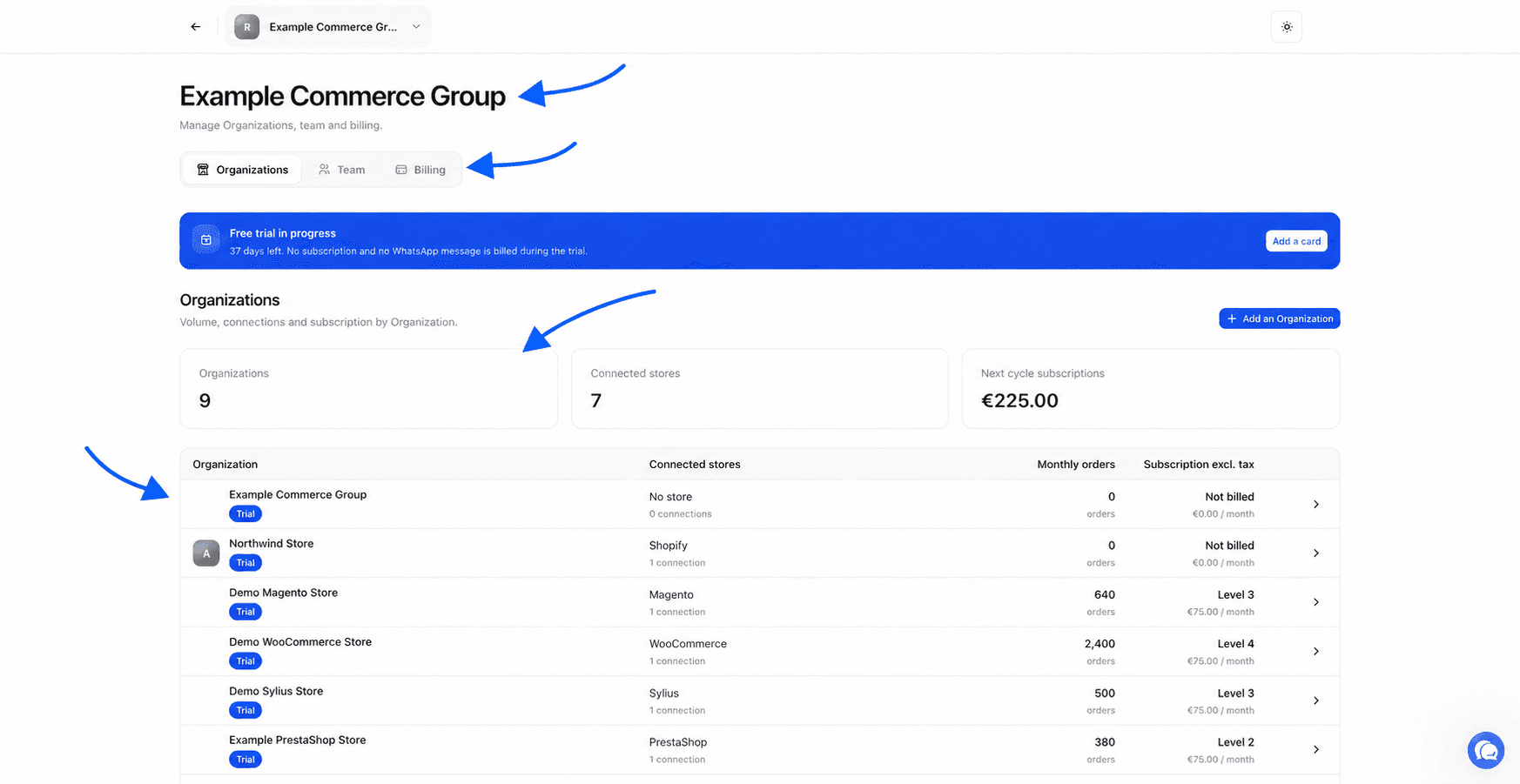
At the top left, the Back button takes you back to the organization you were using. The company name shows next to it.
If you are an Administrator of the company, the center has three sections, Organizations, Team and Billing. If you are a User, you only see Organizations, limited to the organizations assigned to you. Roles are explained in Team and roles.
A colored banner can appear at the top of the center, for example Free trial in progress or The last payment failed. It shows the subscription state and the action to take. All these banners are described in Billing.
Read the organizations list
The Organizations section starts with key figures. Organizations gives the number of organizations, Connected stores the total number of linked stores. Administrators also see Next cycle subscriptions, the amount excluding tax planned for the next invoice, excluding WhatsApp usage.
The table below has one row per organization.
| Column | What it shows |
|---|---|
| Organization | The organization name and its status |
| Connected stores | The number of connections, or No store |
| Monthly orders | The monthly order volume used to calculate the subscription |
| Subscription excl. tax | The organization's monthly price excluding tax. Only administrators see this column |
Each organization's status shows as a label.
| Label | What it means |
|---|---|
| Trial | The organization is on the free trial |
| Active | The organization is covered by the subscription |
| Payment required | Access is suspended until the subscription is paid |
| 0 order | The store is linked but has no order over the observed period |
| Calculating | We are importing the history or calculating the order volume |
| To connect | No store is linked yet |
In the Subscription excl. tax column, Flat rate means a fixed price agreed with us and Not billed an organization that does not generate a subscription.
To open an organization, click the arrow at the end of its row. You land on its dashboard.
Add an organization
Any company member can add an organization. It is billed by the company you create it in.
Open creation
In the Organizations section, click Add an Organization. The window reads Billed by followed by the company name. Check that it is the right one.
Name the organization
In Organization name, type a name of at least two characters. A name with the brand and market, such as "My Brand Spain", helps you find your way.
Confirm the trial for a first organization
For the very first organization, a checkbox asks you to confirm that you start your free trial with it. Creating more companies or organizations does not grant a new trial. Tick the box.
Create
Click Create. We take you to the new organization's setup assistant, to connect its store. The flow is described in Quickstart.
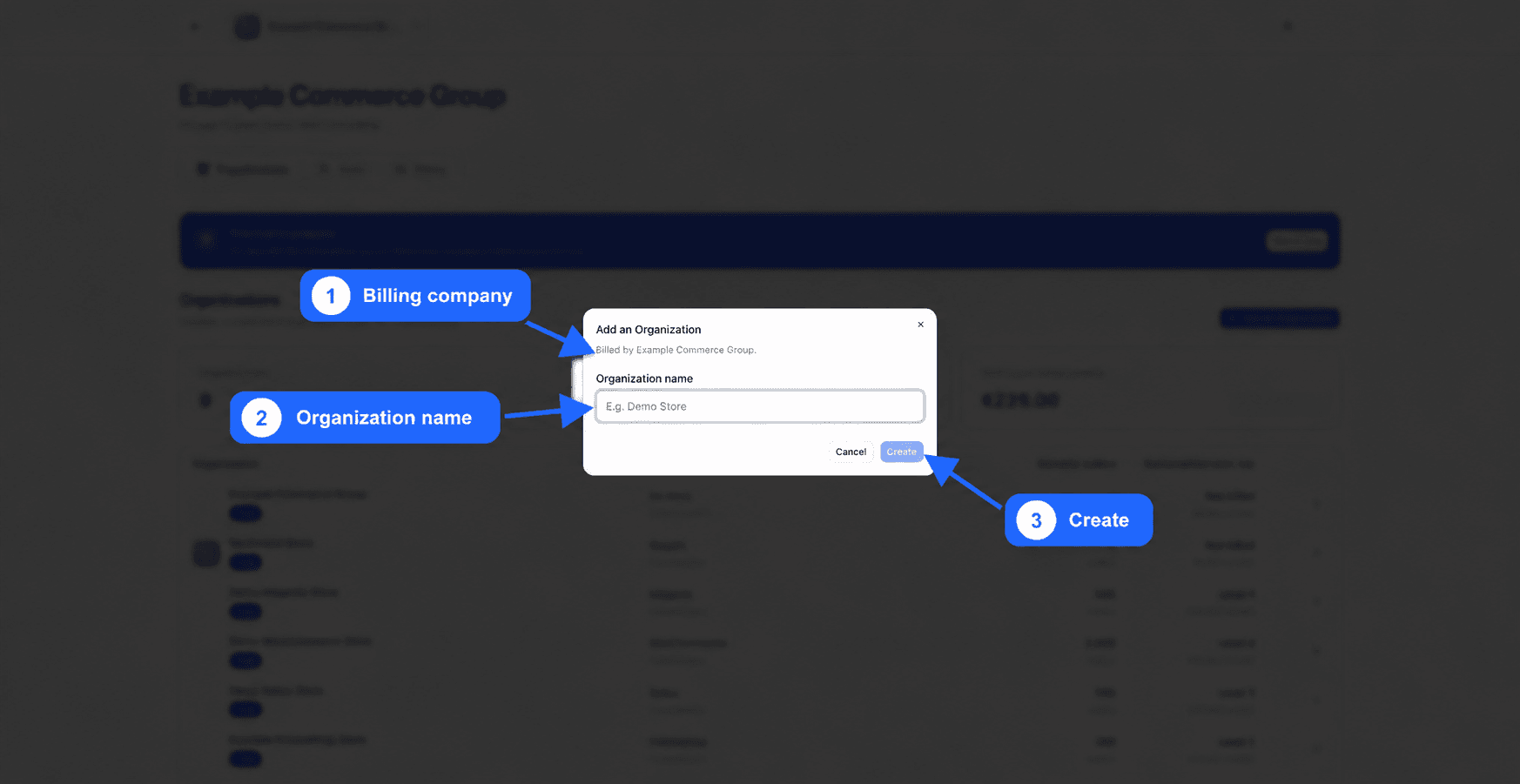
You can also create an organization from the organization switcher at the top of the sidebar.
Reactivate an organization
A deactivated organization, or one whose shutdown is scheduled for the end of the cycle, shows a three-dot button at the end of its row. Click it, then Reactivate. A message confirms that the organization is reactivated.
Switch company or create another one
If you belong to several companies, click the company name at the top of the center. The Switch company list shows the others. Click one to open its center.
In the same list, Create a company creates an independent space with its own billing and team. Enter the Company name, then click Create the company. Do this for example if you manage two businesses that each pay their own invoices.
Choose between an organization and a company
| Situation | What we recommend |
|---|---|
| Several stores to analyze together, with the same team | One organization holding every store, three at most and all on the same platform, as explained in Multiple stores |
| Several stores with separate teams or reports, paid by the same business | One organization per store, in the same company |
| Several businesses that each receive their own invoice | One company per business |