Billing
Understand the free trial and how your subscription is priced, save your card, find your invoices and know what to do if a payment fails.
Billing happens at company level. A single card pays for every organization in the company, and each invoice details what each organization costs. To understand the difference between company and organization, read Company.
Only company Administrators see billing and can act on it. Users only see the banners that flag a problem, with a message asking them to contact an administrator.
Open billing
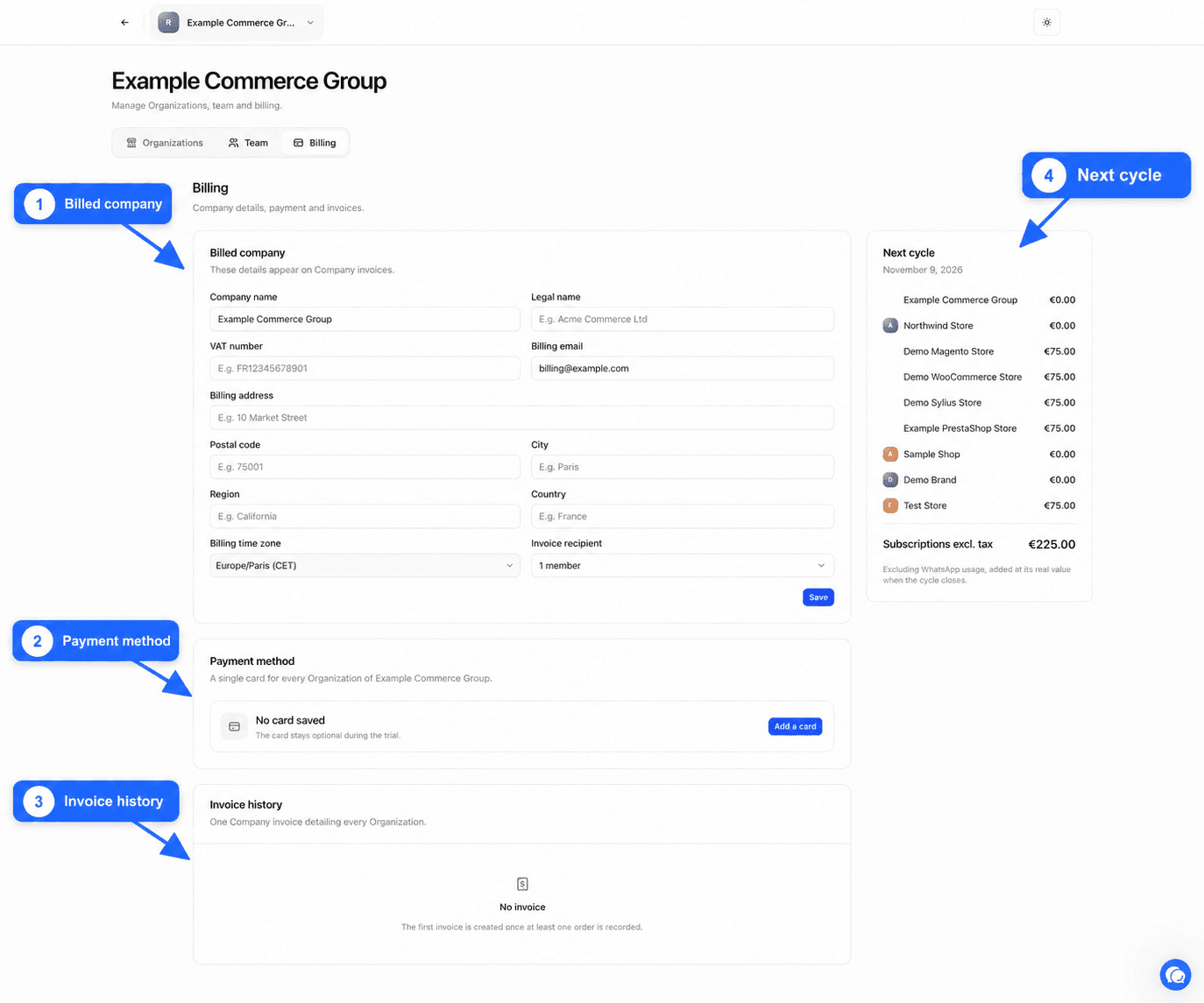
Click your name at the bottom of the sidebar, then Company, then the Billing section. It has four cards, Billed company, Payment method, Invoice history and Next cycle.
The free trial
Your first organization starts a free trial. During the trial you have access to everything, and nothing is billed, neither the subscription nor WhatsApp messages.
The Company center then shows the Free trial in progress banner with the number of days left. You also receive an email a few days before the end.
The card is optional during the trial. If you save it before the end, the subscription starts without interruption on the day the trial ends. Nothing is charged when you save it.
The trial is personal. Creating more companies or organizations does not grant a new trial.
How the price is calculated
Each organization has its own monthly subscription. Its price depends on its number of orders per month, calculated as the average of the last three full months. The more orders your store receives, the higher the tier. The tiers and their prices are published on the Pricing section of our website.
In the Organizations section of the center, the Monthly orders column shows the volume used for each organization and the Subscription excl. tax column its monthly price excluding tax. An organization with no connected store is not billed.
Billable WhatsApp messages come on top of the subscription. They are counted at their real cost when the cycle closes.
Fill in the billed company
These details appear on your invoices. Check them before the first invoice and after any change of business or accountant.
Fill in the business identity
In the Billed company card, fill in Company name, Legal name and VAT number.
Fill in the address
Fill in Billing email, Billing address, Postal code, City, Region and Country.
Choose the time zone and recipient
Choose the Billing time zone, used for your invoice dates. In Invoice recipient, enter who receives invoices by email, for example your accountant.
Save
Click Save. The message Billing details saved confirms it.
Add or change your card
The Payment method card reads Card saved in Stripe or No card saved. Stripe is the payment service that handles your card. We never see its full number.
Open the payment page
Without a card, click Add a card. With a card already saved, click Manage the subscription and card.
Enter or change the card
You land on a secure payment page. Enter your card, or replace the saved one.
Come back to Fullmetrix
Once done, you return to the Company center. The card reads Card saved in Stripe.
Never share your card
Only enter your card on the payment page opened from the Company center. We will never ask for a card number by email, by phone or through support.
Find your invoices
The Invoice history card lists one invoice per month for the whole company, detailing each organization. The table shows the Number, Date, Status and Amount of each invoice. The link at the end of the row downloads the invoice as a PDF.
While no invoice exists, the card shows No invoice and notes that The first invoice is created once at least one order is recorded.
The Next cycle card gives the planned total of Subscriptions excl. tax for the next invoice. It does not include WhatsApp usage, added at its real value when the cycle closes.
Status banners and what they ask of you
A banner at the top of the Company center shows the subscription state. Administrators find a button to act. Users see a message asking them to contact an administrator.
| Banner | What is happening | What to do |
|---|---|---|
| Free trial in progress | The trial is running, with the number of days left | Click Add a card so the subscription starts without a break |
| Your free trial has ended | Access to organizations is suspended | Click Activate the subscription |
| Payment to complete | A payment was started but not finished | Click Complete the payment |
| The last payment failed | The charge could not go through. Access continues for now | Click Update the card without waiting |
| Subscription required | The subscription is no longer active and access is suspended | Click Activate the subscription |
| Subscription cancelled at period end | A cancellation is scheduled. Access stays open until the date shown | Click Reactivate the subscription if you want to continue |
If a payment fails
When a charge fails, for example because the card expired, here is what you see in order.
An email and a banner
You receive a Payment failed email, with the amount and, when planned, the date of the next attempt. The Company center shows The last payment failed. Your organizations stay accessible as usual.
A few days to fix it
You have a few days to update your card. Click Update the card and save a valid card. The next payment attempt uses this card. As soon as the payment goes through, the banner disappears and you receive a Payment received email.
Suspension if nothing is done
If the payment is still not settled at the end of that period, access is suspended. You receive an Access suspended email. Organizations show Payment required and, when you try to open one, you are sent back to the Company center. Billable WhatsApp sending also stops.
Back to normal
An administrator clicks Activate the subscription and settles the payment. Access comes back as soon as the payment is confirmed, with your data and settings.
Cancel or reactivate the subscription
To cancel, click Manage the subscription and card, then follow the steps on the page that opens. The subscription stays active until the end of the cycle already paid, and no prorated refund is made. The Subscription cancelled at period end banner shows the end date. WhatsApp messages already sent remain due.
Until that date, you can go back with Reactivate the subscription.