Team and roles
Invite your teammates or your agency, pick their role and the organizations they see, then change or remove their access.
Everyone who uses Fullmetrix has their own account. To give access to a teammate, a partner or an agency, you invite them into your company and choose what they can see. The team is managed in the Company center, Team section.
The two roles
In a company, each person has one of these two roles.
| What the person can do | Administrator | User |
|---|---|---|
| Open organizations | Every organization in the company | Only those assigned to them |
| Use reports, segments, campaigns and other features of these organizations | Yes | Yes |
| Change the Settings and integrations of these organizations | Yes | Yes |
| Add an organization | Yes | Yes |
| See each organization's subscription | Yes | No |
| Invite, change and remove members | Yes | No |
| Manage the card, billing details and invoices | Yes | No |
| Resolve a failed payment or activate the subscription | Yes | No, a banner asks them to contact an administrator |
Inside an organization, a user can do the same things as an administrator. The difference is the number of visible organizations and the management of the company. Only give access to an organization to people you trust with its settings and connections.
A company always keeps an administrator
You cannot remove the company's last administrator, or switch them to user. Name another administrator first.
Open team management
Click your name at the bottom of the sidebar, then Company, then the Team section. This section only shows for administrators.
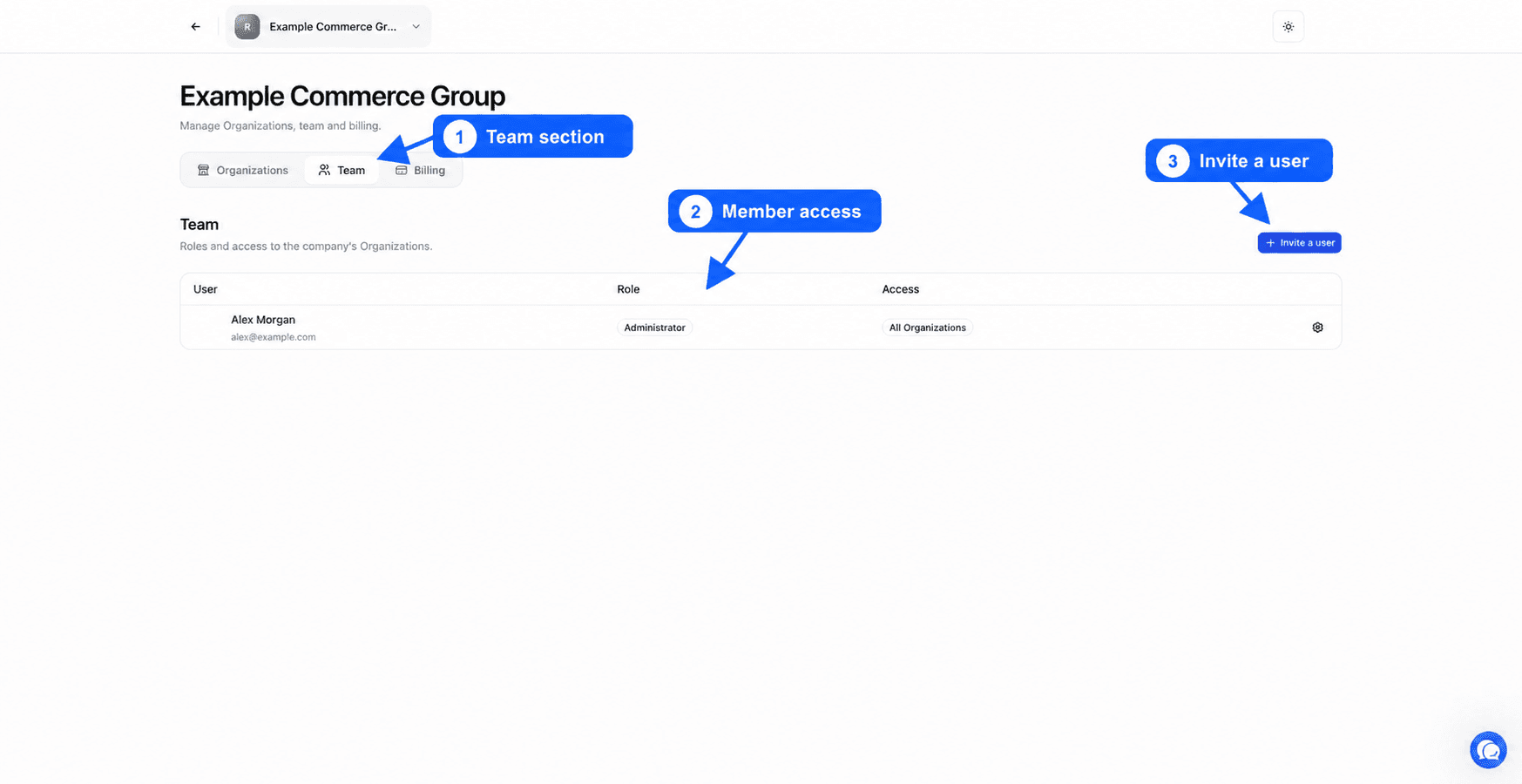
The table has one row per member. User shows their name and email address, Role their role, and Access the organizations they can open. Invitations not yet accepted appear at the end of the table with the note Pending invitation.
Invite someone
Open the invitation
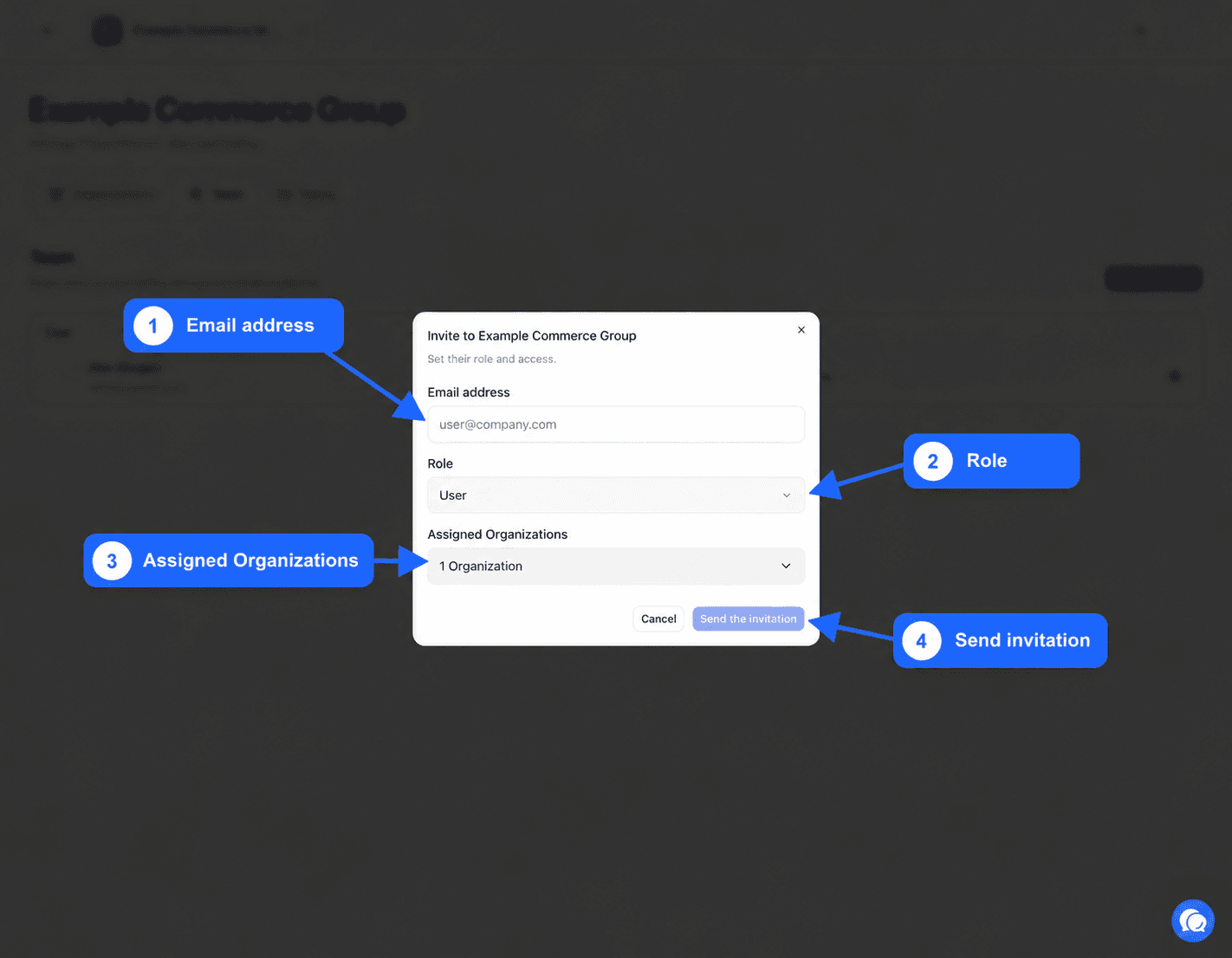
Click Invite a user. The Invite to window opens, followed by the company name.
Enter the email address
In Email address, type the person's work address. They will have to use this same address to accept the invitation.
Choose the role
In Role, choose Administrator or User. When in doubt, choose User. You can change it later.
Choose the organizations
For a user, open Assigned Organizations and tick each organization they can open, or All Organizations. An administrator always gets every organization.
Send
Click Send the invitation. The message Invitation sent to followed by the address confirms it.
Two messages can block sending. This user is already part of the company. means the person is already a member. Change their access instead. An invitation is already pending for this email. means an invitation was already sent. Revoke it if you want to send another.
What the invited person receives
The person receives an email with an Accept invitation button. Clicking it, they sign in to Fullmetrix, or create their account if they do not have one, with the address that received the invitation. They land on the Organization invitation page and click Accept. They then see the organizations you assigned to them.
The invitation is valid for 7 days. After that, send a new one.
If the person signs in without using the email link while an invitation is waiting, they see the Awaiting invitation page, which points them to their pending invitations. They can click Refresh after accepting. Someone who creates an account with no invitation at all is taken to the creation of their own organization. If they were meant to join yours, invite them with that account's address.
Change a member's role or organizations
Click the button at the end of the member's row. The Manage access window opens. Change their Role or their Assigned Organizations, then click Save. The message Access updated confirms the change.
Removing an organization from a user cuts their access to it right away. Their account and other access do not change.
Remove someone from the company
In the member's Manage access window, click Remove from the company. A message confirms they were removed from the company. The person loses access to every organization of the company. Their Fullmetrix account stays active, and any access to other companies does not change.
Do it as soon as a teammate leaves your business or an agency stops working with you.
Revoke a pending invitation
Click the button at the end of the invitation's row. The Manage invitation window shows the planned address and role. Click Revoke invitation. The message Invitation revoked appears and the link sent no longer works.
Good habits
- One person, one account. Never share a login between several people.
- Give the Administrator role only to those who manage the team or payment.
- For an agency, create a User access limited to the organizations it works on.
- Review the team list from time to time and remove access that is no longer used.