Security
Set or change your password, link your Google account and get back in if you forgot your password.
You can sign in to Fullmetrix in two ways, with your email address and a password, or with your Google account. You can have both at once. The Security part of your account shows which ones are active and lets you manage them.
To open it, click your name at the bottom of the sidebar, then Account. The Security part sits below Profile.
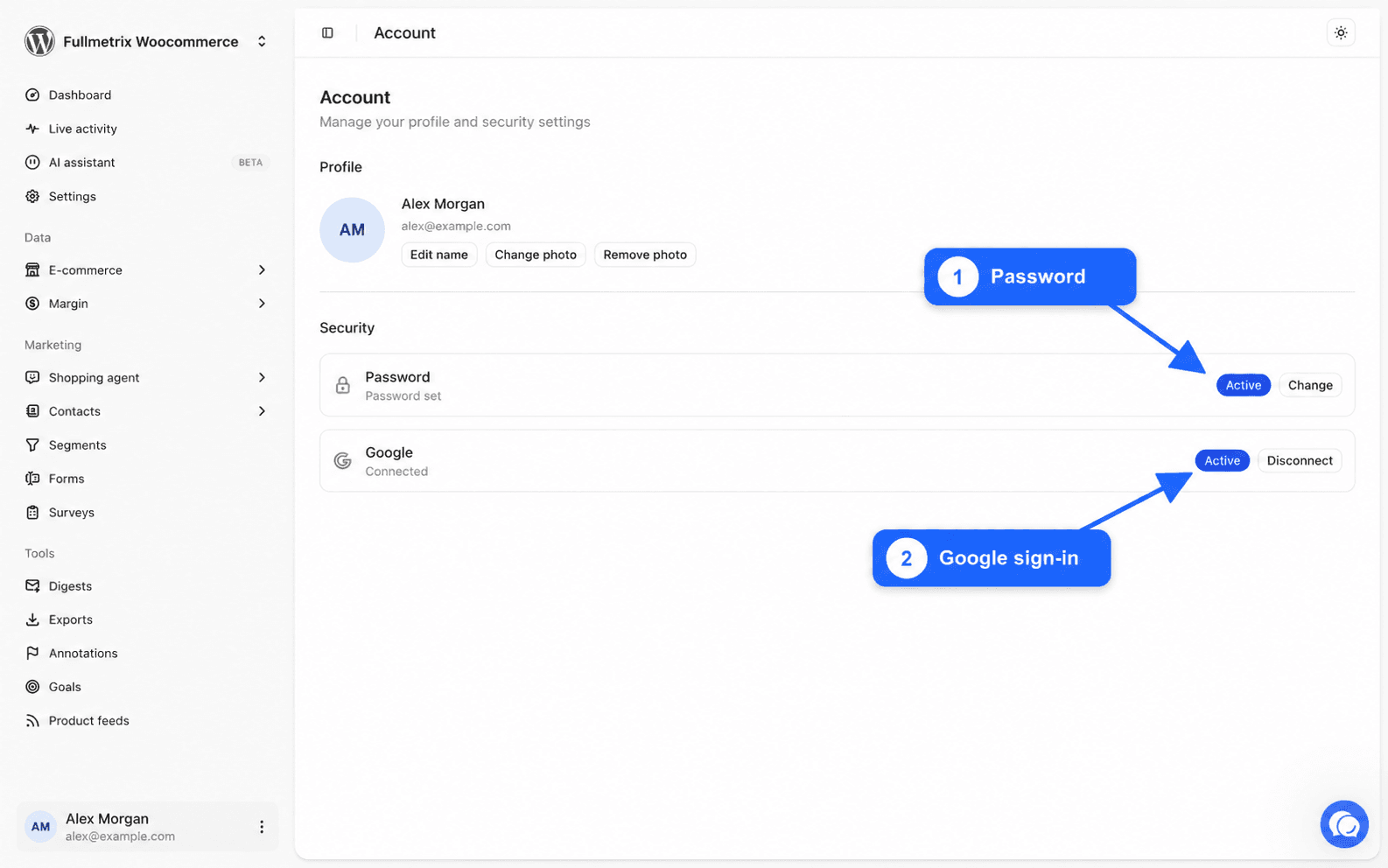
Each row shows an Active or Inactive label. The Password row reads Password set or No password set. The Google row reads Connected or Not connected.
Set a password
If you created your account with Google, you do not have a password yet. Setting one lets you sign in even if you lose access to your Google account.
Open the window
On the Password row, click Set up. The Set a password window opens.
Choose the password
Type it in New password, then again in Confirm password. It must be at least 8 characters long.
Confirm
Click Set password. The message Password set confirms it.
Change your password
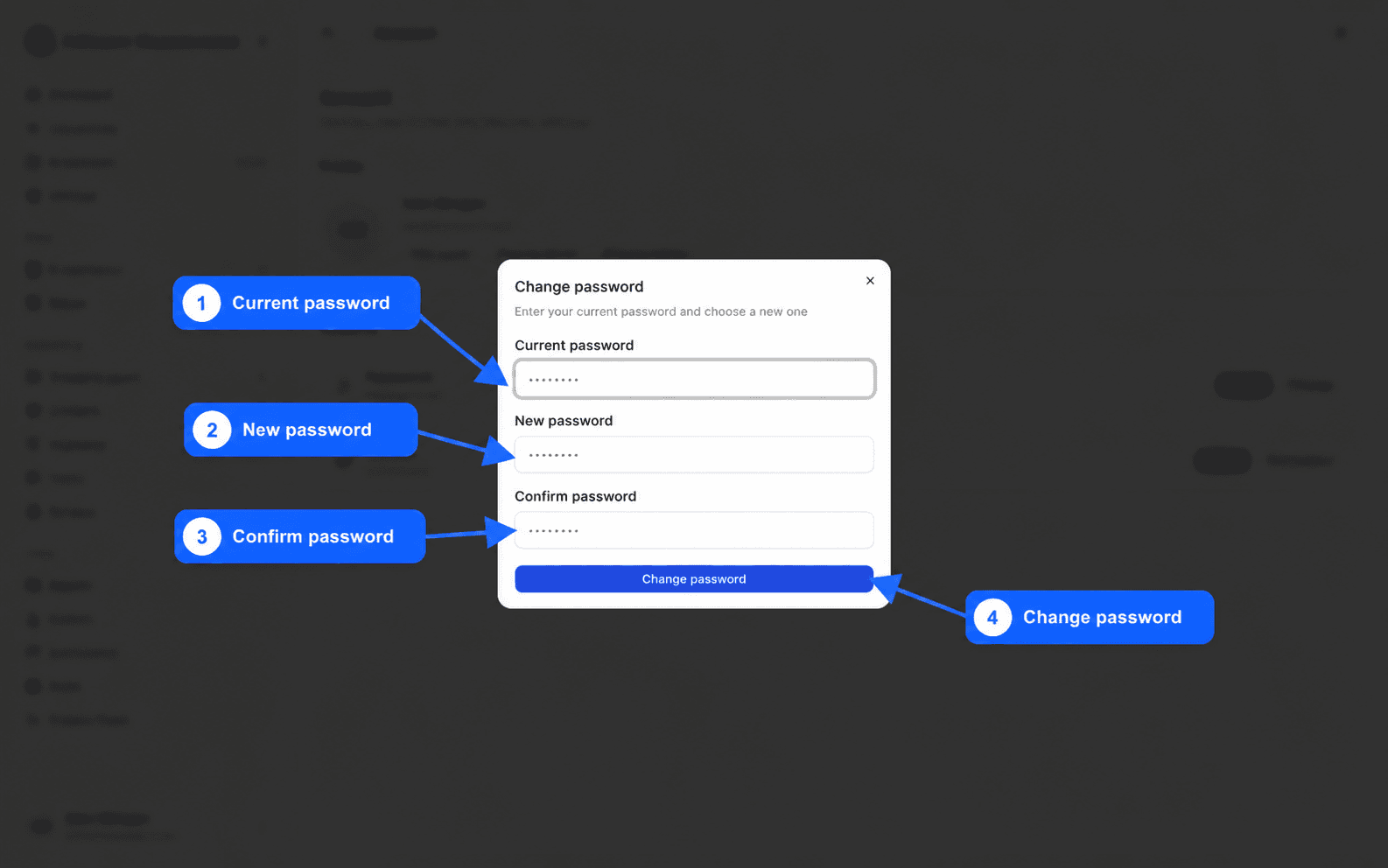
On the Password row, click Change. In the Change password window, enter your Current password, then the New password and its confirmation. Click Change password. The message Password changed confirms the change.
If the message Current password is incorrect appears, the current password you typed is wrong. If you do not remember it, sign out and use Forgot password?, described below.
The messages Password must be at least 8 characters and Passwords do not match point to a password that is too short or a confirmation that differs.
Link your Google account
On the Google row, click Connect. Google asks you to pick an account and authorize Fullmetrix. You then come back to the Account page, and the row reads Connected. You can now use the Google button on the sign-in page.
Pick the Google account with the same email address as your Fullmetrix account, to avoid confusion.
Unlink your Google account
On the Google row, click Disconnect. The Disconnect Google window reminds you that you will no longer be able to sign in with Google. Click Disconnect to confirm. The message Google account disconnected appears.
The Disconnect button stays greyed out while you have no password. This is a safeguard, because you would have no way left to sign in. Set a password first, then come back to unlink Google.
Forgot your password
On the sign-in page, click Forgot password?. Enter your email address and click Send reset link. We email you a link. Open it, enter your new password twice, then click Reset password.
If the page shows Reset link expired, the link was already used or is too old. Enter your address again to get a new one.
If you do not receive the email, check your spam folder and make sure you typed your account address. If you always signed in with Google, use the Google button on the sign-in page instead.
Sign out
To close your session, click your name at the bottom of the sidebar, then Sign out. Always do it on a shared computer.
Good habits
- Use a password you use nowhere else, stored in a password manager.
- Always keep at least one working sign-in method before removing another.
- Do not share your account. Invite each teammate with their own address instead, as explained in Team and roles.
- We will never ask for your password, by email, by phone or through support.
To learn how we protect your data on our side, read Is Fullmetrix secure?.