Currencies and timezones
Set the currency and timezone of your reports, understand how foreign-currency orders are converted and change how amounts are written.
Two organization settings decide how your numbers are shown. The currency, in which every amount is expressed. The timezone, which decides when a day starts and ends in your reports.
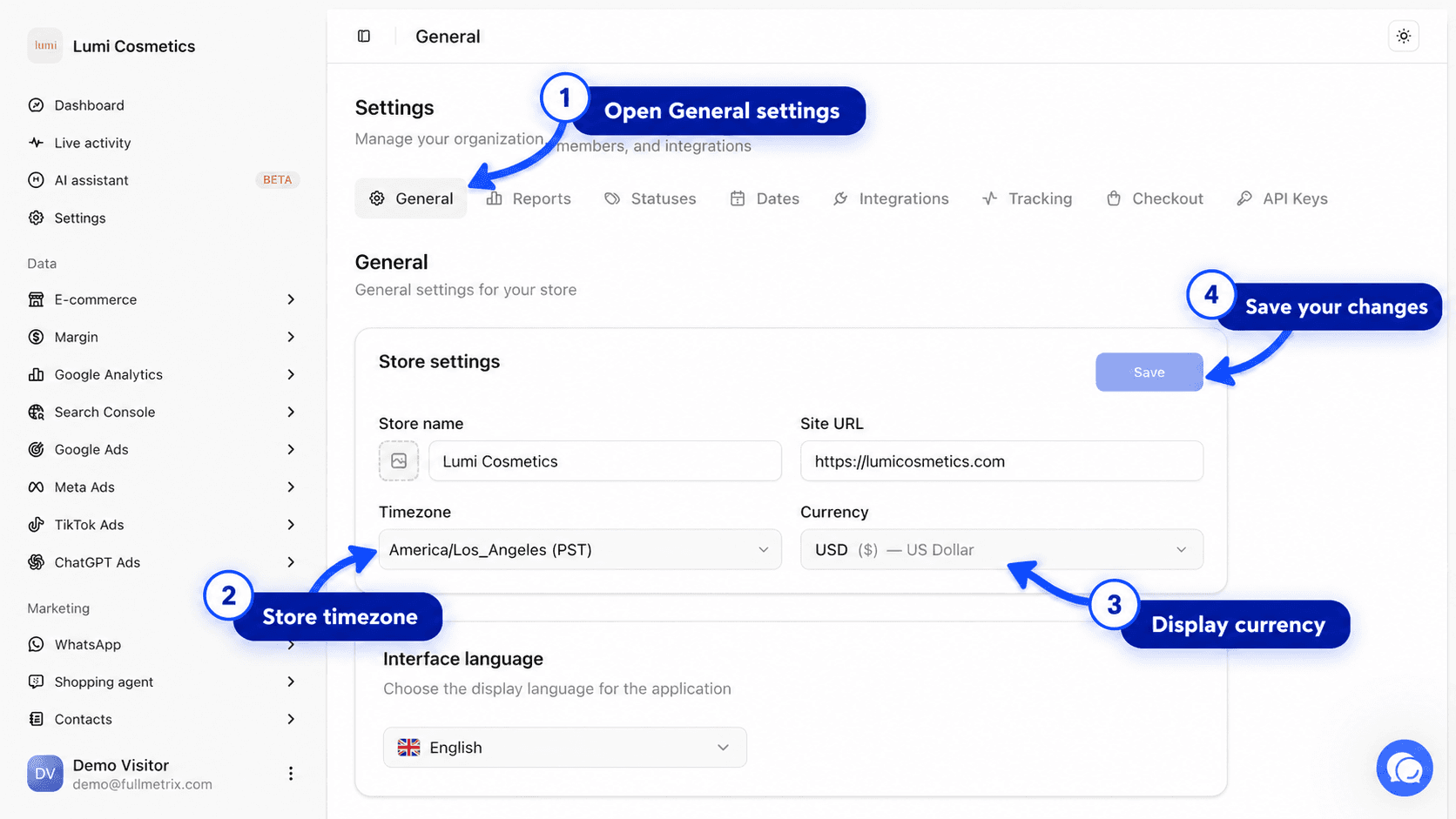
Both live in Settings, General tab, Store settings card.
Set automatically when you connect
When you connect your store, Fullmetrix reads its currency, timezone and number format, then copies them into your settings. In most cases, there's nothing to set.
As soon as you change one of these settings yourself, Fullmetrix no longer overwrites them. To go back to the store's values, use Redetect, described below.
The timezone
A timezone is the legal time of a region, for example Europe/Paris or America/New_York. In Fullmetrix, it decides which day an order belongs to.
An order placed at 11.30 pm in Paris happens at 5.30 pm in New York, the same day. But in Tokyo it's already 6.30 am the next day. A report set to Tokyo therefore puts that order on the following day. Every period follows this timezone, whether day, week, month or the date picker at the top of reports.
Choose the right timezone
Choose the timezone you keep your books in, usually your store's. If you have several stores in different countries, choose the one your team reads the numbers in. Fullmetrix has a single timezone per organization.
Change the timezone
Open the General tab
Open Settings, then the General tab.
Pick the timezone
In the Store settings card, open the Timezone list and pick your timezone.
Save
Click Save. The message "Settings saved" confirms the change.
The change applies immediately to your whole history, with no re-import. Late-evening orders may move to another day, so daily totals for a past period can shift slightly. That's expected.
The last sync time follows your computer
The Last sync line on store cards is shown in your computer's time, not in the organization's timezone. If you work from another country, the two times can differ.
The currency
The organization currency is the one Fullmetrix shows every amount in, in every report. If all your orders are in this currency, there's no conversion.
Orders in another currency
If your store sells in several currencies, or you have several stores in different currencies, Fullmetrix converts each order into the organization currency when it imports it. The rate used depends on the platform.
| Platform | Rate used |
|---|---|
| PrestaShop | The exchange rate your store recorded in the order |
| Magento | The exchange rate your store recorded in the order |
| WooCommerce, Shopify, Sylius | The reference rate published by the European Central Bank for the order date, or the last one published before that day (weekends and holidays) |
Each order keeps the rate of its day. A January order stays converted at January's rate, even if the rate has changed a lot since. That's why a converted total can differ from a calculation made with today's rate.
If the rate for a day isn't available yet, the order stays in its original currency for a while. Fullmetrix converts it as soon as the rate is published, usually the next business day.
PrestaShop and Magento
For these two platforms, the rate recorded in the order converts back to your store's main currency. So choose your store's main currency, the one Fullmetrix detects when you connect, as the organization currency.
Change the currency
Choose the currency before you connect your store, during sign-up or in the General tab. Orders already converted are not converted again if you change the currency later, and your reports would then mix two currencies. If you need to change the currency of an organization that already has data, write to us first. See Contact support.
How amounts are written
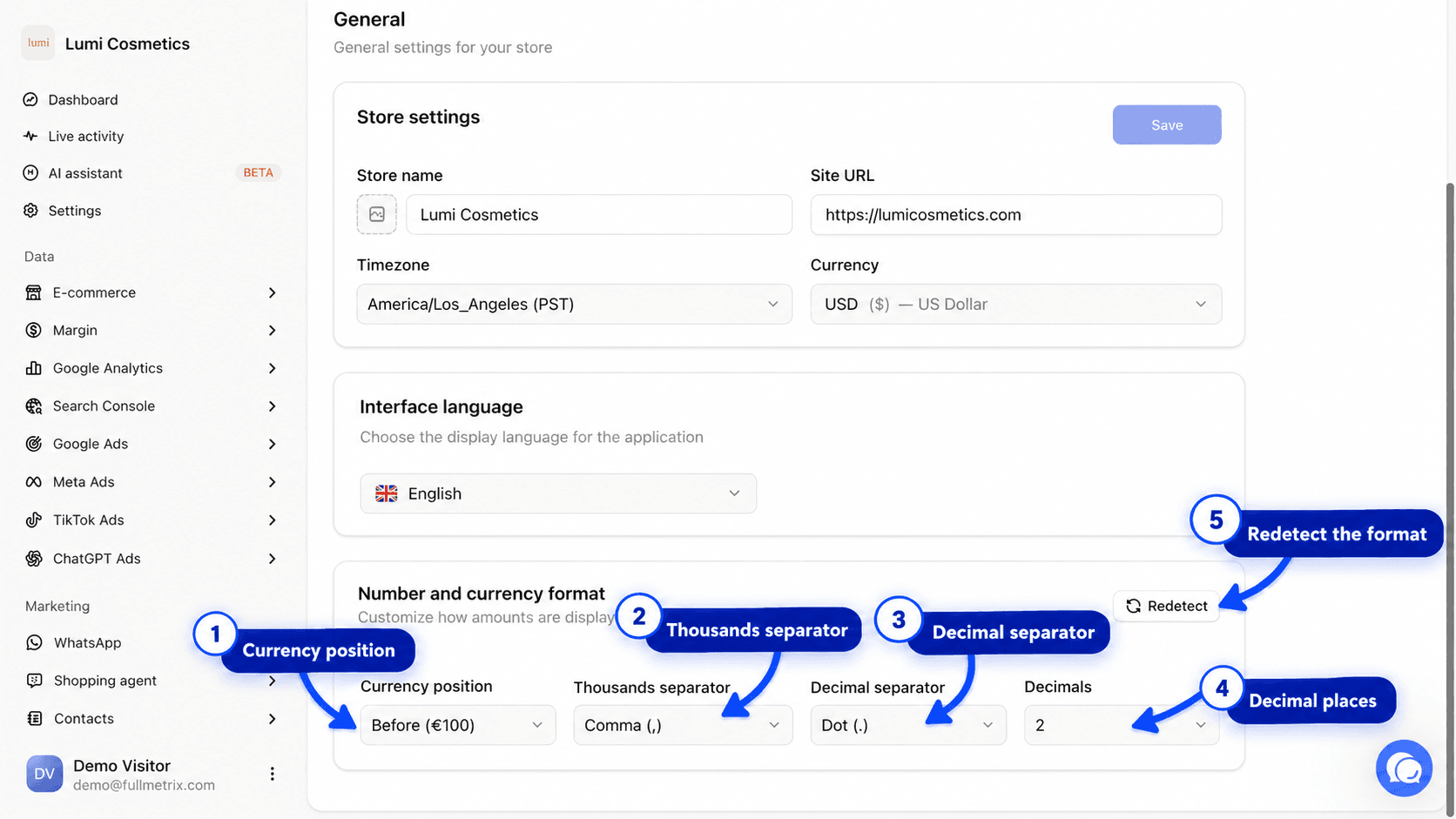
The Number and currency format card, just below in the General tab, only changes how amounts are written on screen. It doesn't change any number.
| Setting | Options |
|---|---|
| Currency position | Automatic, Before (€100) or After (100€) |
| Thousands separator | Comma (,), Dot (.), Space ( ) or None |
| Decimal separator | Comma (,) or Dot (.) |
| Decimals | The number of digits after the decimal separator |
Each choice is saved as soon as you make it.
Go back to the store's settings
The Redetect button reads your store's settings again and copies them into Fullmetrix. The message "Settings redetected from store" confirms it.
Redetect also changes the currency and timezone
Redetect doesn't stop at number format. It also replaces the currency and timezone with the store's. If you changed them on purpose, check the Store settings card after using it.