Installation
Install the Fullmetrix app in Shopware, activate it and link the store to your organization.
Allow about ten minutes for the connection itself. The historical import then continues in the background and can take longer on a large store.
Before you start
Open Fullmetrix in one browser tab and the administration of the Shopware store in another. Have the Fullmetrix Shopware app ZIP ready and use a Shopware administrator account allowed to upload and maintain extensions. Check Compatibility if either option is missing.
Step 1. Choose Shopware in Fullmetrix
During setup, open the Connect your store step and choose Shopware.

If setup is already complete, open Settings, then Integrations, click Connect on the E-commerce store card and choose Shopware.
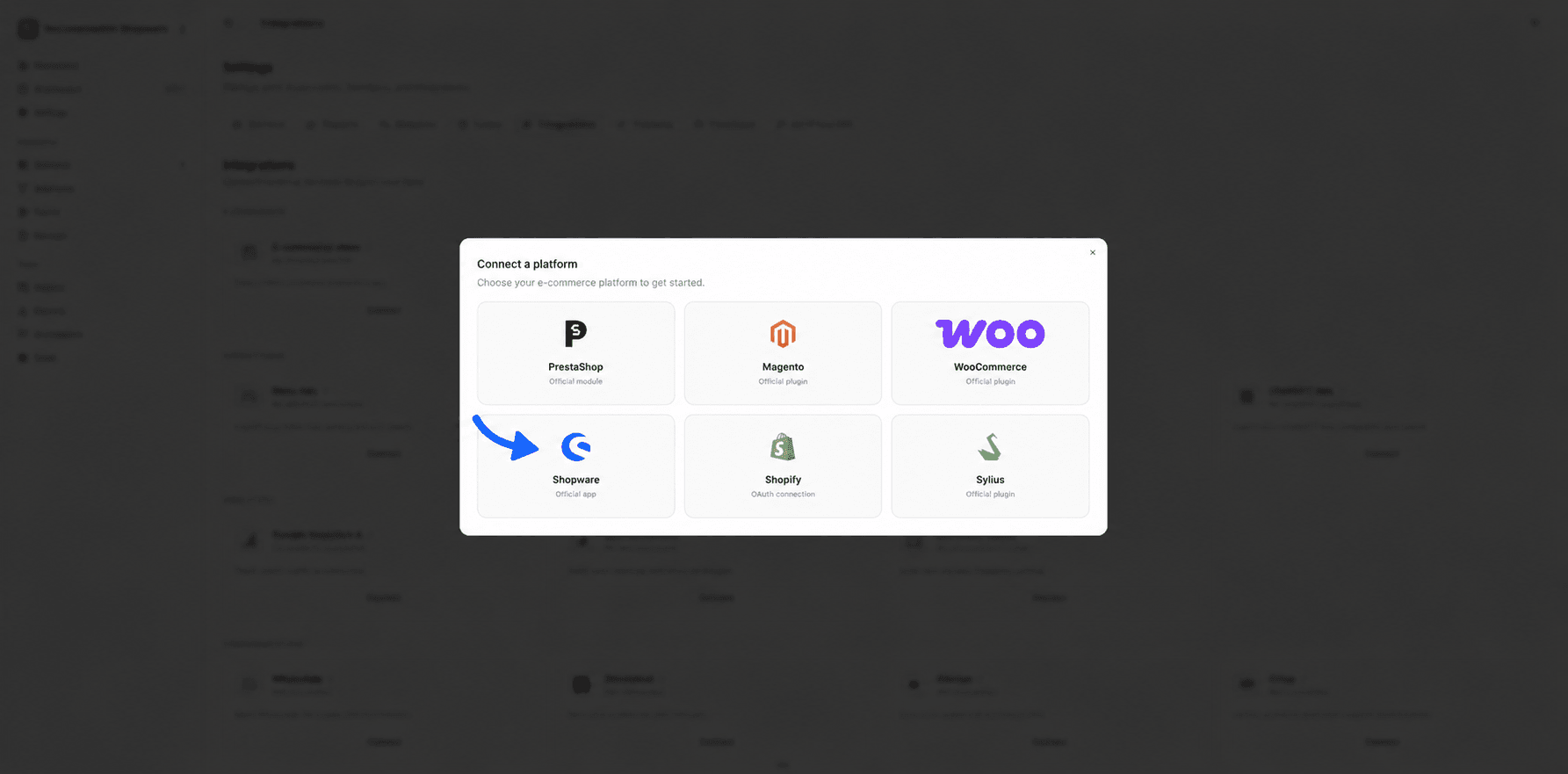
Fullmetrix generates a connection code and provides the private app ZIP. Keep this tab open while you install and configure the app.
Step 2. Upload the private app ZIP
Open My extensions
In the Shopware administration, expand Extensions in the left menu and click My extensions. Do not open the Store: the Fullmetrix app is supplied privately and is not listed there.
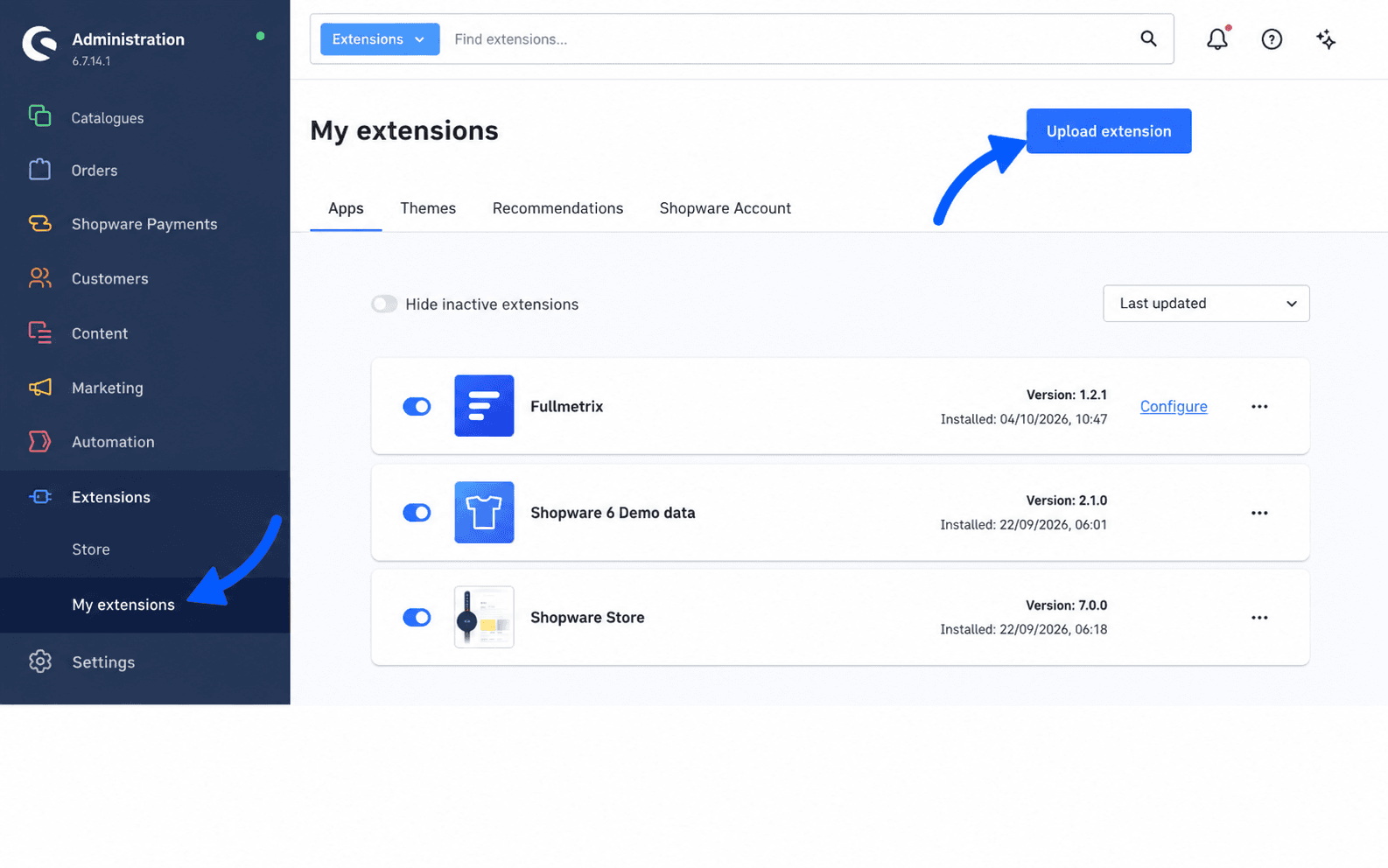
Select the ZIP file
Click Upload extension, select the Fullmetrix Shopware ZIP provided by Fullmetrix and confirm the upload. Keep the ZIP intact. Do not extract or rename its internal files.
Wait for Fullmetrix to appear
Shopware validates the archive and adds Fullmetrix to the Apps list. If the ZIP is rejected, download a fresh copy from Fullmetrix and check Troubleshooting.
Step 3. Install and activate
Open My extensions
In the left menu, open Extensions, then My extensions. Find Fullmetrix in the Apps list.
Install the app
Click Install app. Review the permissions shown by Shopware, then approve the installation.
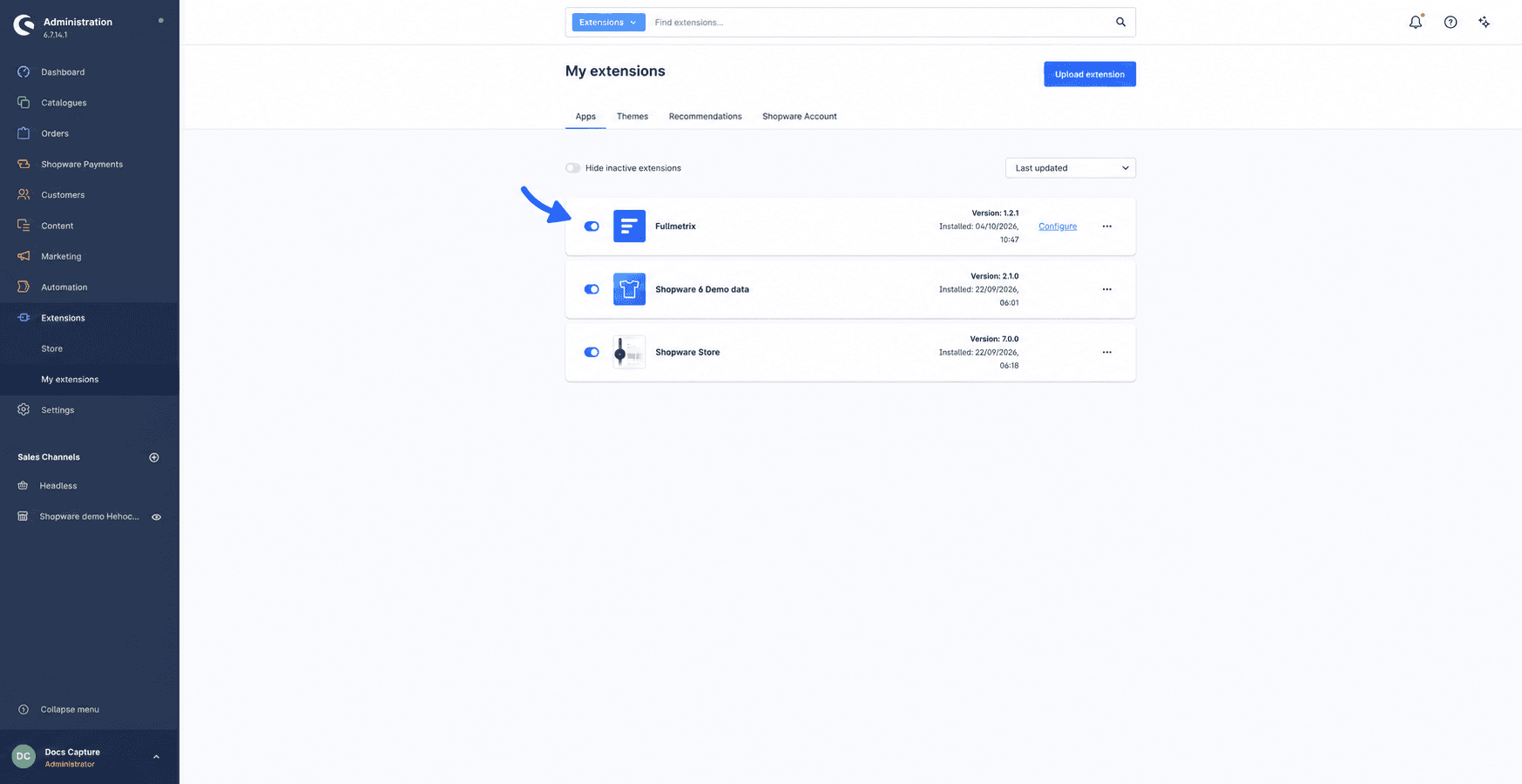
Activate it
Turn on the Active switch for Fullmetrix if Shopware leaves it inactive after installation. An installed but inactive app cannot keep the reports updated and cannot load storefront tracking.
Step 4. Paste the connection code
In the Fullmetrix tab, copy the Connection code generated for the organization you are configuring.
In Shopware, open Extensions, then My extensions. On the Fullmetrix row, click Configure. Choose the sales channel if needed, paste the code into Connection key, then click Save.
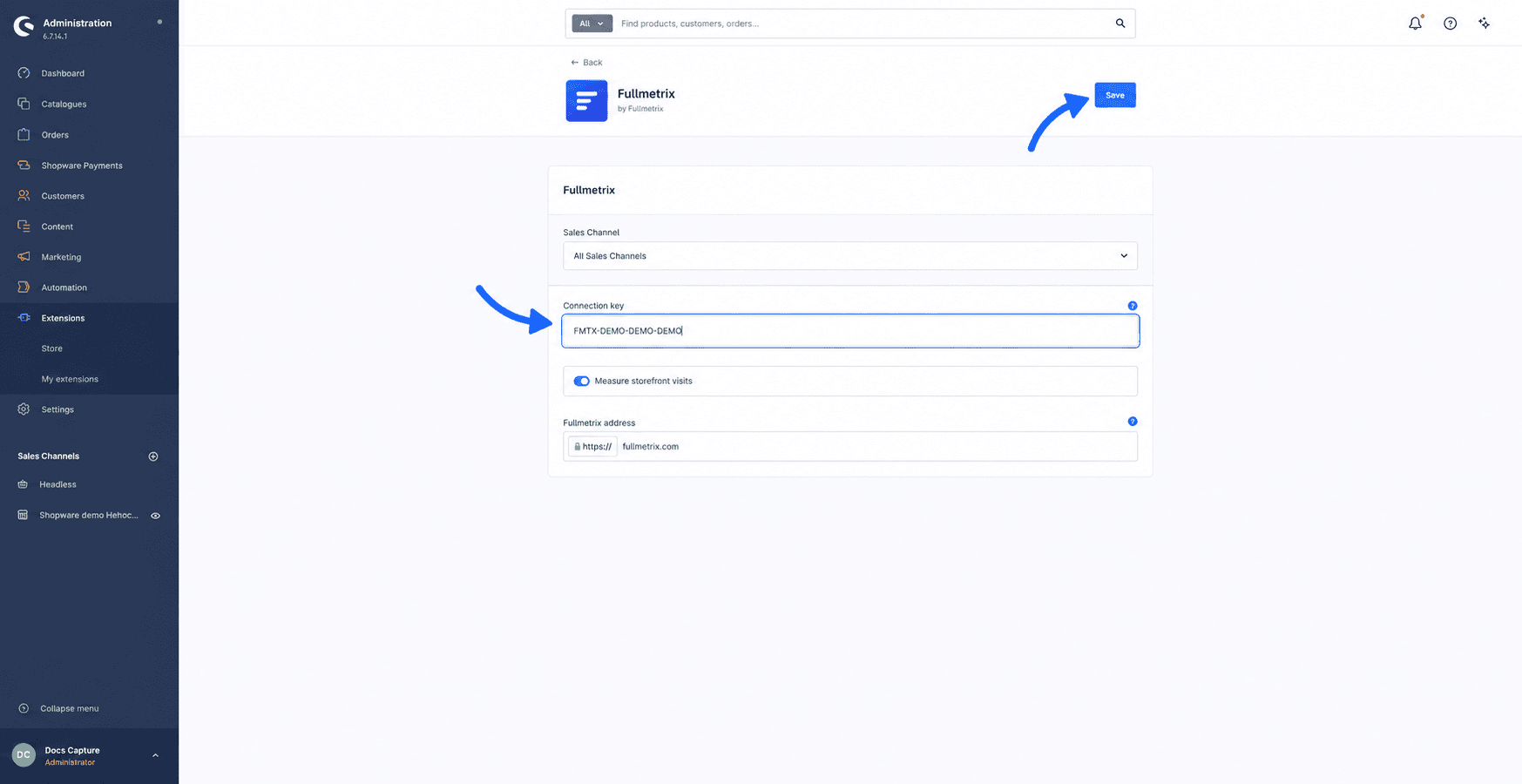
The code proves that you control both this Shopware administration and the selected Fullmetrix organization. Use only the code shown in the Fullmetrix tab for this setup.
Step 5. Follow the first import
Return to the Fullmetrix tab. Setup moves to Preparing your workspace, or the integration window confirms that the import has started. The Shopware card in Settings, then Integrations, shows the progress and the last sync time.
You can click Go to dashboard anyway. The import continues after the tab is closed. Do not deactivate or uninstall the app while the first import is running.
Your Shopware store is connected
Fullmetrix now keeps the data current automatically. You only need to return to the Shopware extension page for an update, a permission change or an uninstall.
Update the app
Shopware shows Update on the Fullmetrix row in Extensions, then My extensions, when a new version is available. Click it and review any new permission before confirming. The connection and imported data are kept.