Tags
Understand what tags are for, where they get applied, and manage the tags of all your contacts from a single page.
A tag is a free-form label you stick on a contact, for example trade-show-lyon, wholesaler or newsletter-2025. It does not change the contact itself. It helps you find a group of people, filter the contact list and build segments.
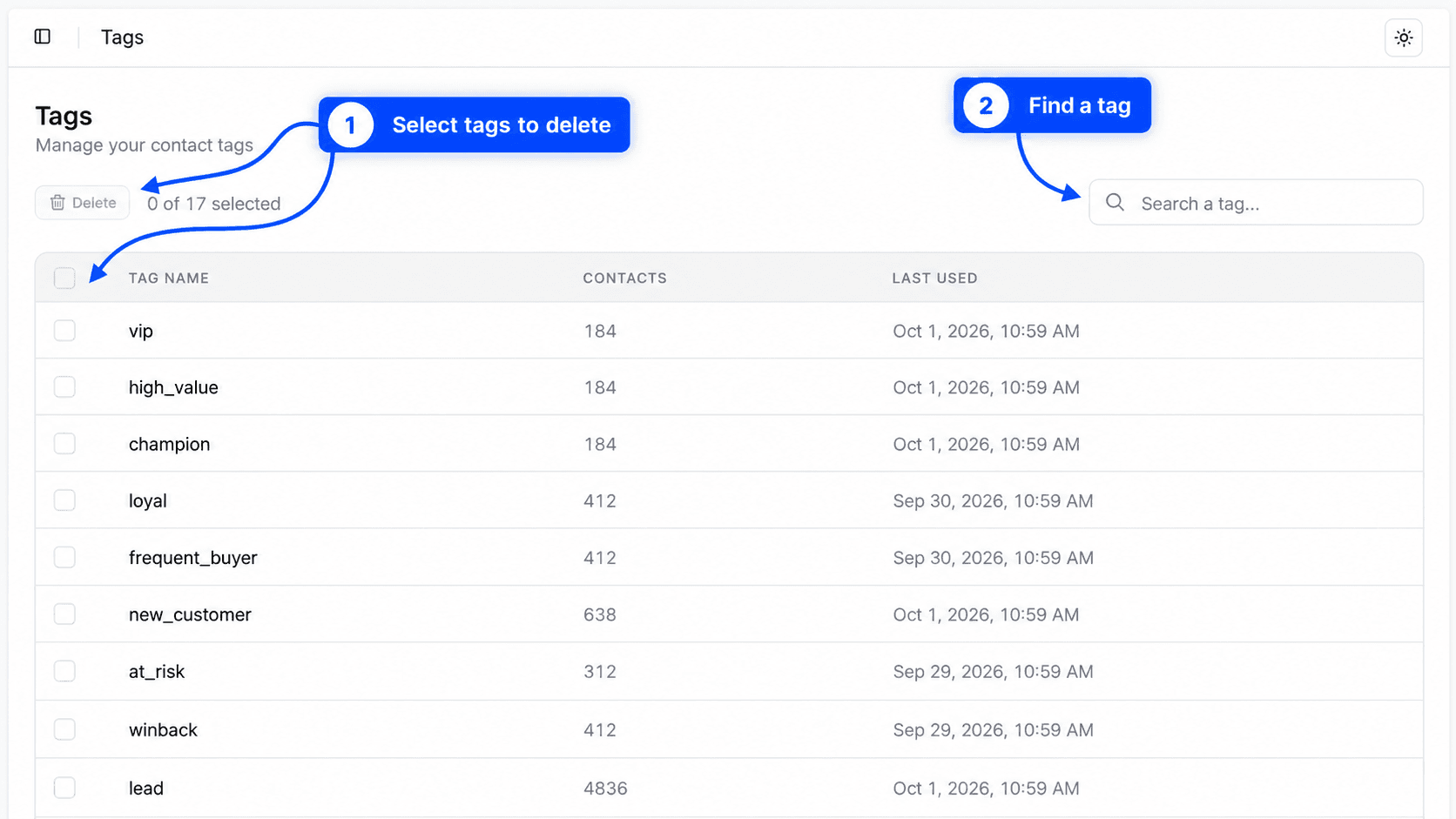
The Tags page lists every tag used in your organization, with the number of people carrying each one. To open it, click Contacts in the Marketing group of the sidebar, then Tags.
Where tags get applied
This page does not create tags. A tag exists as soon as it is applied to at least one contact, and that can happen in several places.
- On a contact's profile, with the Add button in the Tags section. See All contacts.
- During an import, at the Organize step or through a Tags column in the file. Every import also gets an automatic tag in the form
import-2026-10-02-14h30. See Import. - When you add a contact by hand, in the Add tags field.
- When a person fills in a form, if you set Tags in the form settings. See Forms.
- In a WhatsApp automation, with the Tag contact block, which can add or remove tags. See WhatsApp automations.
Tags added from the profile, an import or a manual addition are saved in lowercase. VIP therefore becomes vip.
Read the tags table
| Column | Content |
|---|---|
| Checkbox | Selects the tag for deletion. The header checkbox selects every tag displayed. |
| Tag name | The tag itself. Click it to open the Segments page with a new contact segment already filtered on that tag. |
| Contacts | The number of contacts carrying this tag. |
| Last used | The date of the latest change to a contact carrying this tag. |
The most recently used tags are at the top of the list.
The Search a tag... field filters the list as you type, ignoring accents and capital letters. If nothing matches, the table shows No tag found and Try another search.
Create a segment from a tag
Clicking a tag name is the shortest way to turn a group of people into a segment.
Open the segment
On the Tags page, click the tag name. The Segments page opens on the editor, with a contact filter on that tag already in place.
Refine if needed
Add other conditions, for example "placed at least one order" or "subscribed to WhatsApp".
Save
Name the segment and save it. You can then load it in the contact list or send it to an ad platform.
The full editor is described in Segments.
Delete one or more tags
Deleting a tag removes it from every contact carrying it. The contacts themselves are not deleted.
Select the tags
Tick the box in front of each tag to delete. The counter next to the button shows for example 2 of 14 selected.
Click Delete
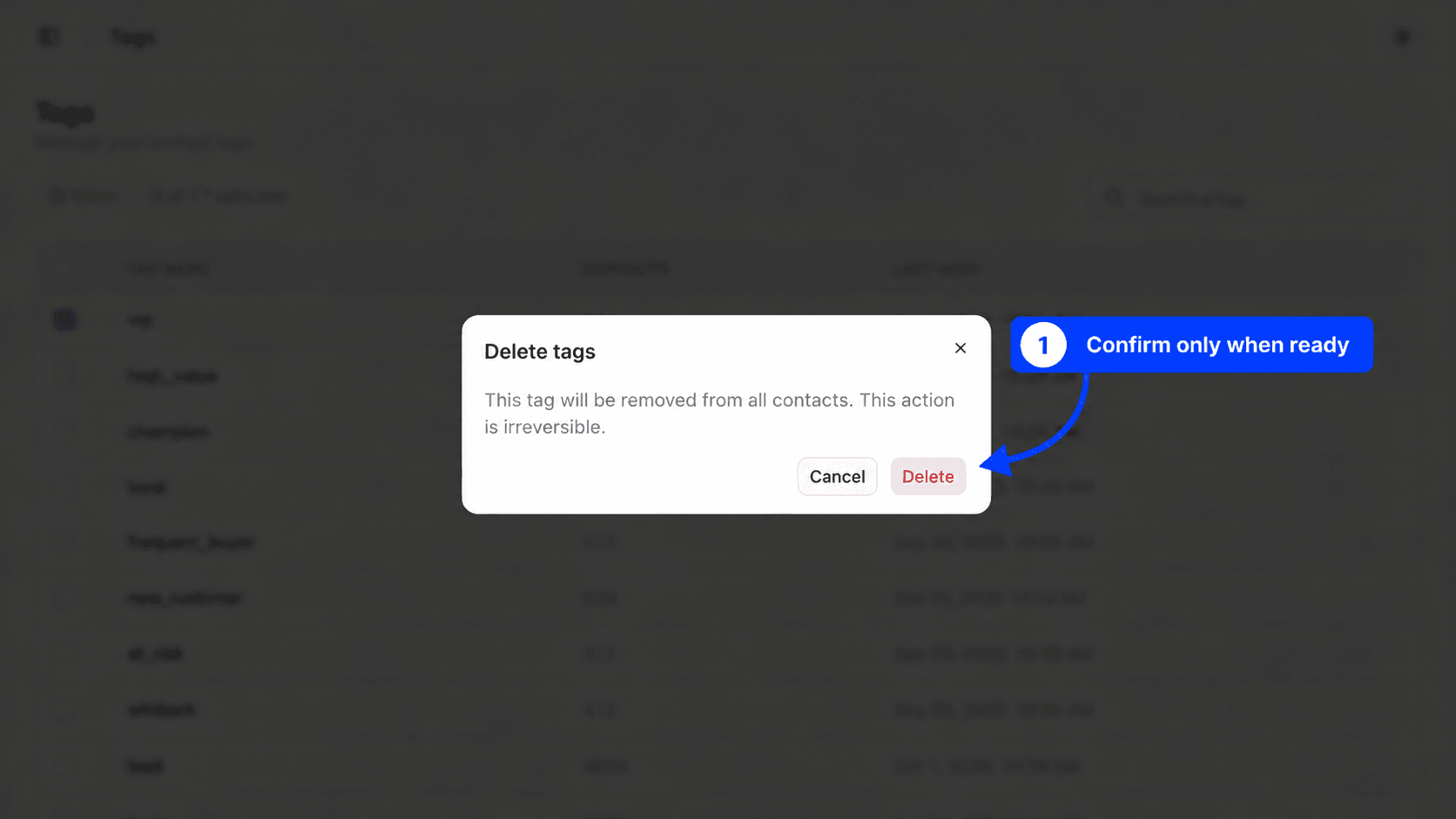
The Delete button stays greyed out until a tag is ticked. Click it to open the Delete tags window.
Confirm
The window reminds you that the tag will be removed from all contacts and that the action is irreversible. Click Delete to confirm, or Cancel to go back.
Think about your segments
A segment filtering on a deleted tag no longer finds anyone through that condition. If that segment feeds an ad audience, the audience loses those people at the next sync. Check your segments before deleting a tag.
To remove a tag from a single person without touching the others, open their profile from All contacts and click the cross next to the tag.
When the page is empty
If no contact carries a tag, the page shows No tag with the message Tags will be created automatically and an Add contacts button, which opens the import options.
The page also needs a connected store. Without one, it stays empty even if you imported contacts.
Usage ideas
- Tag the people you met at a trade show (
trade-show-lyon-2026) to give them an offer and measure their orders afterwards. - Mark your resellers (
wholesaler) to exclude them from consumer ad audiences. - Find an imported list with the automatic
import-...tag, then delete it once it is no longer needed. - Apply a tag from a WhatsApp automation when a person replies to a campaign, then target that group in a segment.