Synchronization
Create an audience from a segment, send it to Meta Ads, Google Ads, TikTok Ads, Omnisend or Klaviyo, and follow its automatic updates.
An audience is a list of people that Fullmetrix sends to an ad platform or an email tool. You create it once, from a segment. Fullmetrix then recalculates the segment and refreshes the list on a regular schedule, with no file to export or re-upload.
A few common uses.
- Show a replenishment ad to customers who bought a product three months ago.
- Exclude your existing customers from a prospecting campaign, so you only pay for new visitors.
- Give Meta or TikTok a list of your best customers, so they find people who look like them.
- Feed a Klaviyo list or an Omnisend segment with this week's abandoned carts.
Before you start
Connect at least one of these integrations in Settings, then Integrations. That means Meta Ads, Google Ads, TikTok Ads, Omnisend or Klaviyo. Also prepare the segment you want to send, as explained in Segments.
Open the audiences page
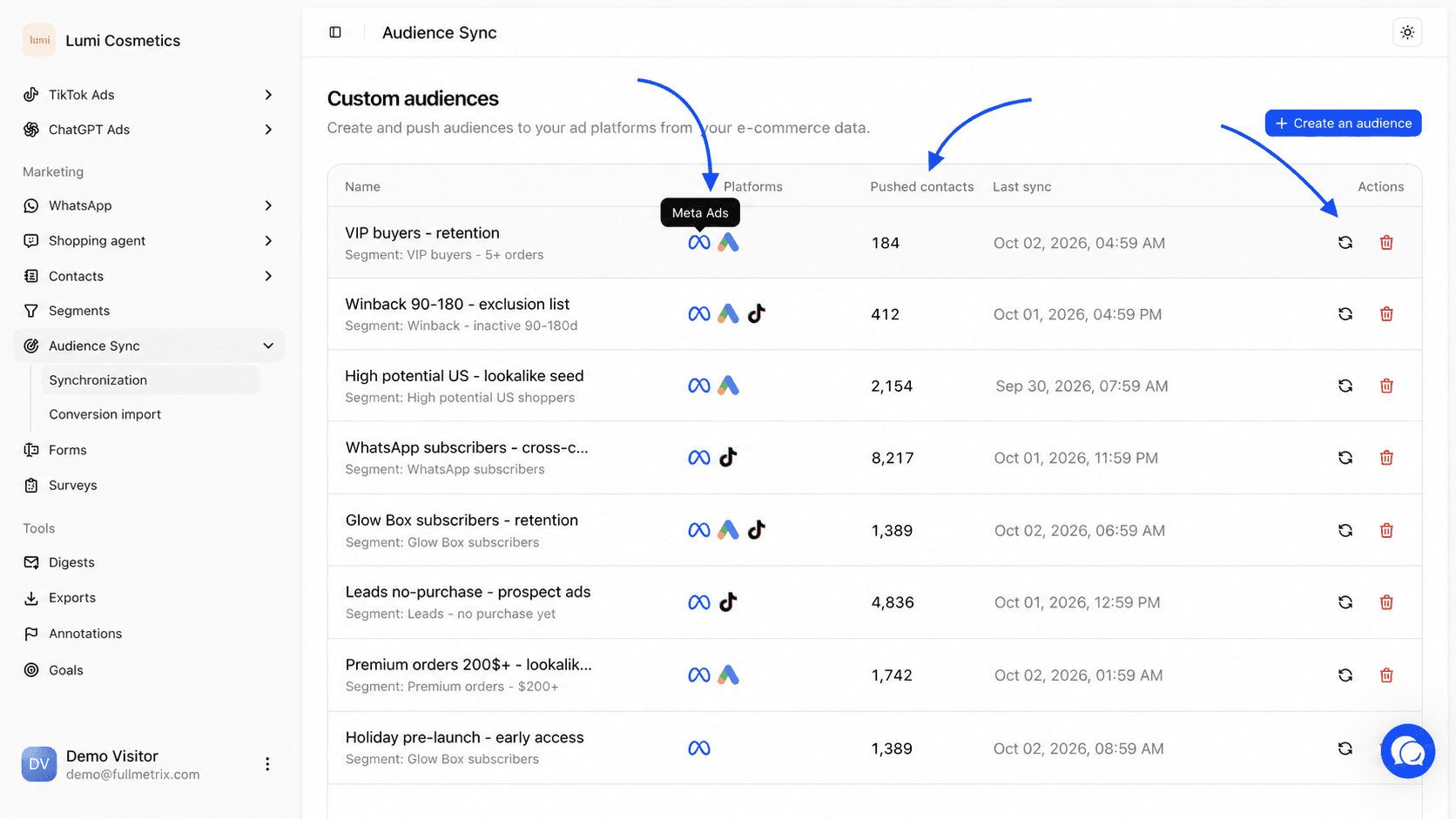
In the sidebar, open Audience Sync, then Synchronization. The page is titled Custom audiences.
If you have no audience yet, the page shows No audience and a Create an audience button in the middle. Otherwise it shows your audiences table, with Create an audience at the top right.
Create an audience step by step
Creation happens in a three-step window. The left column shows where you are. Click a completed step to go back to it, or use Back at the bottom of the window.
Choose the platforms
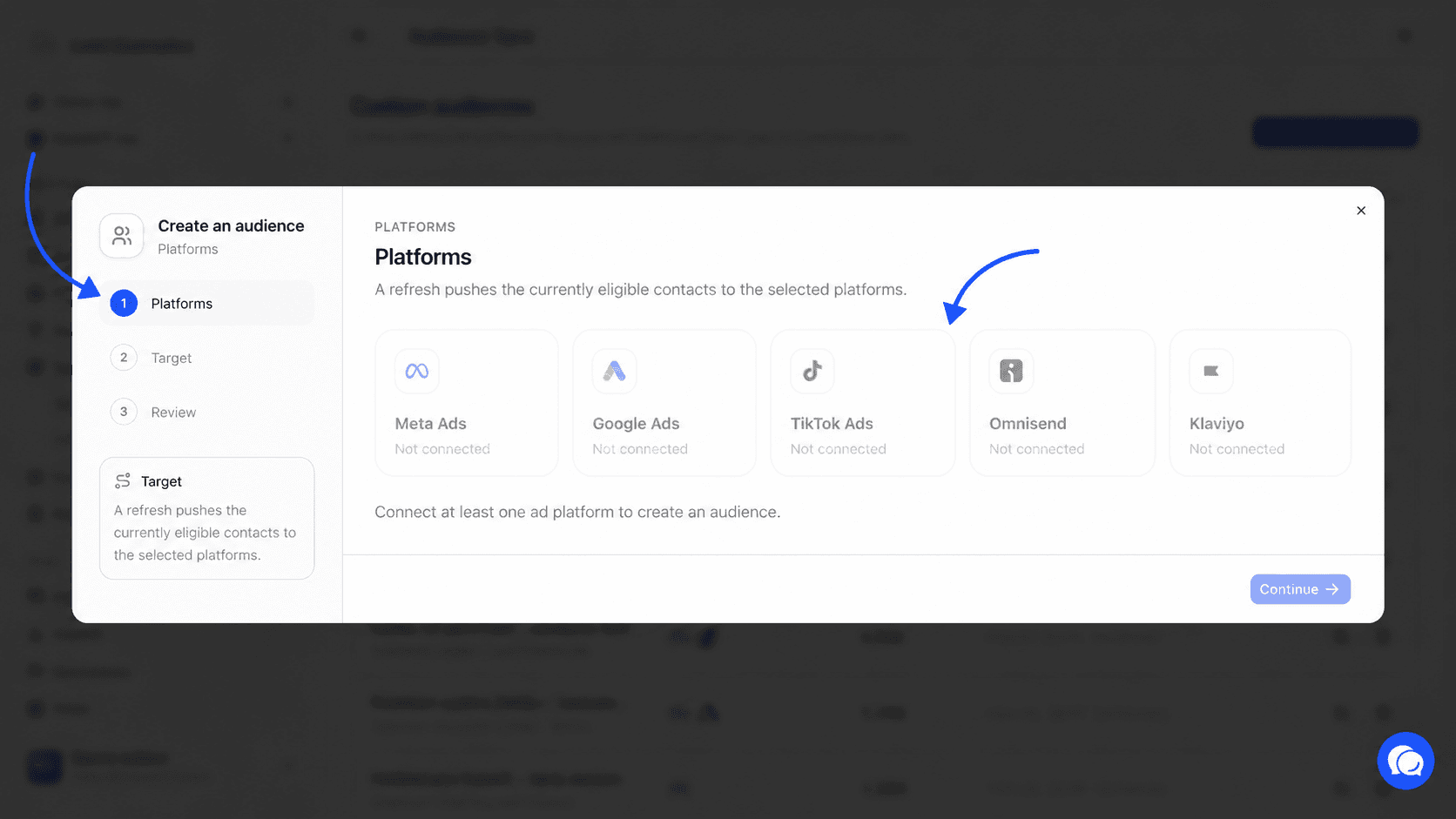
Click Create an audience. The first step, Platforms, shows one card per possible destination (Meta Ads, Google Ads, TikTok Ads, Omnisend, Klaviyo).
A card marked Connection available can be used. A greyed-out card marked Not connected can't until that integration is connected. Every connected platform is selected to start with. Click a card to remove or add it. One audience can go to several platforms at once.
If no platform is connected, the window shows Connect at least one ad platform to create an audience. and you can't continue.
Set the account and consent when needed
Below the cards, a settings block appears for some selected platforms, for example Klaviyo settings.
If you connected several accounts on the same platform, for example two Meta Ads accounts, pick the one that receives the audience in Meta Ads account. The first connected account is preselected.
For Omnisend and Klaviyo, also choose the Consent status applied to the contacts you send.
| Option | Effect in Omnisend or Klaviyo |
|---|---|
| Not subscribed (default) | Adds the contacts without subscribing them. An existing subscriber stays subscribed. |
| Subscribed | Subscribes the contacts to your emails. Only use it if you have their consent, as GDPR requires. |
| Unsubscribed | Unsubscribes the contacts from your emails. |
Click Continue.
Name the audience and pick the segment
The Target step opens on the Information heading.
In Name, type the audience name, for example "VIP Customers". It's the only required field. The name is reused on the destination platform, so you'll find it in Meta, Google Ads or TikTok. Description (optional) reminds you what the audience is for.
In Customer segment, pick the segment to send. All customers sends all your contacts who have an email address or a phone number. The menu lists your contact, customer, order, cart, refund and subscription segments. Product or catalog segments aren't listed, because they don't contain people.
Below the menu, Fullmetrix shows an estimate, for example 1,250 customers. For an order, cart, refund or subscription segment, a second line shows how many documents sit behind it, for example 1,830 documents behind. Fullmetrix brings these documents back to the people who placed them. If a customer has three orders in the segment, she's counted and sent once.
If the segment you need doesn't exist yet, click Create a segment. The Segments page opens in a new tab. Create the segment there, come back to the window and reopen the menu.
Click Continue.
Review and send
The Review step lists the platforms, segment, estimated customer count, name, description, the chosen account when there are several, and the consent for Omnisend and Klaviyo.
Click Create and push. The window closes, the message Audience created, sync in progress appears and the audience shows up in the table as Syncing. You can leave the page, the send carries on without you.
Send a segment straight from the Segments page
You can also start from a segment. On the Segments page, every segment that contains people has a target icon, labelled Synchronise on hover. Clicking it opens the audiences page with the creation window already open and that segment already selected. All that's left is to choose the platforms and name the audience.
Once the audience exists, the icons of its platforms also show on the segment row, so you can see at a glance where it's sent.
Read the audiences table
| Column | What it shows |
|---|---|
| Name | The audience name. Below it, the source segment name, or the description if there's no segment. |
| Platforms | One icon per destination platform. Hover an icon to see the platform and, if you have several accounts, the target account. A small red triangle flags an error, and hovering shows the message. |
| Pushed contacts | The number of people sent on the last run. During a send, the cell shows Syncing. |
| Last sync | The date and time of the last run, in your organization's time zone. |
| Actions | The refresh button and the delete button. |
While an audience syncs, the table refreshes itself every few seconds. No need to reload the page.
Update frequency and delays
Once created, the audience runs on its own. Fullmetrix recalculates the segment on every run and sends the updated list. People who enter the segment are added without any action from you.
| Platform | Automatic run frequency | What gets updated |
|---|---|---|
| Meta Ads | Every hour | People in the segment are added to the audience. |
| Google Ads | Every hour | People in the segment are added to the customer list. |
| TikTok Ads | Checked every hour, replaced at most once a day | The full list replaces the old one, only if the segment changed. People who left the segment drop out of the audience. |
| Omnisend | Every 5 minutes | Incoming contacts get the audience tag, contacts who left lose it. |
| Klaviyo | Every 5 minutes | Incoming contacts are added to the list, contacts who left are removed. |
Meta Ads and Google Ads don't remove people who leave
On Meta Ads and Google Ads, each run adds the people currently in the segment. Someone who leaves the segment stays in the ad platform's audience. For an exclusion audience that must match the segment exactly, recreate the audience from time to time, or use TikTok Ads, Omnisend or Klaviyo, which remove people who leave.
On the ad platform side, the list isn't usable right away. Meta, Google and TikTok usually take several hours to match the people you sent with their own accounts, sometimes up to two days. In the meantime the audience can show as being prepared or too small in the ads manager. That's expected.
Send right now
To skip the wait until the next run, click the refresh icon on the row. Its hover label is Push eligible contacts. The message Sync started confirms it. The button stays greyed out until the send finishes. If you click while a send is already running, the message A sync is already running for this audience appears.
On TikTok Ads, a manual send doesn't replace the list more than once a day. The other platforms receive the send immediately.
What Fullmetrix sends and the match rate
Only people with an email address or a phone number can be sent. Fullmetrix checks the format of every address and converts every number to international format using the contact's country. An invalid address or number is dropped. The same email or number is only sent once.
| Platform | Information sent |
|---|---|
| Meta Ads | Email, phone, first name, last name and country, irreversibly encrypted before sending |
| Google Ads | Email and phone, irreversibly encrypted before sending |
| TikTok Ads | Email and phone, irreversibly encrypted before sending |
| Omnisend | The contacts, added to your account with a tag named after the audience |
| Klaviyo | The profiles, added to a list named after the audience |
Three different numbers help you follow an audience.
- The estimate in the creation window counts the people in the segment who have at least one contact method.
- Pushed contacts counts the people actually sent after addresses and numbers are checked. It can be slightly lower than the estimate.
- The match rate is calculated by the ad platform. It's the share of people sent that the platform recognized among its users. You read it in the Meta, Google Ads or TikTok audience manager, not in Fullmetrix.
A low match rate usually comes from customers who use a different email address on the ad platform. To improve it, make sure your contacts have a phone number along with their country. Meta also receives first name, last name and country, which helps it recognize more people.
Ad platform minimum sizes
TikTok Ads requires at least 1,000 contacts with an email or phone, then at least 1,000 matched people. Meta and Google Ads only show or serve an audience above a number of matched people that each platform sets. For a small store, widen the segment, for example all customers from the last twelve months rather than the last month.
Find the audience on each platform
| Platform | Where to find it |
|---|---|
| Meta Ads | In the audience manager of the chosen ad account, as a custom audience from a customer list, under the audience name. |
| Google Ads | In the account's audience manager, as a customer list, under the audience name. |
| TikTok Ads | In the advertiser account's audiences, under the audience name. |
| Omnisend | As a segment named after the audience, built on a tag shaped like fullmetrix: Segment name. |
| Klaviyo | As a static list named fullmetrix: Audience name. |
Delete an audience
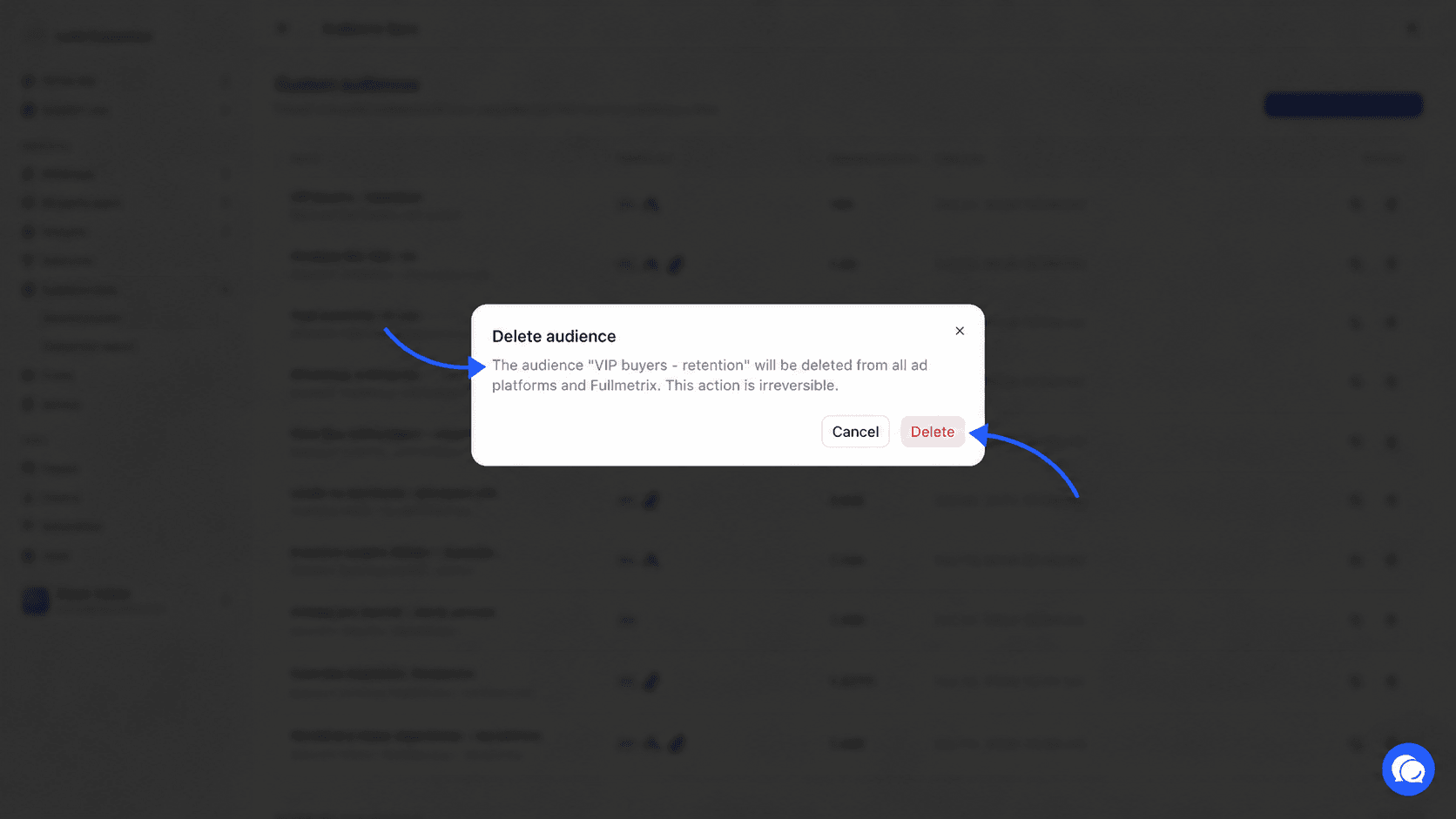
Click the bin icon on the row, labelled Delete on hover. The Delete audience window reminds you that the audience will be deleted from all ad platforms and from Fullmetrix, and that this can't be undone. Click Delete to confirm.
If the audience goes to TikTok Ads, the window adds that ad groups that only target this audience will be paused in TikTok Ads.
The delete button is greyed out during a send. Wait for the sync to finish.
Understand and fix errors
When a send fails on a platform, a red triangle appears on its icon in the Platforms column. Hover the icon to read the message. The audience's other platforms keep working.
| Message | What to do |
|---|---|
| Too many requests to the platform, the sync will resume on the next run. | Nothing. The next automatic run picks it up again. |
| The platform is not responding, syncing will resume on the next run. | Nothing. Sending resumes as soon as the platform responds. |
| This audience's segment is no longer valid. | The segment can no longer feed an audience, for example because it was edited and no longer contains people. Delete the audience and create it again on a valid segment. |
| Reconnect your TikTok Ads account in integrations. | Open Settings, then Integrations, and reconnect TikTok Ads. |
| Your TikTok Ads connection does not allow audience management. Reconnect the account and grant this permission. | Reconnect TikTok Ads and keep the audience management permission ticked in TikTok's window. |
| TikTok requires at least 1,000 contacts with an email or phone number. Syncing will resume once the segment reaches that size. | Widen the segment, or wait for it to grow. The audience is created automatically once the threshold is reached. |
| TikTok matched fewer than 1,000 people, so the audience cannot be used. Delete it and create it again once the segment has grown. | Follow the message. |
| This audience no longer exists in TikTok Ads. Sync again to recreate it. | Click Push eligible contacts. |
| This audience has expired or is about to expire in TikTok Ads and can no longer be updated. Delete it and create it again. | Follow the message. |
| Your TikTok Ads account has reached the limit of 400 audiences. Delete some in TikTok to continue. | Delete unused audiences in TikTok Ads. Sending then resumes on its own. |
Errors from Meta Ads, Google Ads, Omnisend and Klaviyo show the message returned by the platform. The most common one comes from Meta, which asks you to accept its custom audience terms on the ad account. The message then contains a link. Open it, accept the terms, then click Push eligible contacts.
Frequently asked questions
Learn more
- Segments explains how to build the segment that feeds the audience.
- Conversion import sends your orders to the same ad platforms, to measure and optimize your campaigns better.
- All contacts shows the emails and phone numbers Fullmetrix holds for each person.