Omnisend
Connect one or more Omnisend accounts to Fullmetrix to send your audiences there, ask the assistant about your results and disconnect an account without losing your segments.
Omnisend is an email and SMS marketing tool. The Omnisend integration does two things, it sends your Fullmetrix audiences to Omnisend and keeps them up to date, and it opens your Omnisend account to the AI assistant, which reads it and can act in it once you confirm. An audience is a list of people built from a Fullmetrix segment, for example "customers who ordered more than three times this year" or "people who abandoned a cart this week".
Fullmetrix does not send any email or SMS. You create and send your campaigns in Omnisend as usual, targeting the segments Fullmetrix created there.
How your audiences reach Omnisend
For each audience sent to Omnisend, Fullmetrix creates or updates the matching contacts in Omnisend, adds a tag named fullmetrix: followed by the audience name, for example fullmetrix: VIP Customers, then creates an Omnisend segment with the same name as the audience that groups every contact carrying that tag.
After that, about every five minutes, Fullmetrix compares the audience with Omnisend. A person who enters the audience gets the tag. A person who no longer matches loses it. Your other tags and other Omnisend contacts are never changed.
Fullmetrix sends the email, phone, first name, last name and country when they are known. A person with neither email nor phone cannot be sent to Omnisend.
What you need before you start
Have this ready
An Omnisend account with a user allowed to approve an app for the brand concerned. In Omnisend, each store is called a brand. If you manage several, note which one matches this Fullmetrix organization.
There is no API key to copy. You connect with a button, on Omnisend's official authorization page. Fullmetrix never sees your Omnisend password.
Connect Omnisend
Open the Omnisend card
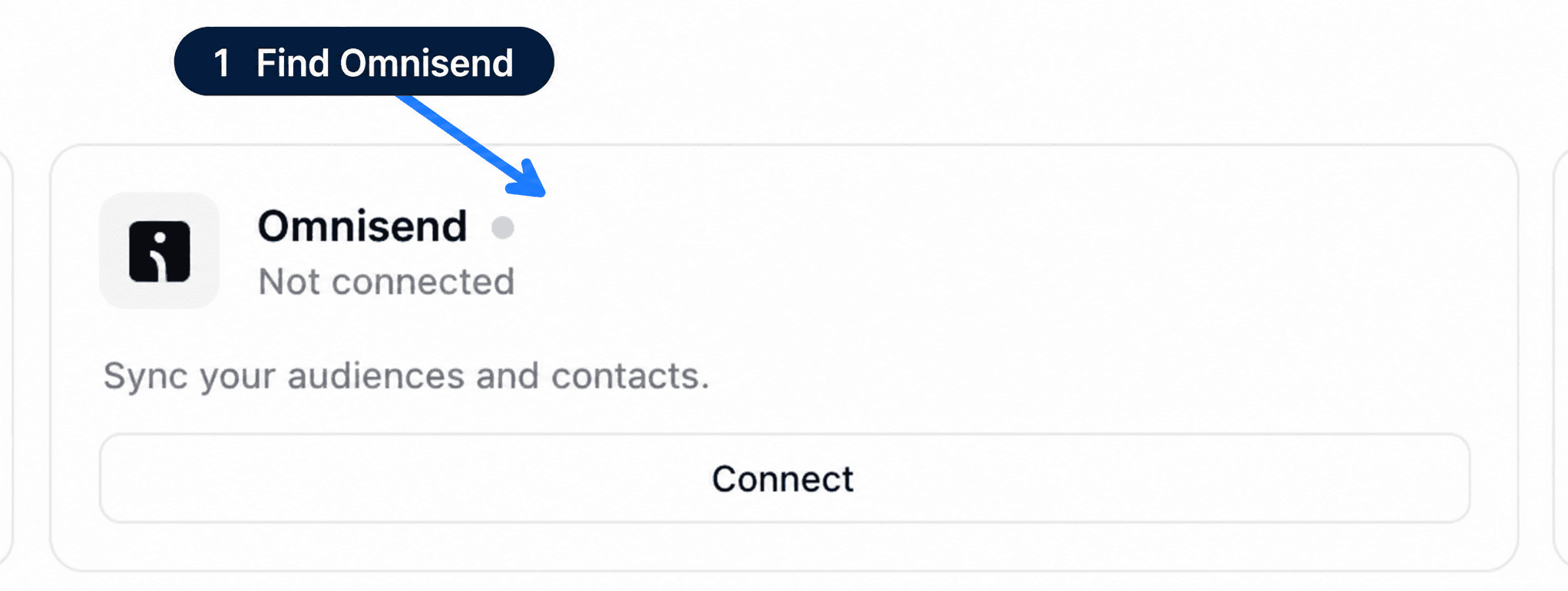
In the sidebar, click Settings, then the Integrations tab. In the Communication category, the Omnisend card shows Not connected.
Authorize Fullmetrix in Omnisend
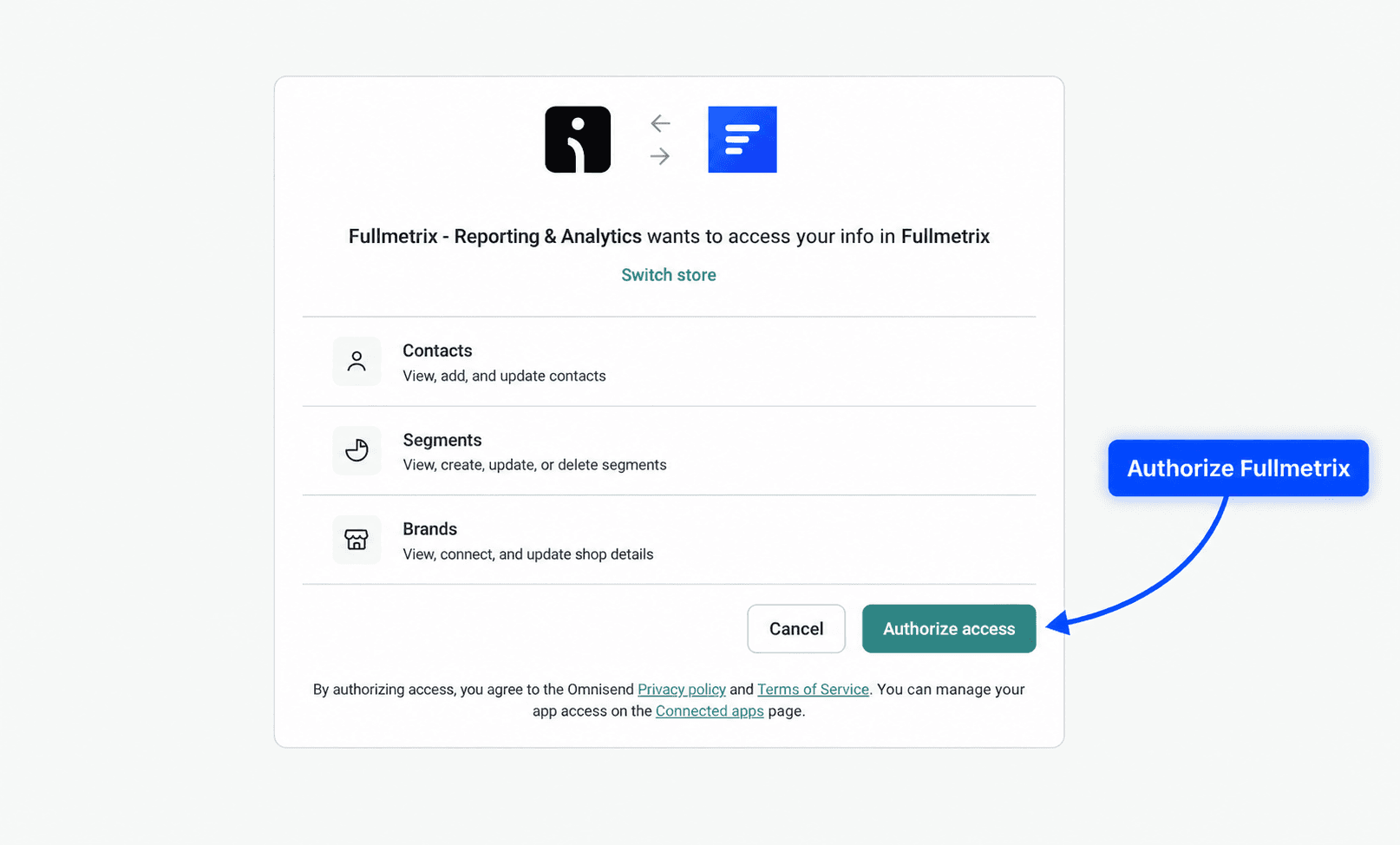
Click Connect. Your browser opens Omnisend's authorization page. Sign in if needed, check that the brand shown is the right one, then accept the requested access. Fullmetrix asks for the access that audience sync needs, the brand, the contacts and the segments, plus the access the assistant needs to read your campaigns, automations, forms, products and statistics.
Come back to Fullmetrix
Omnisend sends you back to Settings, Integrations tab. The Omnisend card shows a green dot, your brand name and the Manage button.
Connect another Omnisend account
An organization can send audiences to several Omnisend brands, one per country for example.
Open account management
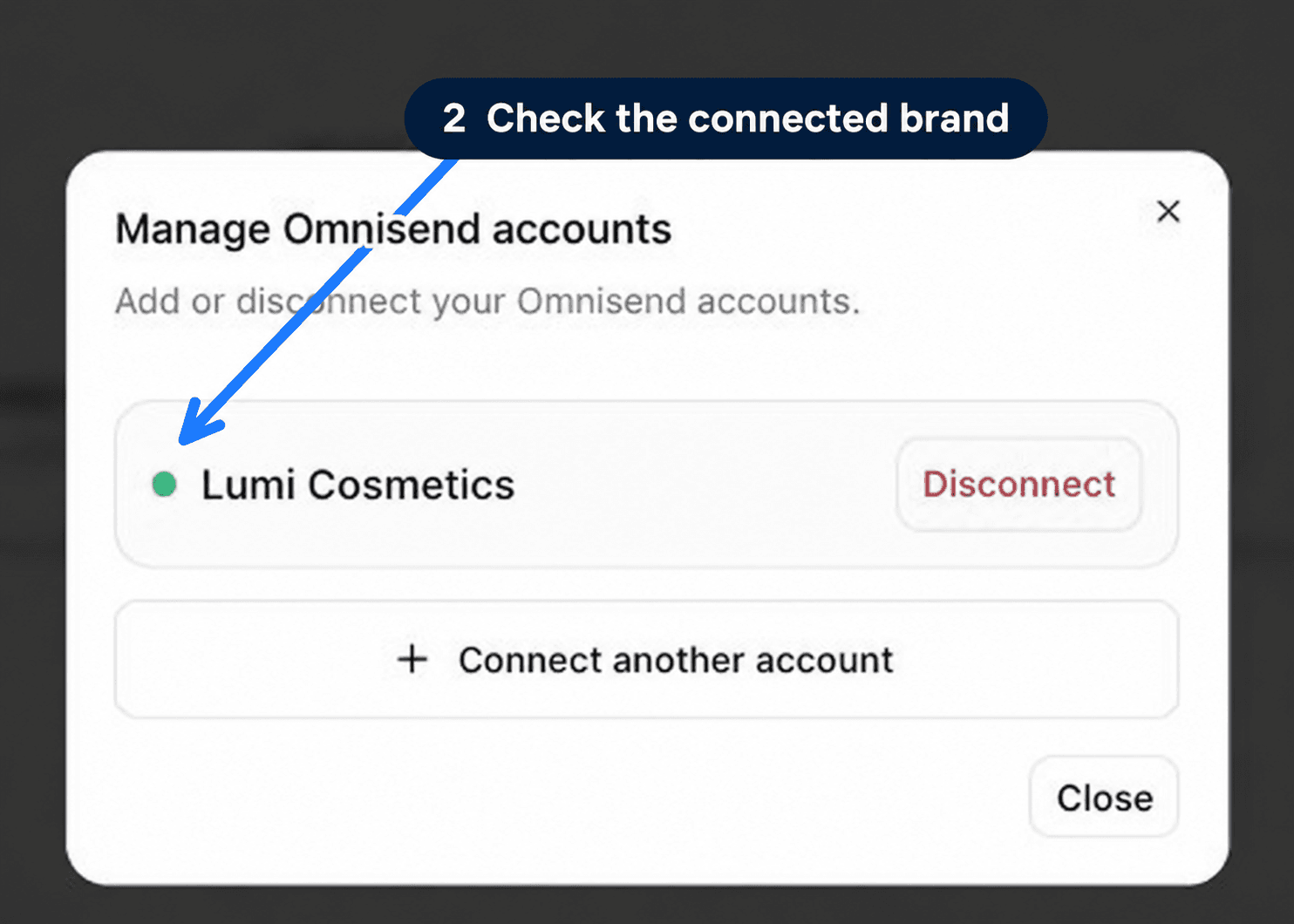
On the Omnisend card, click Manage. The Manage Omnisend accounts window lists each connected brand on its own row.
Add the brand
Click Connect another account, then authorize the new brand in Omnisend. When you come back, the card shows 2 accounts connected, for example.
If you authorize a brand that is already connected, Fullmetrix updates its connection instead of creating a second one.
Send an audience to Omnisend
Create the audience
In the sidebar, open Audience Sync, then Synchronization. Click Create an audience, give it a name and choose the segment it is built from.
Choose Omnisend
In Platforms, select Omnisend. An Omnisend settings block appears. If several brands are connected, pick the right one in Omnisend account.
Choose the consent status
The Consent status field tells Omnisend how to treat the contacts Fullmetrix creates there.
| Option | Effect |
|---|---|
| Not subscribed (default) | Adds contacts without subscribing them. Does not change an existing subscriber |
| Subscribed | Subscribes contacts. Only choose it if these people gave valid consent under GDPR |
| Unsubscribed | Unsubscribes contacts from your emails |
This status only applies to contacts newly created in Omnisend. A contact that already exists keeps its status. Fullmetrix never triggers Omnisend's welcome message.
Send it
Click Create and push. The full procedure is in Audience synchronization.
Check that everything works
In Fullmetrix, the Omnisend card should have a green dot and show the brand name. On the Synchronization page, your audience lists Omnisend among its platforms.
In Omnisend, open the segment list. One segment carries your audience name. Open a contact that belongs to it, it carries the tag fullmetrix: followed by the audience name. For a large audience, wait a few minutes before comparing counts, because contacts are sent in batches.
Ask the assistant about Omnisend
Once the brand is connected, the AI assistant reads your Omnisend account, its campaigns, automations, segments, forms, products, events and analytics reports. Because it also reads your orders, it puts both side by side.
You can ask it, for example:
- "Which of last month's campaigns actually generated revenue, and how much per recipient?"
- "Compare the revenue of my abandoned cart automation with my total revenue over the same period."
- "Which form collects the most addresses, and what do those people buy afterwards?"
If several brands are connected, name the one you mean in your question. At this stage the assistant only reads, nothing is changed in Omnisend.
Let the assistant act in Omnisend
The assistant can also change your Omnisend account, for example create a segment, create or duplicate a campaign, edit a draft, enable or disable an automation, add or remove a tag on contacts, create a form or update a product.
Every change appears first as a card in the conversation. It names the action, the Omnisend account targeted, the item concerned and, under What the assistant proposes, what is about to change. Show the exact request displays the request being sent. Two buttons close the card, Decline and Confirm. Nothing reaches Omnisend until you click Confirm.
A proposal you leave aside expires after one hour. If the item changed in the meantime, the card shows The item changed since the proposal, nothing was done, and you ask the assistant for the action again.
Three limits you cannot lift
Fullmetrix never sets a contact to subscribed, consent is collected from the person, through a form or a checkbox. Fullmetrix never changes your brand settings. Actions with no way back, such as sending a campaign, cancelling a send, choosing an A/B test winner or sending a test email, carry the Irreversible badge before you confirm.
Reconnect an account that asks for it
If the card shows Reconnection required with a grey dot, a connected brand no longer has all the access it needs. Click Manage. The affected row has a red dot and the note Reconnection required for this account. Click Reconnect at the bottom of the window and approve the request in Omnisend, with the same brand. Audiences linked to this account stay attached and resume syncing.
Disconnect an Omnisend account
Pick the account
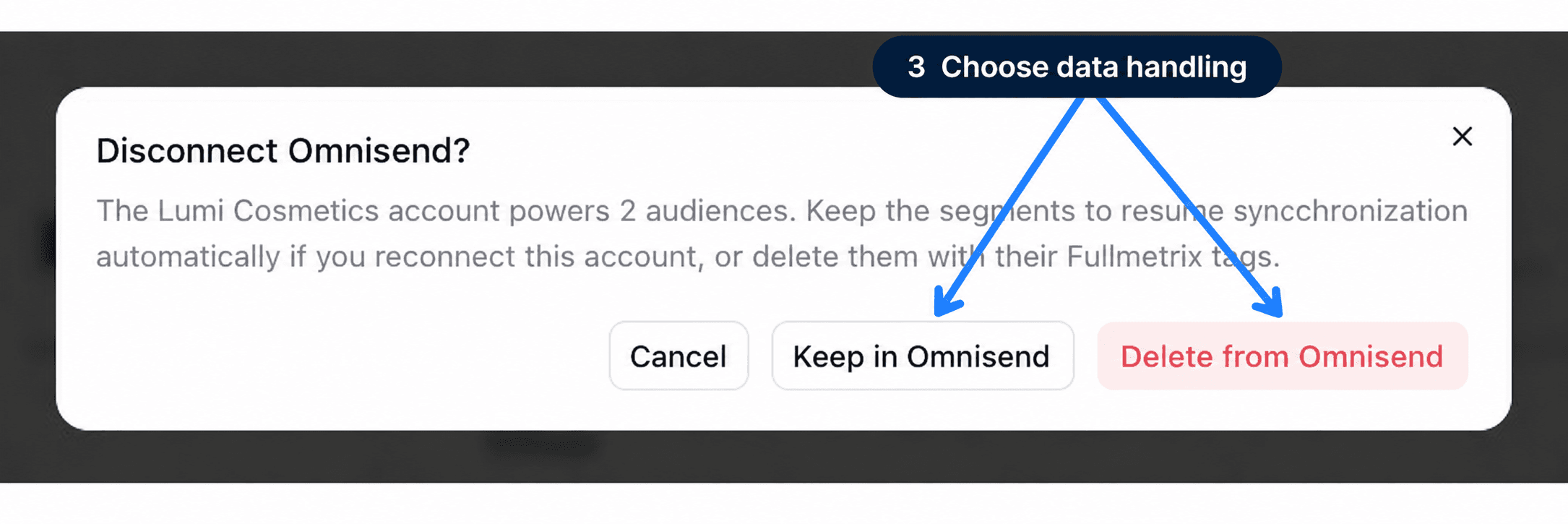
Click Manage, then Disconnect next to the brand concerned. The Disconnect Omnisend? window shows how many audiences this account powers.
Decide what happens to the segments
Three buttons are offered.
- Keep in Omnisend removes Fullmetrix's access but leaves the segments and tags in Omnisend. If you reconnect the same brand later, audience syncing resumes automatically.
- Delete from Omnisend deletes each linked audience's segment and tag in Omnisend, removes Omnisend from those audiences in Fullmetrix and deletes the connection. The contacts themselves stay in Omnisend.
- Cancel closes the window without changing anything.
Delete from Omnisend is final
An Omnisend campaign or flow that targets a deleted segment will have no recipients left. If you might reconnect the account, choose Keep in Omnisend.
Common problems
If the problem persists, see Connection and access or contact us with the organization name, the Omnisend brand, the audience concerned and the message shown.
WhatsApp Business
Connect your WhatsApp Business number to Fullmetrix, choose between keeping your current number or using a dedicated one, and check that everything works.
Klaviyo
Create a Klaviyo private API key, connect one or more accounts to Fullmetrix and send your audiences as Klaviyo lists that stay up to date.