Conversion import
Send your orders automatically as conversions to Meta Ads, Google Ads and TikTok Ads, choose which ones, and track every send.
Conversion import sends your orders to your ad platforms, Meta Ads, Google Ads and TikTok Ads. A conversion is a purchase the ad platform links to its campaigns. The more purchases a platform receives, the better it knows which ads pay off and who to show them to.
The pixel on your site already sends purchases, but it always misses some. A customer who refuses cookies, uses an ad blocker or pays after coming back on another device slips through. Fullmetrix sends orders from our servers, based on your store's synced orders. This is called server-side sending, and it doesn't depend on the customer's browser.
A few common uses.
- Give Meta or TikTok all your purchases, including the ones the pixel missed, so their algorithms optimize on more complete numbers.
- Make Google Ads bid on the real order value, excluding tax and shipping if you prefer.
- Only send purchases from new customers, using a segment, so the platform looks for people similar to your new buyers.
- Automatically retract a conversion from Google Ads when the order is cancelled or refunded.
Before you start
You need a connected, synced store, plus at least one ad platform connected in Settings, then Integrations. That means Meta Ads, Google Ads or TikTok Ads. For Meta and TikTok, a pixel must already exist on the ad account. Also check your order statuses in Statuses, because sending is triggered by these statuses.
Open the page
In the sidebar, open Audience Sync, then Conversion import. This entry only appears when a store and at least one ad platform are connected.
As long as no import exists, the page shows No conversion import and a Set up import button.
Create an import step by step
Click Set up import, or New import if you already have imports. A window opens with the steps in the left column. Continue moves to the next step and Back goes back. You can also reopen a completed step by clicking it in the left column.
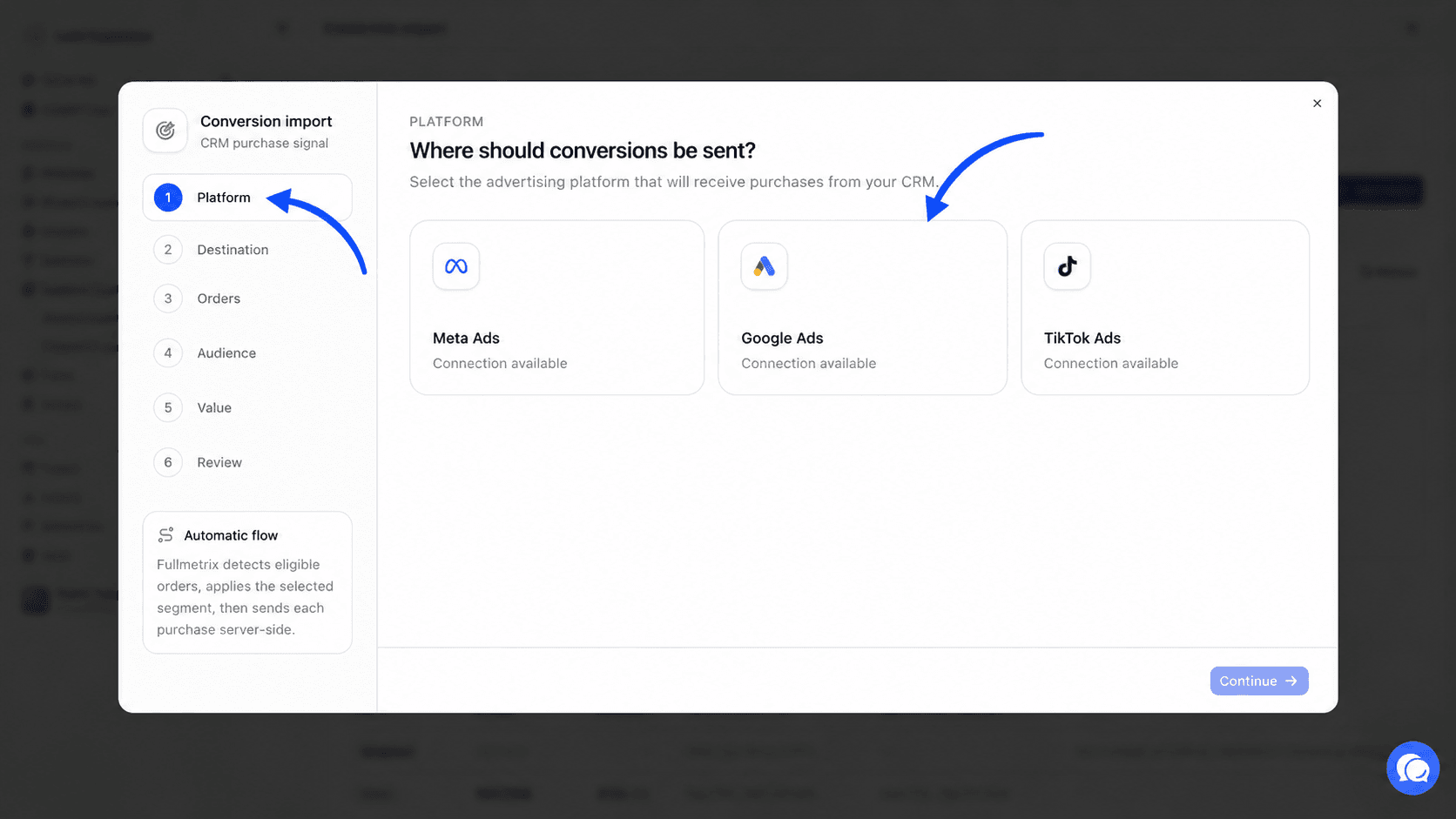
Choose the platform
The Platform step asks Where should conversions be sent?. It shows a card for Meta Ads, Google Ads and TikTok Ads. A card marked Connection available can be selected. A greyed-out card marked Platform not connected can't.
Click the platform you want, then Continue. One import covers one platform. To send to Meta and Google, create two imports.
Set the destination
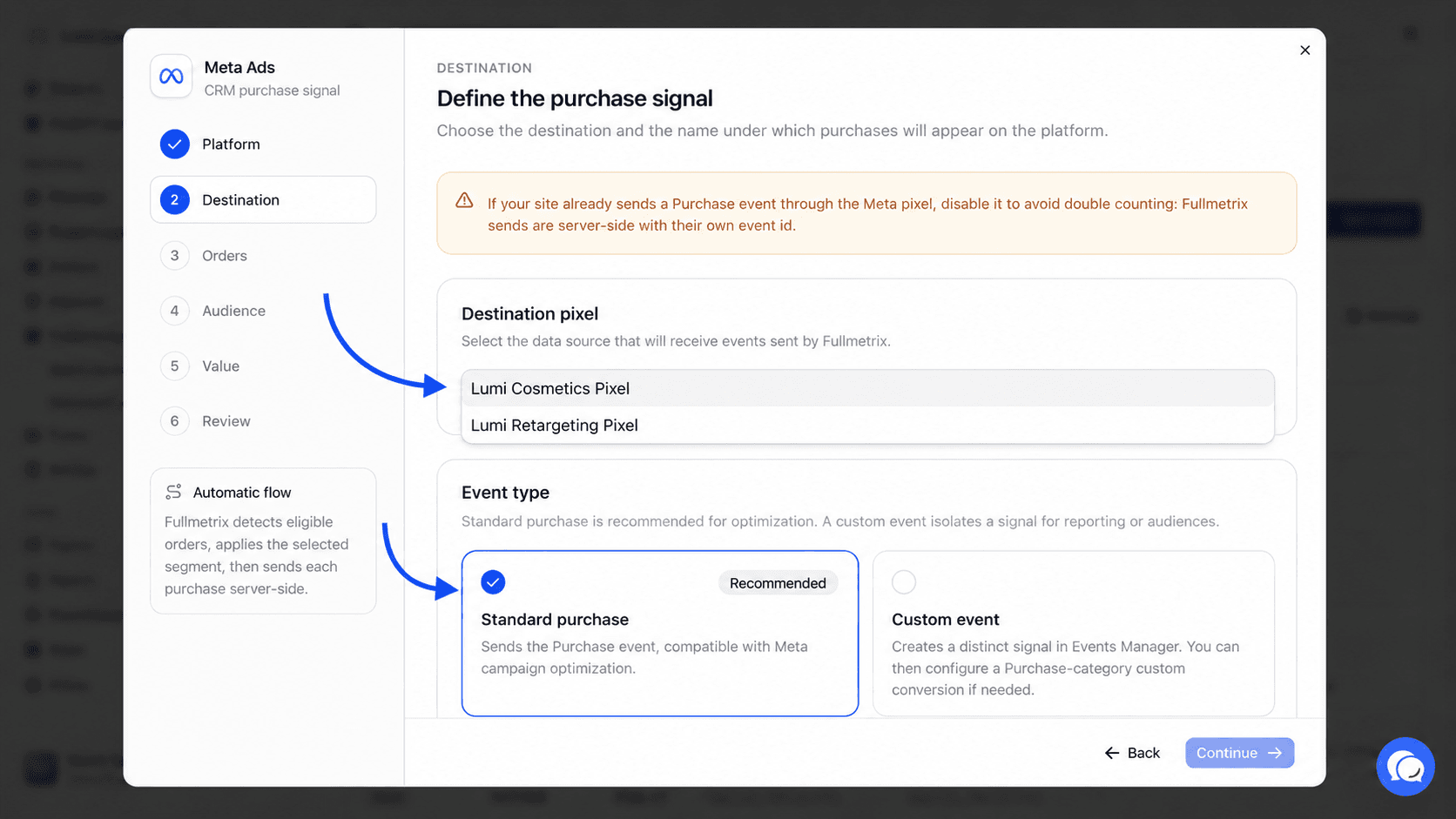
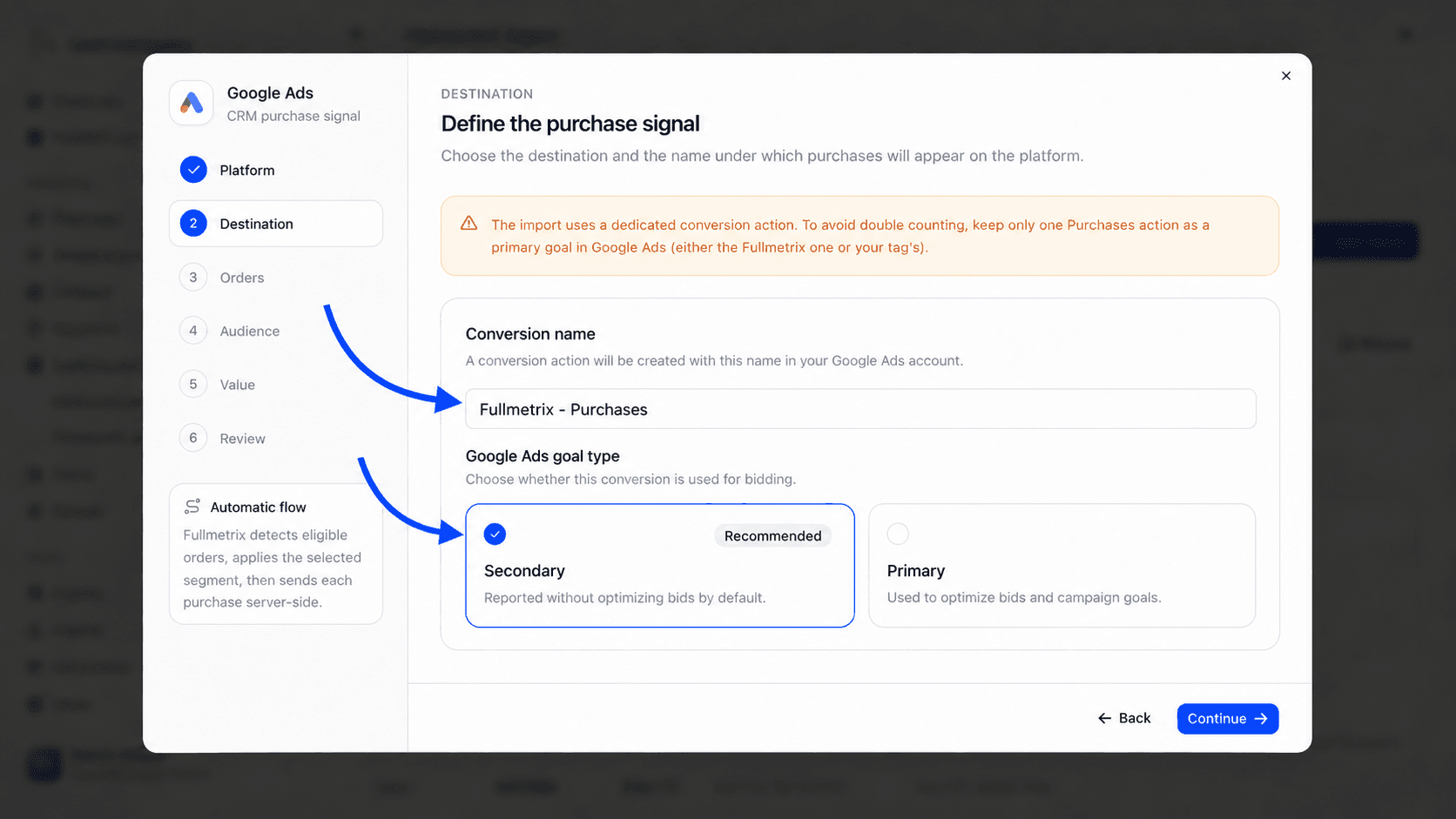
The Destination step opens with a warning about double counting. Read it. The double counting section further down this page explains it in detail.
If several accounts on the same platform are connected, pick the one that receives conversions in Meta Ads account, Google Ads account or TikTok Ads account.
For Meta Ads and TikTok Ads, choose the Destination pixel from the account's pixels. If the list is empty, the message No pixel found on this ad account appears. Create a pixel in the platform's events manager, then reopen the window. Next, choose the Event type.
- Standard purchase, marked Recommended, sends the Purchase event. The platform uses it to optimize your campaigns.
- Custom event creates a separate signal, useful for a dedicated report or audience. Give it a Technical event name that starts with a letter and only contains letters, numbers, hyphens or underscores, 50 characters at most. The suggested name is
FullmetrixPurchase. TikTok doesn't use a custom event to optimize campaigns.
For Google Ads, Fullmetrix creates a conversion action in your account. Type its Conversion name, Fullmetrix - Commandes by default, 80 characters at most. Then choose the Google Ads goal type.
- Secondary, marked Recommended, reports conversions without changing your bidding.
- Primary makes these conversions drive your campaigns' bidding and goals.
Choose which orders are sent
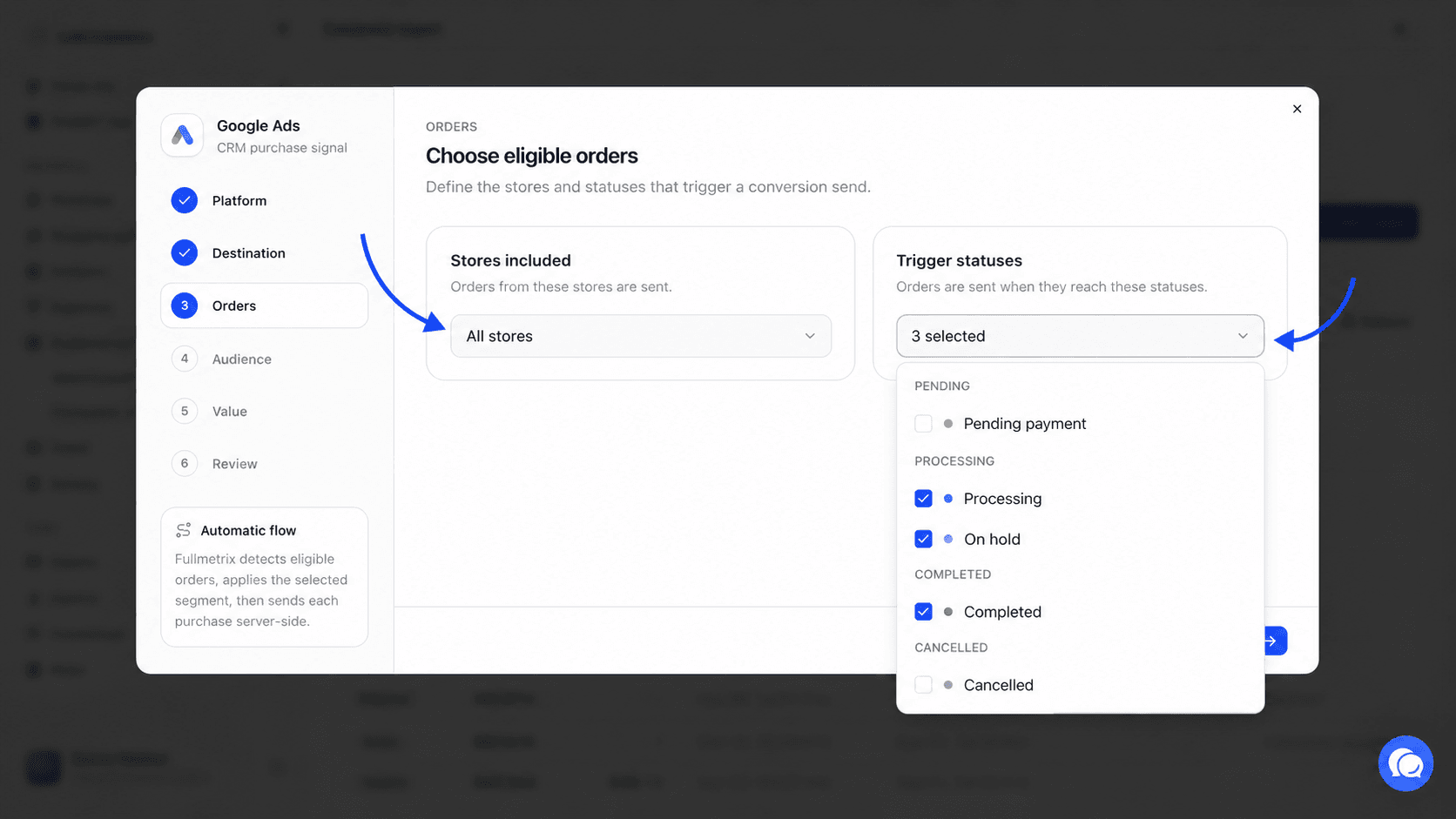
The Orders step has two settings.
Stores included is set to All stores by default. If you have several stores, you can tick only some of them. A store already covered by another import on the same platform is marked already covered and can't be picked, so the same order is never sent twice.
Trigger statuses lists your order statuses, grouped into Completed, Processing, Pending, Cancelled, Refunded, Failed and Drafts. An order is sent as soon as it reaches one of the ticked statuses. Statuses in the Completed and Processing groups are ticked to start with. You need at least one status to continue.
If the message No order status detected. Sync a store first. appears, wait for the store's first sync to finish.
Limit sending to a segment
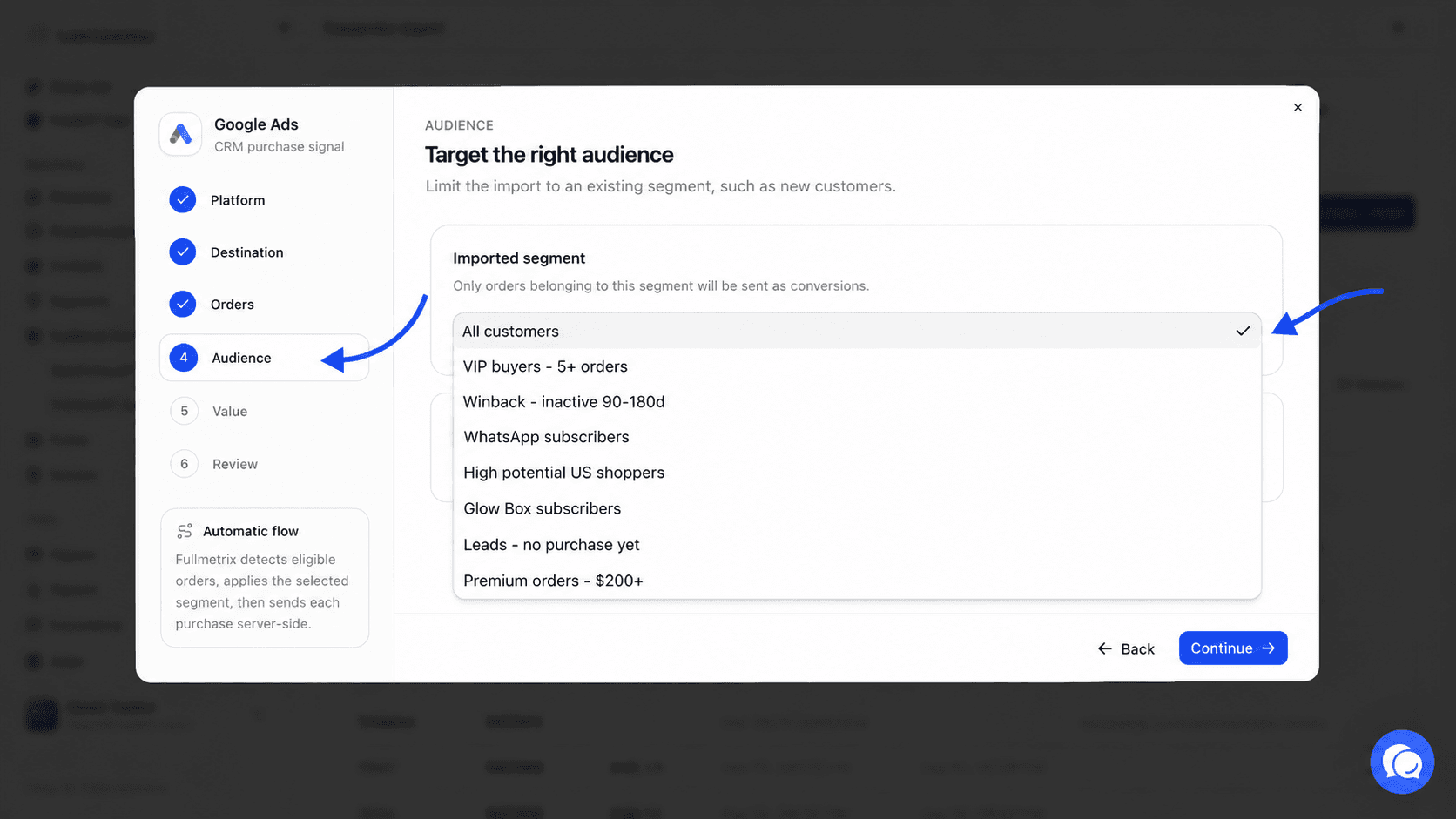
The Audience step offers an Imported segment. By default, All customers sends every eligible order. You can pick an order, contact or customer segment. Only orders that belong to that segment are then sent as conversions. For example, a "first order" segment only sends purchases from new customers.
The segment is recalculated before every send. If you edit it, the import follows the change. An order already sent is never sent again. To create a segment, read Segments.
Set the value sent
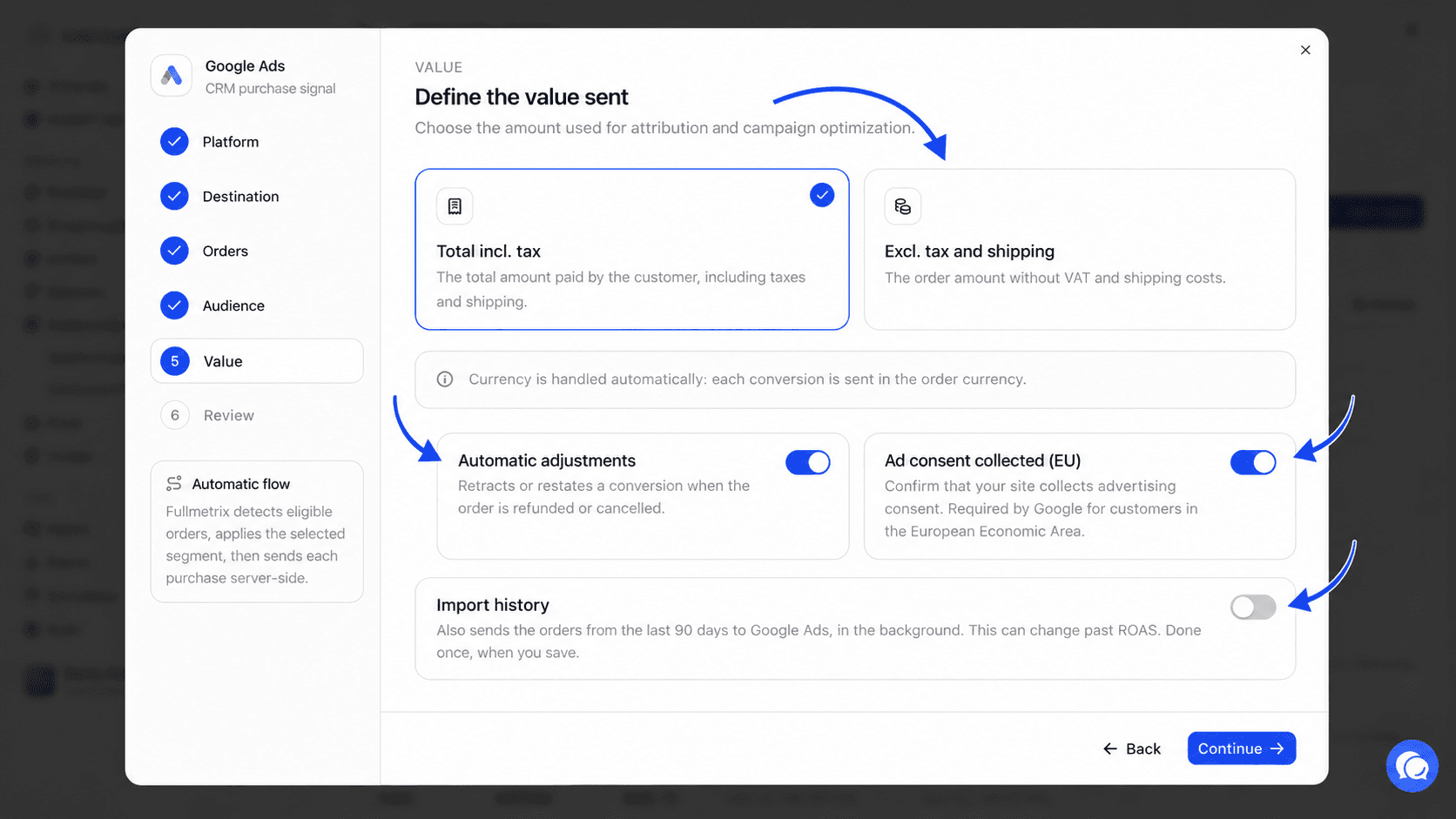
The Value step sets the amount attached to each conversion.
- Total incl. tax sends the amount the customer paid, taxes and shipping included.
- Excl. tax and shipping sends the order amount without VAT or shipping costs.
Each conversion is sent in the order's currency, so there's nothing to set.
For Google Ads, three switches are added.
- Automatic adjustments, on by default. When a sent order is cancelled, fails or is refunded, Fullmetrix retracts the conversion from Google Ads. If it's only partly refunded, Fullmetrix restates its value.
- Ad consent collected (EU), on by default. It confirms to Google that your site collects advertising consent, which Google requires for customers in the European Economic Area. Only leave it on if that's true.
- Import history. It also sends the orders from the last 90 days to Google Ads, in the background, once, when you save. This can change the ROAS of past campaigns. It's only available when consent is on. Once the history is imported, the switch stays on and greyed out.
Review and activate
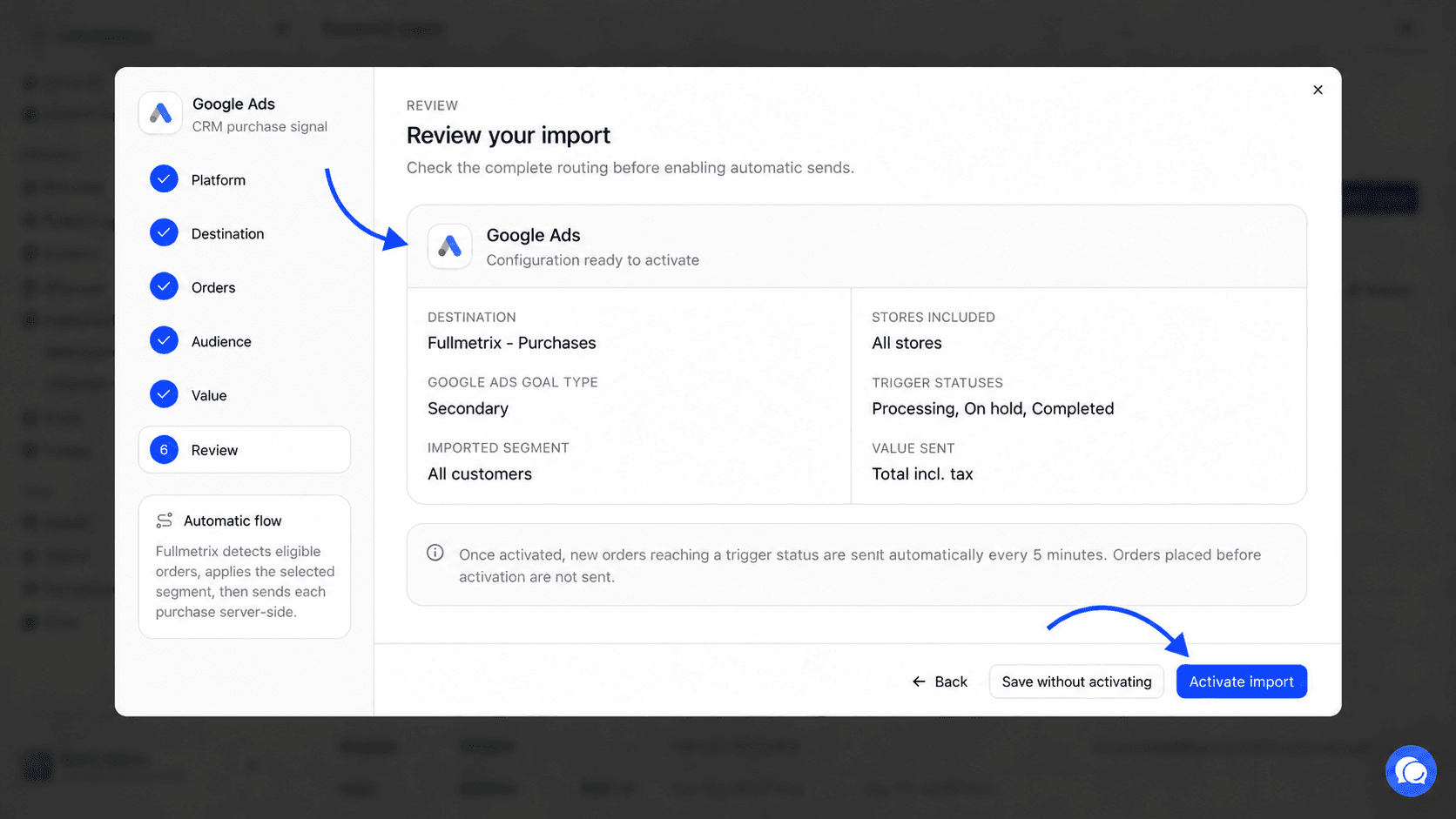
The Review step shows Configuration ready to activate and lists the account, destination, goal or event type, segment, stores, statuses and value.
Two buttons finish the setup.
- Activate import saves and starts sending.
- Save without activating keeps the configuration without sending anything. You can activate it later from the table.
Once the import is active, new orders reaching a trigger status are sent every 5 minutes. Orders placed before activation aren't sent, except with Import history on Google Ads.
Avoid counting the same purchase twice
If your site already sends purchases through the platform's pixel, the platform may count some orders twice. The warning on the Destination step reminds you of this.
On Meta Ads and TikTok Ads, if your pixel already sends a purchase event, turn that event off in the pixel. Fullmetrix sends carry their own event id and aren't matched with the pixel's.
On Google Ads, the import uses a dedicated conversion action. Keep only one purchase action as a primary goal in Google Ads, either the Fullmetrix one or your tag's. That's why Secondary is recommended at first. Switch to Primary when you decide to let Google bid on the Fullmetrix action.
Read the imports page
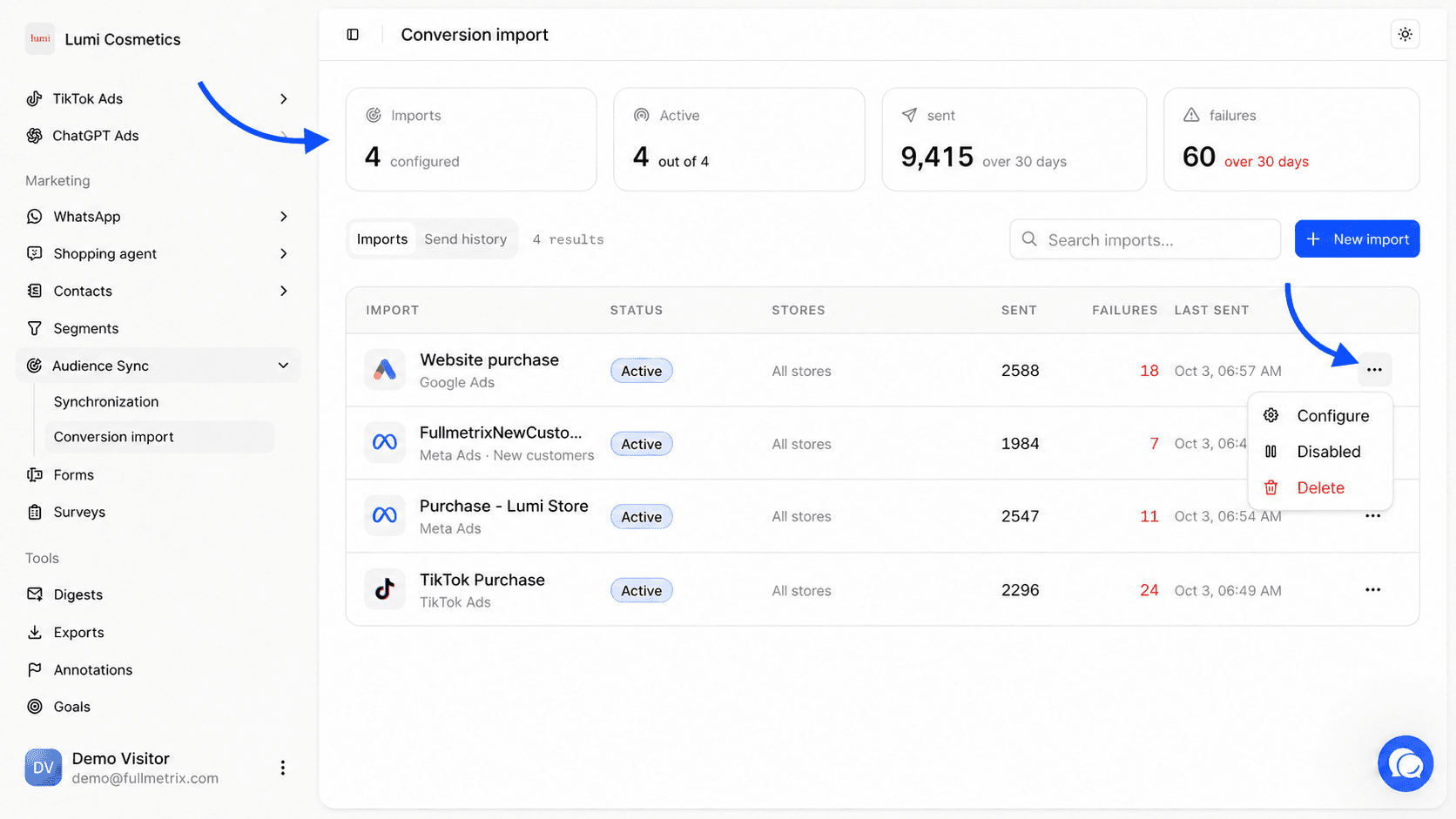
At the top of the page, four cards summarize your imports.
| Card | What it counts |
|---|---|
| Imports | The number of configured imports |
| Active | The number of active imports whose ad platform is still connected, out of the total |
| sent | Conversions sent over the last 30 days, across all imports |
| failures | Failed sends over the last 30 days. The number turns red when it isn't zero. |
Below the cards, the Imports tab lists your imports. The Search imports… field filters by name, platform, account, segment or store.
| Column | What it shows |
|---|---|
| Import | The name of the custom event, pixel or conversion action. Below it, the platform, the account when there are several, and the segment. If there's an error, the message replaces that line, in red. |
| Status | Active, Disabled, or Platform not connected if the platform or account was disconnected |
| Stores | All stores, the store address, or the number of stores |
| sent | Conversions sent over 30 days |
| failures | Failures over 30 days |
| Last sent | The date and time of the last send |
The three-dot menu at the end of the row offers Configure to reopen the window, Disabled to pause the import or Enable to restart it, and Delete.
Track every send
The Send history tab shows the last 30 conversion events. It stays greyed out until an import has been activated. If you have several imports, click one of their names above the table to see its history. The Refresh button reloads the list.
| Column | What it shows |
|---|---|
| Status | Sent, Failed, Skipped, Pending or Retracted |
| Order | The order number |
| Store | The source store, only if you have several |
| Value | The amount sent |
| Order date | The order date |
| Sent at | When it was sent to the platform |
| Detail | Why a send failed or was skipped, or the number of attempts |
A Retracted order was withdrawn from Google Ads after a status change, with the detail Conversion retracted after the order status changed. A Failed send is retried automatically several times before it's given up.
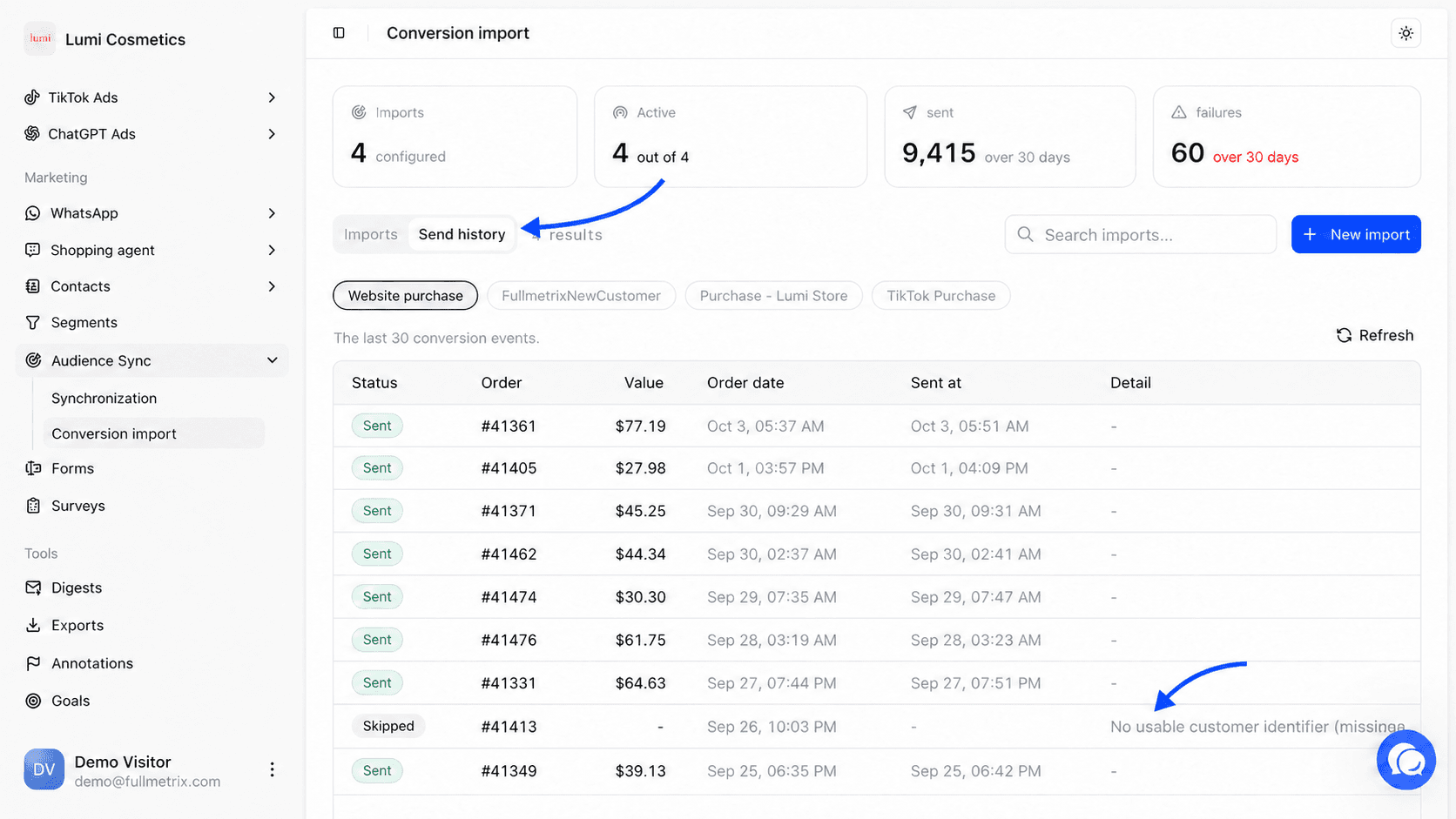
Why an order is skipped
| Detail shown | What it means |
|---|---|
| No usable customer identifier (missing email or phone) | The order has neither an email nor a phone. The platform couldn't link it to a person. |
| Order not found in synced data | The order disappeared from the store data before sending, for example because it was deleted. |
| Order left the trigger statuses before sending | The order changed status between detection and sending, and the new status isn't ticked. |
What Fullmetrix sends
Each conversion contains the purchase date, the value, the currency and an id unique to the order. So the platform can recognize the buyer, Fullmetrix adds their contact details, irreversibly encrypted before sending.
| Platform | Contact details sent |
|---|---|
| Meta Ads | Email, phone, first name, last name and country |
| Google Ads | Email and phone |
| TikTok Ads | Email and phone |
Edit, pause or delete an import
To edit an import, open its row's three-dot menu and choose Configure. The window opens straight on Destination, because the platform doesn't change. The last button becomes Save if the import is already active. On Google Ads, changing the Conversion name renames the action in your Google Ads account.
To pause, choose Disabled in the menu. To resume, choose Enable. Both are greyed out if the platform is no longer connected.
To delete, choose Delete. The Delete this import? window explains that its send history will be deleted and that conversions already sent to the platforms are not retracted.
Common error messages
| Message | What to do |
|---|---|
| Connect Meta Ads in the integrations first (or Google Ads, TikTok Ads) | Connect the platform in Settings, then Integrations. |
| These stores are already covered by another import on this platform | Remove those stores, or edit the other import. |
| The ad account linked to this import is no longer connected. Reconfigure the import. | Reconnect the account, or open Configure and pick another account. |
| The segment linked to this import no longer exists | Open Configure and pick another segment, or All customers. |
| Enable enhanced conversions for leads in Google Ads first (Goals, then Conversion settings), then try again. | Follow that path in Google Ads, then save the import again. |
| Reconnect Google Ads to authorize conversion imports through Data Manager. | Reconnect Google Ads in integrations and accept every permission requested. |
| The TikTok app does not have the Pixel permission. Reconnect TikTok Ads in the integrations once permissions are updated. | Reconnect TikTok Ads and accept the pixel permission. |
| The configuration is saved, but the history import could not start. Please try again. | Reopen the import, turn Import history back on and save. |
Frequently asked questions
Learn more
- Synchronization sends lists of people to the same ad platforms.
- Statuses explains how Fullmetrix sorts your order statuses into the groups used by trigger statuses.
- Segments shows how to create the segment that filters the orders sent.