Surveys
Ask your buyers a question on the order confirmation page, then read their answers by question, by period and by customer type.
A Fullmetrix survey appears on your store, usually on the confirmation page right after checkout. It asks one or more multiple-choice questions or a 0 to 10 rating. The most popular question is "How did you hear about us?", which reveals channels your tracking tools cannot see, such as word of mouth or an influencer recommendation.
Each answer is linked to the order that triggered it. You can therefore compare answers from new customers with answers from returning customers.
To open the page, click Surveys in the Marketing group of the sidebar.
Availability by platform
Surveys work with WooCommerce, PrestaShop, Magento and Sylius. The Surveys entry does not appear when all your active stores run on Shopify, because the survey cannot show on the Shopify order confirmation page. If you have a Shopify store and a store on another platform, the page stays available.
Before you start
The survey reaches your store through the Fullmetrix tracking script. Check that it is active in Settings, then Tracking. The Site tracking page explains how to install it.
Reading the survey list
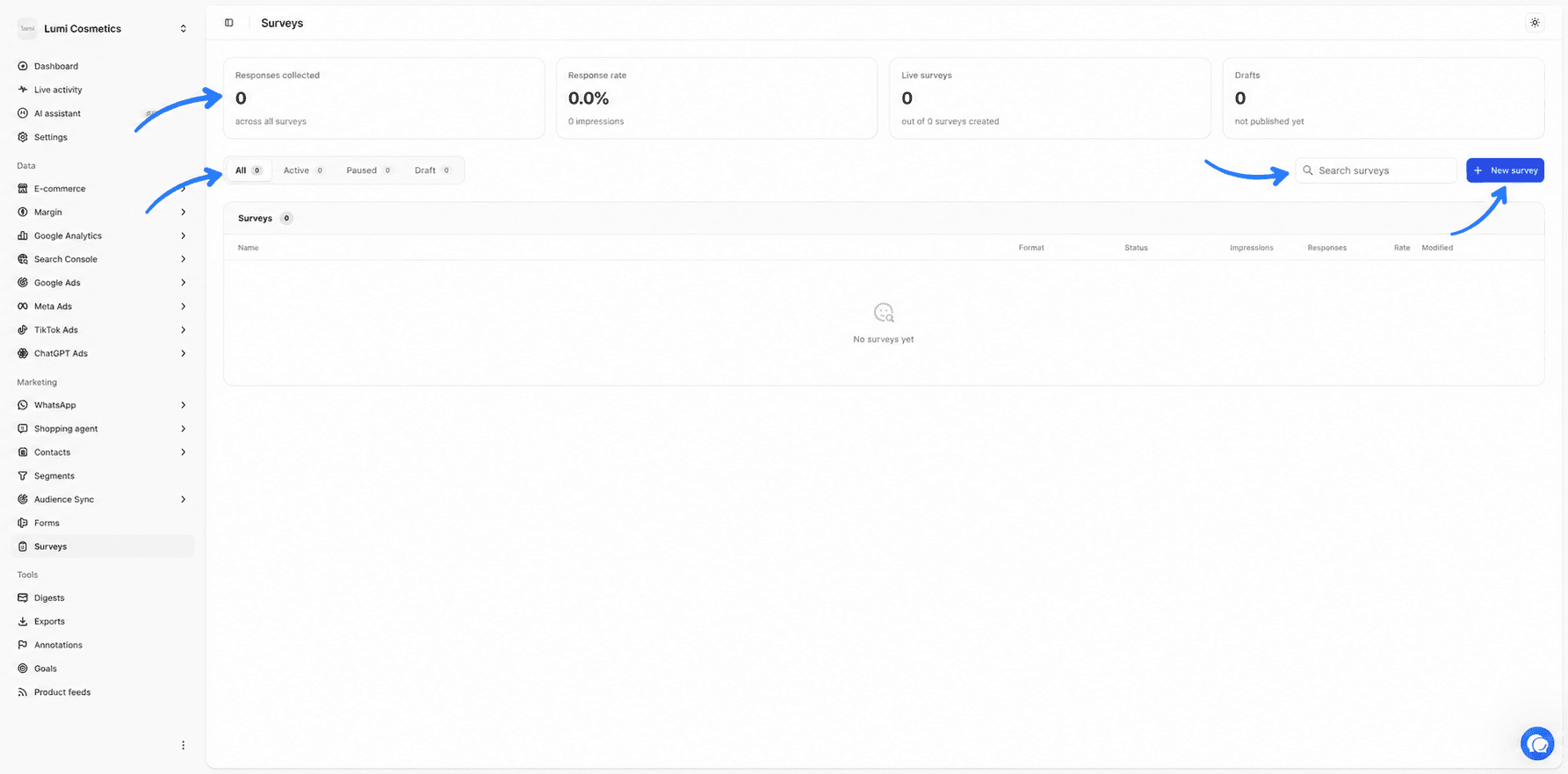
Four cards sum up the activity of all your surveys.
| Card | What it counts |
|---|---|
| Responses collected | The total number of answers across all surveys. |
| Response rate | Answers divided by impressions. The number of impressions shows below the figure. |
| Live surveys | The number of active surveys, out of all surveys created. |
| Drafts | The number of surveys not yet published. |
The All, Active, Paused and Draft filters narrow the list to one status. The Search surveys field searches by name. With no survey yet, the list shows No surveys yet.
| Column | Content |
|---|---|
| Name | The survey name, only visible inside Fullmetrix. |
| Format | Popup for a popup, Flyout for a flyout, Embedded for a survey embedded in the page. |
| Status | Draft, Active or Paused. |
| Impressions | How many times the survey was shown. |
| Responses | The number of answers received. |
| Rate | Answers divided by impressions. |
| Modified | The last change, as relative time. |
Click a row to open the survey results. The three-dot button opens a menu with Edit, Activate or Pause, Duplicate, and Delete.
Deleting is immediate
Delete erases the survey and its answers without asking for confirmation. To stop a survey and keep its results, choose Pause.
Creating a survey
Start the creation
Click New survey. Fullmetrix creates a survey named "New survey" and opens the builder right away.
Start from the suggested template
The survey already contains a "One last question" heading, the single-choice question "How did you hear about us?" with the answers Instagram, TikTok, Google search, Word of mouth and Other, a Send my answer button and a thank-you screen. It shows as a 420-pixel-wide Flyout, at the bottom right, on the order confirmation page.
Adapt the questions and answers
Click the question to edit its label and answers in the left panel. Add an answer adds a line. The icon next to each answer removes it. Rename the survey at the top left, for example "Acquisition source".
Save and activate
Click Save, then turn the switch at the top to Active. The survey shows on the confirmation page of the next orders.
Question types
The builder is the same as for forms. For a survey, the Fields family of the palette offers three question types on top of the usual fields.
| Type | Use | What you set |
|---|---|---|
| Single choice | One answer only, for example the acquisition source. | The label, the list of answers and whether it is Required. |
| Multiple choice | Several answers allowed, for example "What convinced you?". | The label, the list of answers and whether it is Required. |
| Scale 0 to 10 | A rating from 0 to 10, suited to NPS-style satisfaction. | The label, the Label for 0 and the Label for 10, for example "Not at all" and "Absolutely". |
You can put several questions on the same step or spread them over several steps with the Add button below the preview. Keep the survey short. Every extra question lowers the completion rate, which you then read in the results.
The Style tab sets the look just like for a form. The Display type can be Popup, Flyout or Embed. For an Embed survey, the code to paste into your theme shows in the Surface group of this tab.
Choosing where and to whom the survey shows
In the Delivery tab, the Targeting group has a Pages setting specific to surveys.
Automatic order confirmation page detection is the default. The survey shows on the order confirmation page, only once per order. Fullmetrix recognizes this page on WooCommerce, PrestaShop, Magento and Sylius without you entering its address.
The Show to menu picks which buyers see it.
- All buyers shows the survey after every order.
- New customers only shows it after a first order.
- Returning customers only shows it to customers who had ordered before.
For example, ask "How did you hear about us?" only to New customers, since a returning customer already knows you.
A survey created before these two modes existed may show a third choice, Addresses (previous behavior). The survey then shows on the addresses entered, or on every page if there is no rule. Switch it to one of the other two modes for more precise behavior.
The Triggers, Frequency, Visibility, Scheduling, Audience management and Sites groups work as they do for a form. The Forms page covers them in detail.
Reading a survey's results
Click a survey in the list to open its results. The Edit button at the top right reopens the builder. The arrow left of the name returns to the list.
Filtering by period and customer type
Two pickers at the top of the page filter the results.
- The buyer type menu offers All buyers, New customers and Returning customers. With either of the last two, only answers linked to an order count.
- The date range picker limits answers to a date range. By default it covers the last 30 days. The range cannot exceed one year. The picker is covered in Date range and comparison.
The four cards
| Card | What it measures |
|---|---|
| Responses collected | The number of completed surveys for the chosen period and customer type. |
| Response rate | Answers divided by impressions. The number of impressions shows below the figure. |
| Questions | The number of questions in the survey. |
| Completion rate | Answers to the last question divided by answers to the first, as a percentage. A low rate means buyers drop out along the way. |
Displays do not follow the period
The number of impressions counts every impression since the survey was created, while answers follow the chosen period. On a short period, the Response rate therefore looks lower than it really is. For an accurate reading, pick a period that covers the survey's whole life.
The response funnel
The Response funnel block shows how many people pass each stage, from Impressions to the first question Q1, then Q2 and the next ones. A sharp drop between two questions points to the one that makes people quit.
Each question in detail
Below the funnel, a block details one question at a time. The Q1, Q2 and following buttons, at the top right of the block, switch questions. The question type is shown next to them.
The block shows a donut chart of the answers, then each answer with its count and share, from most to least frequent. A summary sentence sums up the result, for example "Instagram leads with 42% of responses."
The Response trend chart shows answers day by day over the period. The five most frequent answers each get their own line. The others are grouped under Other responses.
Until the first answer comes in, the block shows No responses yet.
Useful survey examples
Acquisition source of new customers. A Single choice question "How did you hear about us?" with your real channels, using Automatic order confirmation page detection and Show to set to New customers. Then compare each answer's share with your spend per ad platform.
Post-purchase satisfaction. A Scale 0 to 10 "Would you recommend our brand?", shown to All buyers. Then filter the results on Returning customers to see whether the score rises with loyalty.
Purchase driver. A Multiple choice question "What convinced you?" with answers such as price, delivery, reviews or a promotion.